

You've checked Shopify Analytics, your product feed is approved, and nothing looks obviously broken. Then organic traffic slips, product impressions disappear, or Search Console fills with URLs marked “Discovered, currently not indexed.” Submitting the sitemap again doesn't change anything. That's the point where many store owners start editing titles, installing schema apps, or changing theme code without first identifying the indexing problem.
Google Search Console for Shopify is more than a verification task. It's the clearest way to see how Google discovers, crawls, indexes, and displays your store's pages. Used properly, it connects Shopify's URL architecture with real search demand, including queries, clicks, impressions, click-through rate, and average position. The setup is straightforward. The diagnosis requires more care, especially in 2026, when duplicate paths, thin catalog URLs, and slow indexing can undermine a technically polished storefront.
Why Google Search Console Matters for Your Shopify Store
Shopify Analytics tells you what visitors do after they arrive. Search Console answers the questions that come before the visit. Are your collection pages appearing for relevant searches? Are product URLs indexed? Which queries generate impressions without clicks? Did a theme change introduce a canonical or noindex problem?
Google Search Console began as Google Webmaster Tools in 2006 and became Google Search Console on May 20, 2015, after nearly ten years of development. Google's announcement of the Google Search Console rebrand reflects a broader change in the product's role. It moved beyond webmaster diagnostics toward a search performance system useful to merchants, agencies, and growth teams.
For a Shopify store, that distinction matters. A product can exist in Shopify Admin, appear in a feed, and load correctly for shoppers while still failing to earn organic visibility. Search Console lets you separate those situations instead of treating every traffic decline as a content or conversion problem.
What Search Console can reveal
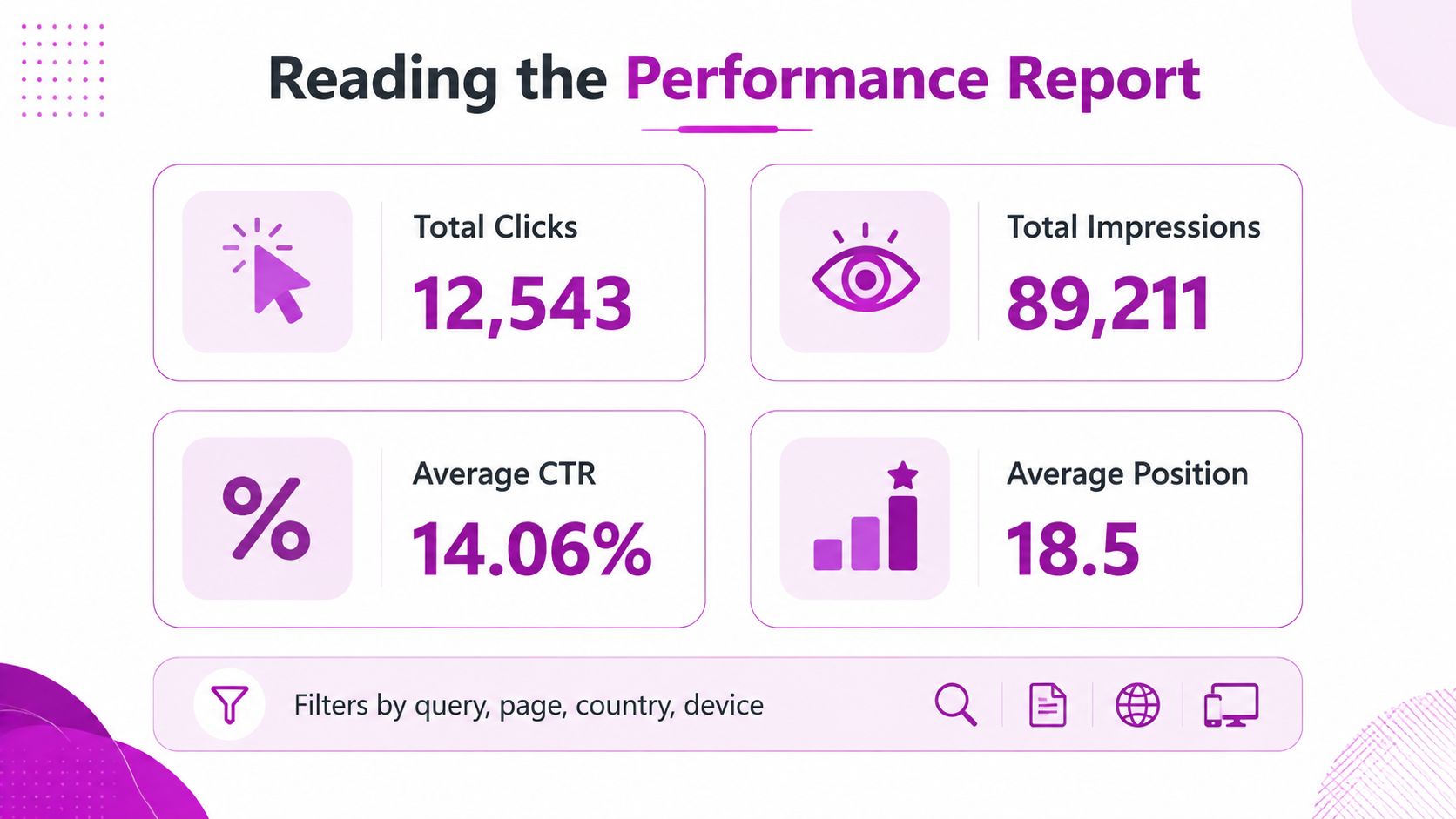
The Performance report provides four core signals:
- Total clicks, which show visits from Google search.
- Total impressions, which show how often your pages appeared.
- Average CTR, which helps assess how often impressions became clicks.
- Average position, which gives directional context for visibility.
Those metrics become useful when you segment them by query, page, country, and device. A product page with impressions but weak clicks may need a clearer title or a better search-result description. A collection page with no impressions may have an indexing or canonical issue instead. A blog post can attract search demand while contributing little commercial value, which is a different strategic problem.
Search Console won't replace analytics, product merchandising, or technical crawling software. It also won't guarantee indexing just because you submit a sitemap. Its value is that it exposes Google's view of your storefront, which is the view that determines organic eligibility.
Practical rule: Diagnose indexability and search demand before rewriting large parts of your Shopify store.
For broader architecture, content, and technical guidance, use this complete Shopify SEO guide for agencies alongside Search Console data. The combination helps teams connect individual errors with the wider store structure.
Verifying Your Shopify Store and Submitting Sitemaps
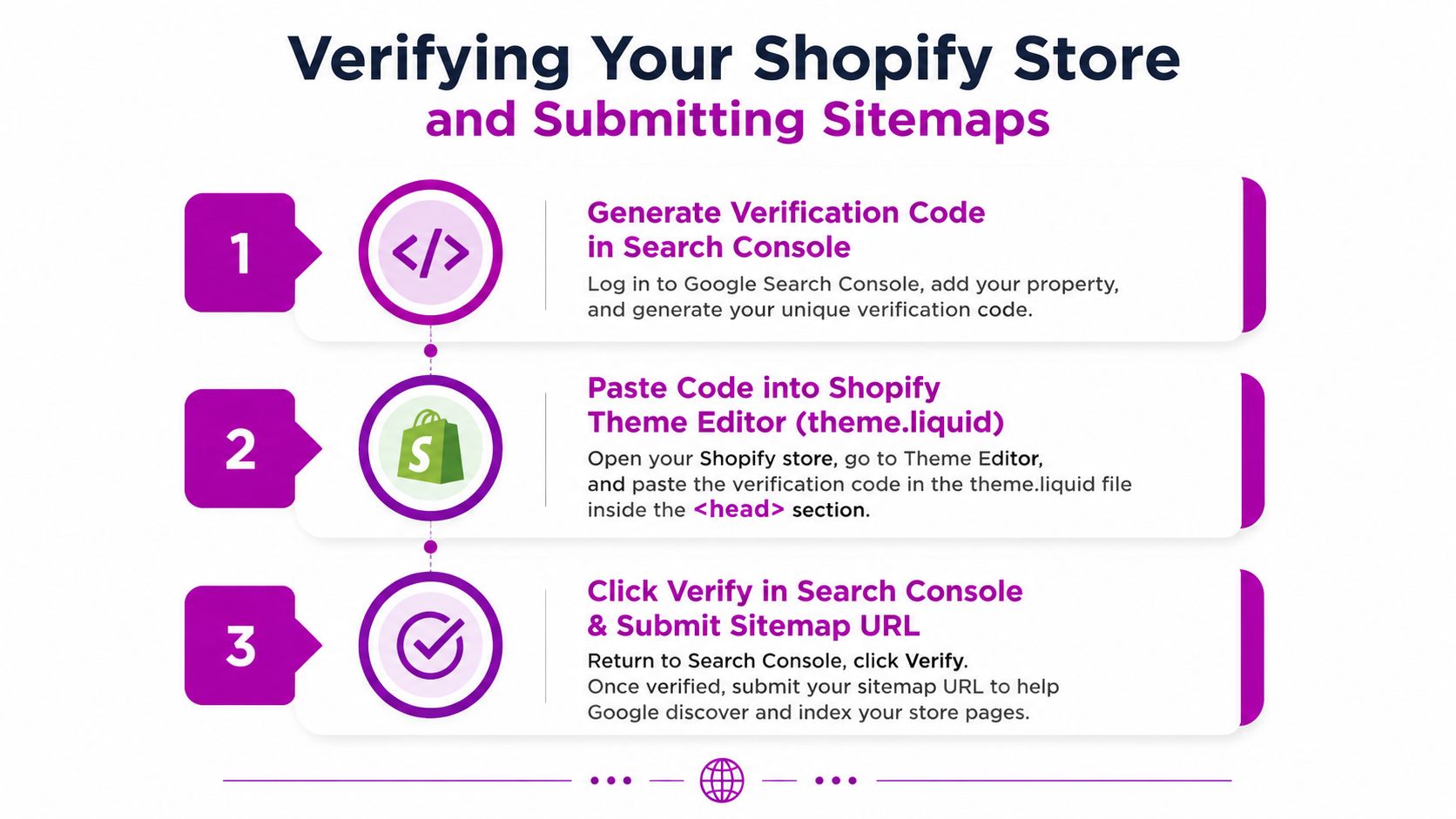
Start with a Domain property in Google Search Console. Shopify stores can serve through different host and protocol variations, and a URL-prefix property may represent only one version. Domain verification gives you a more complete view across the root domain and its associated variants. Google's Search documentation explains the property and inspection tools that support this process.
Choose the right property
In Search Console, select Add property, choose Domain, and enter the root domain without a protocol or path. Search Console will provide a verification record for your domain provider. Add that record through the provider that manages your domain, then return to Search Console and select Verify.
If the store is still being developed on a myshopify.com address, decide which domain will represent the production store before building reporting around it. A temporary property can help with testing, but it shouldn't replace the final domain property once the custom domain is active.
URL-prefix verification can still be useful for a specific protocol or subdomain, but it's easy to create fragmented reporting when teams verify only one storefront variation. That's a common reason Shopify operators miss URLs that Google sees elsewhere.
Submit Shopify's sitemap
Shopify generates an XML sitemap at /sitemap.xml. You don't usually create this file manually. In Search Console, open Sitemaps, enter sitemap.xml, and submit it.
The sitemap is a discovery aid, not an indexing command. After submission, review the Sitemaps report for processing status and investigate any reported issues. A submitted URL can still remain excluded because of duplication, canonical selection, noindex directives, weak content, or crawl prioritization.
Use URL Inspection for priority product, collection, and editorial pages. Inspect the live URL when necessary, then check whether Google selected the expected canonical and whether the page is available for indexing. Inspecting a small set of commercially important URLs is more useful than repeatedly requesting indexing for an entire catalog.
For a Shopify-specific explanation of the file and submission workflow, consult this Shopify sitemap guide. Treat it as an implementation reference, then use Search Console reports to verify what Google processed.
Reading the Performance Report Like a Shopify SEO Pro
Search Console's Performance report becomes useful when you stop reading its metrics as a single store-wide score. A Shopify catalog contains products, collections, blogs, pages, and sometimes market-specific versions. Each page type answers different search intents, so the same metric can mean different things depending on the URL.
Read the four metrics in context
Clicks show which pages earn visits from Google. Filter by page and compare product URLs with collection URLs. A collection may capture broader discovery demand, while a product page may attract more specific queries. The click count alone doesn't tell you whether the page is commercially valuable, so compare it with Shopify conversion and revenue data separately.
Impressions show visibility, not success. A product with impressions but few clicks may be relevant to a query while presenting a weak title, unclear product naming, or an unappealing result snippet. Before changing the page, inspect the actual queries and check whether Google is matching the page to the intended audience.
Average CTR is a diagnostic signal, not a universal target. Search intent, brand familiarity, position, rich-result treatment, and competition all influence it. Compare similar page groups rather than judging one product against the entire domain.
Average position is directional. A page can rank for many queries at different positions, so the average may conceal strong performance for one term and weak visibility for another.
A useful interpretation: High impressions plus low clicks usually calls for a snippet and intent review. Low impressions across important URLs calls for an indexing and relevance review first.
Use filters to find commercial opportunities
Apply the Page filter to isolate product or collection templates. Then add Query data to identify terms that Google already associates with the page. If a collection appears for a product-specific query, the page may be competing with a product URL. If two collections attract the same query set, review their purpose, internal links, and canonical signals before creating more content.
The historical view is also valuable. Search Console added a 16-month historical data window in September 2018, according to Shopify's Google Search Console overview. That window lets teams compare seasonal demand, evaluate page changes, and identify recurring visibility patterns instead of reacting to isolated weeks.
Google later added Shopping-tab listings reporting in November 2022 and Merchant Center integrated reports in September 2023, as the same Shopify resource documents. Use those reports to understand product-focused visibility, but don't confuse them with standard organic indexing.
Solving the Shopify Indexing Crisis of 2026
Submitting sitemap.xml doesn't force Google to index every Shopify URL. It tells Google which URLs you consider important. Google still evaluates whether each page is accessible, canonical, sufficiently useful, and worth including in its index.
The “Discovered, currently not indexed” status is especially frustrating because it indicates that Google knows about a URL but hasn't added it to the index. On a Shopify store, that can happen when the catalog contains many similar product pages, repeated collection paths, weak or incomplete descriptions, or a large number of URLs that compete for crawl attention.
Start with the architecture, not the copy
Shopify can expose the same product through more than one navigational path, including collection-based URLs and the direct product URL. Filtering, tags, vendor archives, pagination, apps, and market configurations can add further variations. Google has to decide which version represents the primary page, and inconsistent internal linking or canonical signals can make that decision less predictable.
Audit the affected URLs in Search Console and group them by pattern. Don't request indexing one URL at a time until you know whether the issue affects a template or an entire URL family.
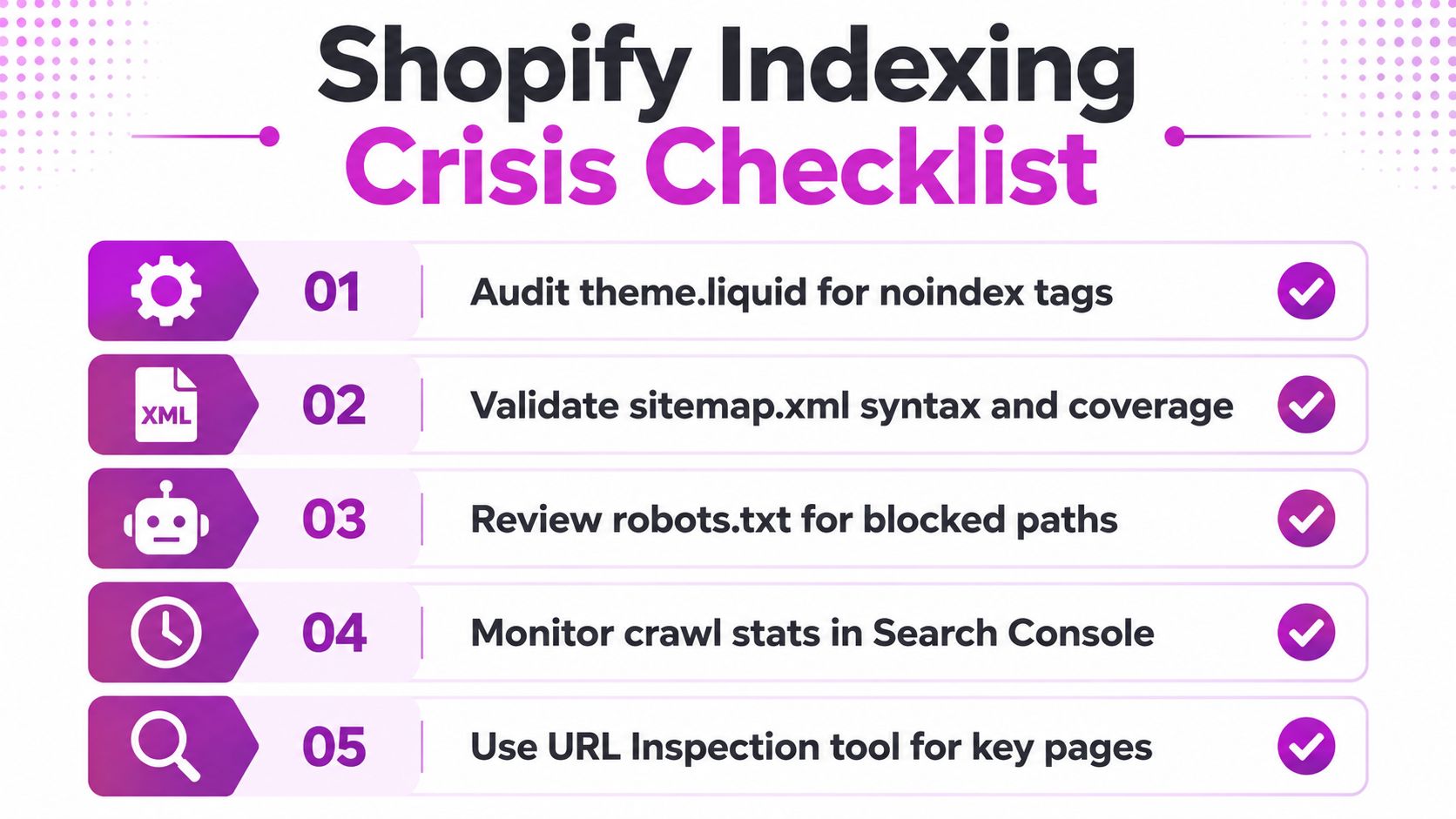
A practical audit should check:
- Theme directives: Review
theme.liquidand relevant templates for accidental noindex tags. - Sitemap processing: Confirm that Shopify's sitemap is readable and that important URLs are represented.
- Robots rules: Check whether robots.txt blocks paths Google needs to discover.
- Crawl signals: Review crawl information and URL Inspection findings for priority pages.
- Canonical selection: Compare your preferred canonical with the canonical Google selected.
Separate technical exclusion from weak page value
A page that loads correctly can still remain unindexed because it offers little distinct value. Near-identical products, discontinued inventory pages, empty collections, and thin filter combinations create a large index footprint without adding useful search results.
Google's removal of FAQ rich results support in June 2026, discussed in this 2026 Shopify indexing analysis, also makes schema-first troubleshooting less useful as a default response. Structured data can clarify eligible content, but it can't compensate for inaccessible, duplicative, or unhelpful pages.
The diagnosis should follow the status: blocked or noindex URLs need technical correction. Discovered but unindexed URLs need architectural, content, and crawl-priority analysis.
Fixing Crawl Errors and Redirect Problems
Crawl reports are most valuable when you turn each exclusion reason into a decision. A deleted product, a changed handle, a blocked resource, and a duplicate canonical shouldn't receive the same fix.
For a deleted product with a relevant replacement, create a permanent redirect in Shopify Admin, Content, Menus, and URL redirects. Map the old path to the closest replacement product or collection. Don't send every retired URL to the homepage. That creates a poor user destination and gives Google a weak relevance signal.
Match the fix to the failure
| Search Console signal | Shopify action |
|---|---|
| A valid replacement exists | Create a permanent URL redirect to the closely related page |
| The page has no replacement | Review whether the old URL should remain unavailable |
| A page is marked noindex | Check theme, template, and app-generated directives |
| A URL is blocked | Review robots.txt and app or theme rules |
| Google chose another canonical | Inspect internal links and canonical implementation |
| A page returns an empty shell | Check for a soft 404 and redirect or improve the destination |
Changed product handles and collection structures deserve special attention during migrations. Build redirect mappings before launching the new structure, then inspect representative old URLs and new targets in Search Console. The Shopify migration guide for 301 redirects is useful when a store is moving between architectures or domains.
Check the pages Google can't reach
Pagination and deep catalog discovery can suffer when navigation depends heavily on scripts, filters, or app-generated links. Make sure important products are reachable through crawlable internal links from collections, menus, related products, or editorial content. A sitemap can identify a URL, but internal links help establish its place in the store's architecture.
Use URL Inspection on a priority page after fixing a redirect, canonical, or robots issue. Confirm the final page loads, the redirect resolves cleanly, and Google's selected canonical matches the intended destination. Also review mobile usability, Core Web Vitals, and structured data reports, but keep them in proportion. A schema warning won't explain a page that Google can't crawl or index.
Integrating Search Console with Analytics and Merchant Center
Search Console, Google Analytics, Merchant Center, and Shopify Admin answer different questions. Treating them as interchangeable is one of the fastest ways to misread a product visibility problem.
| System | What it helps you evaluate |
|---|---|
| Search Console | Organic queries, impressions, clicks, CTR, position, indexing, and crawl signals |
| Google Analytics | On-site sessions, engagement, conversions, and behavior after the visit |
| Merchant Center | Product feed processing, eligibility, and shopping-related product information |
| Shopify Admin | Orders, products, inventory, customers, and store operations |
A product can be approved in Merchant Center while its organic page has weak visibility or isn't indexed in Search Console. Feed health supports shopping surfaces, but it doesn't prove that Google selected the product URL as an organic result. When impressions collapse despite an approved feed, compare the affected landing pages in Search Console and inspect their indexing, canonical, and content signals.
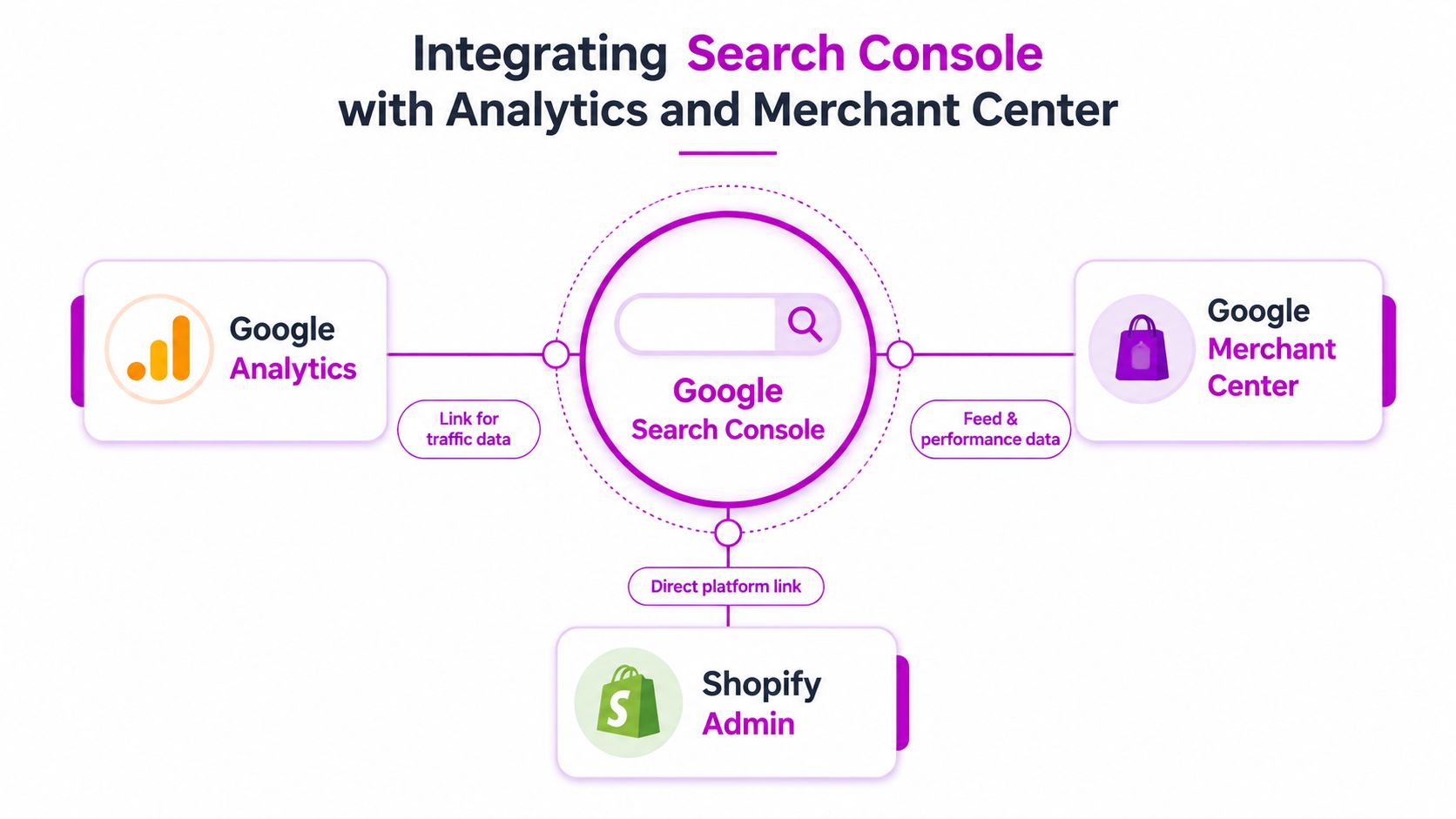
Build a connected reporting workflow
Link Search Console with Google Analytics so organic landing-page data can sit alongside behavior and conversion information. Search Console shows the search context. Analytics shows what visitors did next. Shopify supplies the commercial outcome.
Use a report that begins with query and landing page, then adds engagement and conversion fields where the platforms support them. For CRO experiments, compare search impressions and clicks with on-site outcomes. A title change that improves clicks but attracts less qualified visitors may not help the business. A product-page improvement that lifts engagement while organic visibility stays stable may still be commercially valuable.
Merchant Center should inform, not replace, organic analysis. Product names, availability, images, and feed attributes can reveal merchandising gaps, while Search Console queries can show how customers describe the category in real search language. Use both inputs to improve product content without assuming that feed changes will solve indexing.
For a broader measurement framework, the Shopify Analytics dashboard guide can help organize store, traffic, and conversion reporting around decisions rather than isolated platform metrics.
Advanced Strategies for Shopify Plus and Multi-Store Setups
Multi-store operations need a property structure that reflects how the business publishes content. Create a clear naming convention for each domain, subdomain, country site, and staging environment. Give agencies and internal teams the least access they need, then document which property owns which storefront and market.
Shopify Markets can introduce regional and language variations that require careful review. Confirm that each market version has a consistent preferred URL, accurate language and regional signals, and internal links that point users and crawlers to the right variant. Hreflang should describe equivalent pages, not unrelated products or collections. Inspect representative pages from every important market rather than assuming one successful market proves the others work.
Monitor market variants separately
A market rollout can create indexing symptoms that look like a general organic decline. Segment Search Console by country, page, and query, then compare the affected URL patterns with the store's intended regional structure. Watch for duplicated titles, conflicting canonicals, accidental noindex directives, and redirects that send regional visitors to a default market.
For Shopify Plus teams, staged theme releases and app changes deserve a controlled validation process. Inspect priority templates before and after deployment, compare indexing reports, and keep a record of canonical and robots changes. A small template mistake can affect a large page group, so early detection matters more than repeated manual URL submissions.
Scale the operating system
Larger teams can connect Search Console data to reporting dashboards through API workflows, then create alerts for unusual changes in indexed-page status, clicks, impressions, or affected URL groups. Automated monitoring doesn't replace investigation. It shortens the time between a technical release and the moment someone notices a search problem.
Agencies managing several Shopify stores should standardize:
- Property ownership: Keep verification and access records current.
- URL inventories: Map product, collection, blog, and market patterns.
- Release checks: Inspect canonical, robots, sitemap, and template behavior after changes.
- Alert logic: Flag meaningful changes by page type and market, not just the whole domain.
- Decision notes: Record whether a fix addressed crawlability, duplication, relevance, or reporting.
The strongest setup is operational, not merely technical. Search Console should sit inside the release, merchandising, and SEO workflow so indexing problems are caught while teams can still identify the change that caused them.
ECORN helps Shopify brands turn Search Console findings into practical store improvements through Shopify development, CRO, SEO consulting, and Shopify Plus support. Visit ECORN to discuss a focused indexing audit, a migration project, or an ongoing optimization plan for one store or multiple storefronts.


10 Shopify App Ideas Worth Building in 2026
Conversion Rate Optimization for Landing Pages: The Playbook
Shopify Plus Automation: A Guide for 2026
10 Social Selling Platforms for Shopify Merchants

Shopify Website Design Examples: 7 Stores Worth Studying
7 Ecommerce Newsletter Examples for Shopify Brands
One Product Shopify Store: Build and Scale
Mobile Pop Up Strategy for Shopify Stores That Converts
Sitemap for Shopify: How to Find, Optimize, and Submit It
7 Single Product Websites Worth Emulating
Product Variants Shopify: The Complete 2026 Guide
Ecommerce Analytics Consulting for Growth
What Is AI Integration for eCommerce
How to Choose the Right eCommerce Website Development Firm

E Business Strategy Implementation
Conversion Tracking Setup for Shopify Stores
BigCommerce vs Shopify Plus Which Enterprise Wins in 2026
Shopify Theme Kit: Setup, Commands, and Migration Guide
Shopify Extension Development: A Practical 2026 Guide
Shopify Speed Score Explained and How to Improve It
Shopify Mobile Optimization: The 2026 Playbook

How to Add Subcategory in Shopify for Better UX
How to Implement Structured Data for Ecommerce in 2026
SEO App Mobile: Shopify Store Optimization Guide
Shopify Plus Support: What It Includes and How to Choose
Google Ads for Shopify: The Complete 2026 Playbook

Shopify New York: How to Find and Hire the Right Agency
First Party Data Collection for eCommerce Growth
FAQ Online Store Guide: Build and Measure It Right

Do FB Ads Work for eCommerce in 2026?

One Page Checkout for Shopify: Design and Implementation
Shopify GraphQL vs REST: The 2026 Developer Decision
Shopify Ecommerce Consulting: Strategy, Pricing &

Are Reddit Ads Worth It for eCommerce Brands
Shopify Title and Meta Description: A Practical 2026 Guide

Product Video Best Practices for Shopify Brands
Real-Time Inventory Management: A 2026 Guide
AI Chatbot Integration for Shopify Stores
Affiliate Program Management: A Shopify Guide
10 Best Performance Monitoring Tools for Shopify in 2026
Digital Asset Management for eCommerce Brands in 2026
Every Type of Facebook Ads Explained for eCommerce Growth
Product Information Management Explained for Shopify Brands
Support Ticket System: A Guide for Shopify Stores

10 Best Customer Service Tools for Shopify in 2026

Can I Start a Business with No Money? a 2026 Blueprint

What Sells Good on Etsy: Best Niches for 2026

Shopify Add to Cart Button: A Practical 2026 Guide

Customer Feedback Automation: A Practical eCommerce Guide
Critical Rendering Path: A Guide for Shopify Stores

How to Promote on TikTok for eCommerce in 2026

B2B eCommerce Consulting That Drives Real Revenue
10 Best Practices for Site Navigation in 2026
Return vs Refund for Shopify Stores: A Practical Guide

What Is Customer Lifetime Value and Why It Matters
What Is Voice of Customer Research for eCommerce

SMS Marketing for Ecommerce That Actually Converts

Master How to Improve Email Deliverability in 2026

Top 7 eCommerce Partners NYC for Shopify Brands in 2026

Machine Learning for Ecommerce: Boost Your Shopify Store

Beauty Market Research: Your 2026 Growth Guide

Shopify International Expansion: A 2026 Roadmap
What Does CRO Stand for in Business: Understanding CRO

Shopify Visual Merchandising: A Playbook for Higher Sales

Shopify Landing Page Design: Master Conversion in 2026
10 Best AI SEO Optimization Tools for Shopify in 2026

Agentic AI for Ecommerce: Boost Your Sales in 2026
Mastering Email Marketing Data for eCommerce Growth

Conversion Rate Optimisation Australia: Boost Your Sales
Conversion Rate Optimization AI: Your Shopify Store Guide

10 Product Bundling Strategies for Shopify in 2026

How to Increase Customer Lifetime Value: A Shopify Playbook
AI Customer Service Automation: Shopify Guide 2026
Clean Website Design: A Shopify Conversion Playbook

Omnichannel Retail Strategy: A Shopify Playbook
Product Data Enrichment: A Guide for Shopify Brands
Instagram Shopping Features a Guide for Shopify Stores
What Is Revenue Optimization: A Holistic RevOps Guide

Benefits of Conversion Rate Optimization: Boost Your
WordPress to Shopify Migration: Your 2026 Seamless Switch
Boost Sales: Ecommerce Payment Processing Guide 2026
Unified Commerce Platform: Benefits, KPIs & Shopify Guide

How to Reduce Bounce Rate eCommerce: Your 2026 Guide
Shopify API Integration: A Practical End-to-End Guide

How to Implement Data Governance: A 2026 Guide
Shopify Store Development Cost: A 2026 Breakdown
What Is Server Side Tracking: The Shopify Guide 2026
Marketing Automation Workflows: A Shopify Guide for 2026

Shopify: How to Reduce Technical Debt

Shopify UX Design Change: A Playbook for Growth
User Generated Content Strategy: Shopify Playbook

Shopify Pause and Build Plan Cost: A Complete 2026 Guide
Compare at Price on Shopify: A Complete Guide for 2026
Where Can I Sell My Prints? 10 Best Platforms for 2026
Shopify Order Management System: The Ultimate Guide 2026
What Is Marketing Attribution? an eCommerce Guide for 2026

10 Best Black Friday Sales Sheets for 2026

Discover the Top Social Media Marketing Agencies For
Consumer Confidence Definition for eCommerce in 2026
What Is Social Commerce? Your 2026 Guide to Boosting Sales


newsletter in your inbox