Shopify Jumpstart Theme: Features, Limits and Who It Suits
Most merchants ask whether the Shopify Jumpstart theme looks good and how quickly they can install it. The better question is what happens to the store on the day the campaign ends. A theme built around a fundraising bar and a handful of products makes perfect sense for a launch window, and much less sense eighteen months later when you're running ten collections, a blog and weekly landing-page tests. If you can't name the date your Jumpstart store stops being the right tool, you haven't chosen a theme, you've postponed a decision.
What Jumpstart Offers and Where It Stops
The Shopify Jumpstart theme is a free theme developed by Shopify, built mainly for crowdfunding campaigns, product launches and stores with small product catalogs. Its defining commercial feature is goal tracking: you show a fundraising target and campaign progress inside the storefront itself. That single feature explains both its appeal and its ceiling. Shopify's theme documentation guidance directs merchants to the Theme Store for theme-specific feature lists and version histories, which is where you confirm what your version supports before you build on it.
Jumpstart features and limits at a glance
| Feature | What Jumpstart offers | Limit or check |
|---|---|---|
| Price and install | Free theme, added from the Shopify admin | Check the Theme Store listing before installing |
| Core use | Crowdfunding and product launches | Not built for broad catalog browsing |
| Goal tracking | Fundraising target and progress shown in the storefront | Useful only with a defined end date |
| Catalog fit | Stores with small product catalogs | Large catalogs need a different theme |
| Customization | Liquid templates, sections, assets and JavaScript | Needs developer time for any change |
| Updates | Version history listed in the Theme Store | Confirm update status before a long-term build |
Low entry cost, unchanged fit decision
You can add a free theme straight from the Shopify admin, while a paid theme requires purchase approval first. That removes the financial friction from testing a campaign concept, and it's the reason Jumpstart spread among early-stage brands validating demand before committing to inventory. It doesn't remove the architectural question. Free means cheap to start, not cheap to leave.
What the table can't tell you is whether Jumpstart suits a growing, multi-category or Shopify Plus storefront. A campaign theme assumes one story, one audience and one call to action. A scaling brand needs merchandising depth, editorial templates and room for experimentation, and those needs arrive one request at a time.
Practical rule: treat Jumpstart as a campaign starting point with a review date attached, not as the default foundation for everything you'll sell next.
Count before you install
Run one test before you commit. Write down the number of products you plan to sell over the next twelve months and the number of distinct campaigns you expect to run in that period. Six products and one pre-order window sits squarely inside Jumpstart's design. Two hundred products across ten collections and a monthly promo calendar doesn't, and no amount of styling fixes that mismatch.
If your two numbers point in different directions, plan for the larger one. Rebuilding a storefront mid-growth costs far more than choosing the right foundation on day one.
How Goal Tracking Works on a Campaign Page
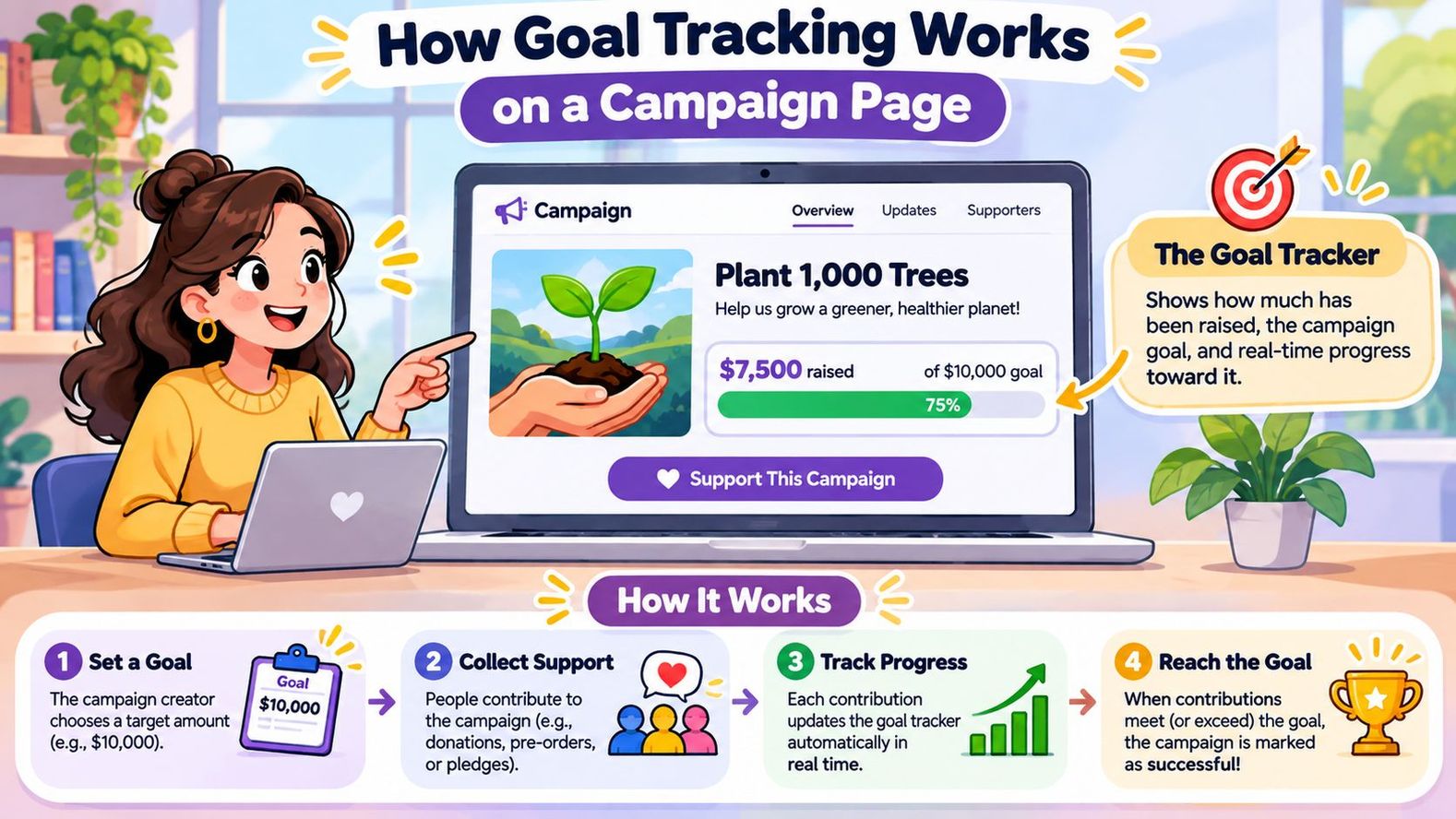
Goal tracking is the reason to pick this theme over a general-purpose one. You publish a target amount and show progress toward it as orders come in, so a shopper sees a launch that's partly funded rather than a product page sitting in isolation. Think of the thermometer on a charity poster: it only works when the number is visible, accurate and moving.
What you have to define yourself
The bar is a display, not a strategy. Four decisions belong to you before it goes live:
- The target amount: pick a number you can reach, because a bar stuck near zero reads as failure rather than urgency.
- The deadline: a campaign without an end date has no final push, and the final push is where the bar earns its place.
- The products or reward tiers that count: decide which SKUs feed progress, and exclude anything that shouldn't inflate the total.
- The message at the finish line: state plainly what happens when the goal is met, whether that's production starting, a stretch goal opening or shipping dates confirming.
A worked example
Say a small board game brand sets a $5,000 target with a 30-day pre-order window. In week one the bar does the persuading: early backers see momentum and join a project that looks viable. In the last four days the same bar does a different job, converting people who'd been watching into buyers who don't want to miss the run. One page, one product family, one deadline, and the tracker carries the narrative across the whole month.
The limit shows up the moment the campaign ends. On an evergreen store with no target and no deadline, a progress bar has nothing to report, so it becomes decoration that competes with your add-to-cart button. I'd remove it rather than leave a stale number on the homepage.
There's also a measurement trap. A campaign page generates a lot of clicks and very few checkouts early on, so if your events fire on button taps rather than completed orders, you'll read enthusiasm as revenue. Get the event definitions right before launch using a proper conversion tracking setup, and keep campaign traffic separable from your evergreen traffic in reporting.
Quick test: if you can name the goal, the deadline and the reward in one sentence each, the feature is doing its job. If you can't, you don't need goal tracking, you need a product page.
Launch Timeline and the Exit Decision
A typical Jumpstart launch runs on a tight, predictable schedule. Here's how a 30-day pre-order for six products with a $10,000 goal usually plays out, and where the same setup starts to strain.
The thirty days, in order
Days one to three go on setup: install the theme, set the goal amount and deadline, load the six products with clean images and variant pricing. Days four and five are for testing, and the only test that matters is a real checkout on the live store with a real payment method, including the confirmation email and the order appearing correctly in the admin.
Then you build one landing page. Product cards, the progress bar, a single call to action, and nothing in the navigation that leads a ready-to-buy visitor away from the campaign. Promotion runs through your email list and social channels, with the heaviest sends at open and in the closing week.
Progress gets reviewed weekly, not hourly. You're checking whether the pace matches the deadline, and whether the traffic you're buying converts on that one page. When the deadline hits, you close the campaign, publish the outcome and switch the page to whatever comes next: standard product pages, a waitlist or a restock notice.
That's the shape where Jumpstart works. One page, few products, one action, fast setup, and no merchandising logic to maintain.
Where the same store starts to break
Now extend the scenario. The brand adds accessories, then expansions, then bundles, and eighteen months later there are 200 products across ten collections, a blog feeding organic traffic, and a marketing lead who wants to A/B test landing pages every fortnight. Every one of those requests lands in custom Liquid work rather than theme settings, because the theme wasn't designed to carry them.
The adoption pattern matches that lifecycle. BuiltWith's technology-detection data for Shopify Jumpstart records 6,159 websites that have used the theme historically or currently, split into 658 live websites and 5,501 sites no longer detected as active users. That means roughly 89% of detected usage is historical rather than live.
Read that carefully. BuiltWith sees the sites it can detect, not every install, and a site disappearing from the dataset can mean a theme switch, a platform migration or a store that closed. Still, the direction is clear: most detected Jumpstart usage belongs to stores that have moved on. Launches end, and stores either grow into a broader design system or stop.
Decide the exit before you launch
Write the exit plan while you're still setting up the campaign. Three questions cover it:
- What happens to the storefront the day after the deadline, and who publishes that change?
- Does the brand continue on this theme, or move to a broader one, and what triggers that move (a product count, a second market, a content program)?
- What has to survive the move: app embeds, tracking, SEO URLs, customer accounts, subscription logic?
A campaign theme is a rented space. Decide what you're taking with you before you move in.
Brands that answer those questions early migrate in a planned week. Brands that don't end up rebuilding under pressure, usually right when a new product line is due.
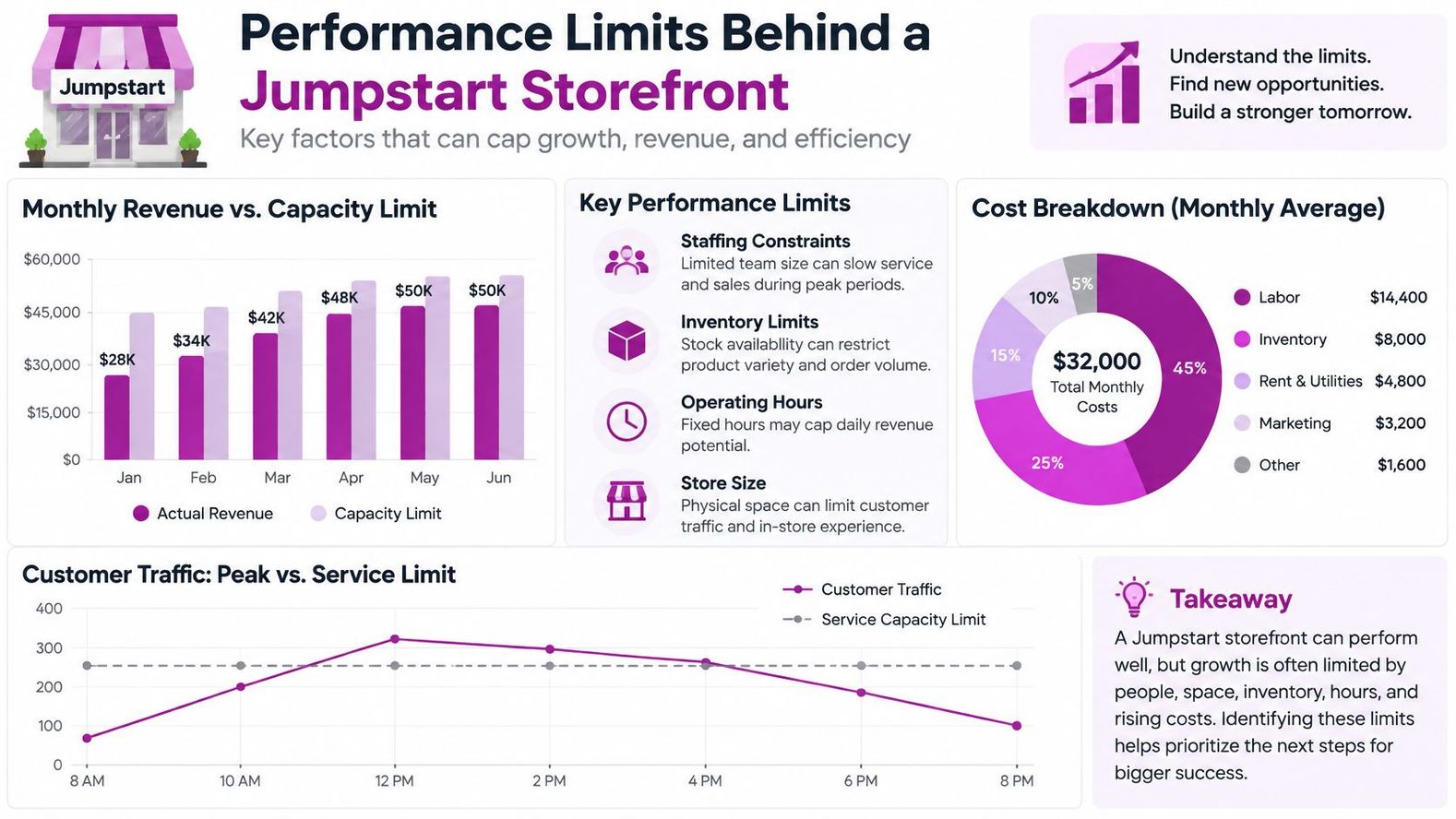
Performance Limits Behind a Jumpstart Storefront
Speed on a Jumpstart store is an implementation outcome, not a theme feature. The table below maps each area to the practical constraint and the fix that moves it.
Speed areas, benchmarks and actions for a Jumpstart store
| Area | Shopify reference | Action for a Jumpstart store |
|---|---|---|
| Collection pages | Main score-weight area | Cut repeated queries and paginate large loops |
| Product pages | Main score-weight area | Trim product-level queries and app scripts |
| Largest Contentful Paint | Varies across stores in Shopify's theme performance data | Server-render hero and product images |
| Interaction to Next Paint | Varies across stores in Shopify's theme performance data | Defer noncritical and app scripts |
| Time to first byte | Driven by Liquid render cost | Profile with Theme Inspector and remove loops |
| Liquid micro-optimizations | Roughly 25 to 50 ms saved on complex themes | Apply first to the heaviest templates |
Server-side cost comes first
Shopify renders Liquid on the server for every request, so expensive loops, repeated object lookups and nested snippets push time to first byte (TTFB) up before the browser has downloaded a single asset. Shopify's theme performance best practices treat TTFB as a foundational metric and note that Liquid micro-optimizations on complex themes can save roughly 25 to 50 ms.
That saving is not spread evenly. Collection and product templates deserve the first profiling pass because they carry much of the score-weight work in a storefront, and they multiply across filtered views, search results and variant-heavy pages. A hypothetical Jumpstart setup with a larger catalog can call the same nested snippet repeatedly on a collection page. Each call adds render cost, and the same pattern can spread through related views.
Work in this order:
- Profile before editing: run Theme Inspector on a collection page and a product page, and sort by render time rather than guessing which snippet is guilty.
- Kill repeated lookups: fetch a collection or product object once, assign it, and pass it into snippets instead of re-querying inside a loop.
- Paginate large loops: cap the items rendered per page and let pagination or lazy loading handle the rest.
- Render the essentials in Liquid: product title, price, variant form and primary navigation should arrive as HTML, not appear after JavaScript finishes.
Campaign stores often start with modest catalogs, which can hide these costs. The pressure shows up later, when the same theme carries more products, more filters and more app output. That is the point where a Jumpstart storefront starts behaving differently from the clean launch version.
Where to look on your own store
The spread in Core Web Vitals outcomes across Shopify themes is wide enough that the platform clearly is not the deciding factor. Two stores on the same theme foundation can land at opposite ends of that range depending on app weight, image handling and how much rendering they have pushed to the client.
Start with two measurements: TTFB on your busiest collection page, and LCP on your top product page on a mid-range phone over a throttled connection. Those two numbers tell you whether your problem is server-side Liquid or client-side payload, and they point at different fixes. Our breakdown of Shopify speed optimization covers how to separate those two causes before you spend a development sprint on the wrong one.
Slow TTFB means image compression will not rescue the page. Heavy LCP with healthy TTFB points at image delivery, above-the-fold layout or client-side work. Slow interaction after the page appears points at app scripts and noncritical JavaScript.
Measure first: if TTFB is slow, no amount of image compression will save the page.
Keeping Apps and Tracking Intact During Customization
Theme scripts and app scripts share the browser's main thread, so every app you install spends a budget your theme also draws from. Client-rendered code has to download, parse and execute before content becomes usable, and Shopify's theme performance data table shows how far apart stores end up on LCP and INP as a result. Switching themes can also mean reactivating apps in the new theme, which makes customization ongoing governance rather than a one-time edit.
Platform changes keep arriving too. Stricter Liquid parsing, a higher app-block limit and new requirements around customer-account components all show up in the changelog coverage in FoxEcom's Shopify Editions roundup, and each one can touch code a Jumpstart owner wrote years ago. On a theme you plan to retire after the campaign, that maintenance load feeds straight into the exit math: if keeping embeds alive costs more than the storefront earns, the end date has effectively arrived early.
The routine, in order
- Stage and version it. Duplicate the live theme, work on the copy, and keep that copy under Git so every change has an author, a diff and a revert path.
- Inventory the apps. List every app embed and app block, note which ones inject scripts, and record where each loads. This list is what you check after every update.
- Verify tracking on staging. Fire add-to-cart, begin-checkout and purchase events end to end, including ad platform tags and server-side events, before anything ships. A campaign page with a silent tracking gap produces numbers you can't trust when the keep-or-replace decision comes.
- Baseline the numbers. Capture Lighthouse CI runs and real-user monitoring data for the templates you're touching, and write down your JavaScript budget as a hard target.
- Ship only what's needed. Output titles, prices, images, forms and navigation as server-rendered HTML, defer noncritical scripts, and load interactive modules on user interaction rather than on page load.
- Measure business outcomes. Compare add-to-cart rate, checkout initiation, revenue per session and Core Web Vitals against the baseline.
- Roll back on a trigger. Define the thresholds in advance, and revert when one crosses them.
Why the rollback rule matters
A redesign that looks better can still earn less. If an app block disappears from the product template, a review widget stops rendering, or the variant selector waits on a deferred script, the page wins on aesthetics and loses on conversion. You only catch it if you decided beforehand what number would make you revert.
Recheck the embed inventory after every theme update and every app update, including updates nobody on your team triggered. Silent removal of conversion functionality costs the most because nothing looks broken, and on a campaign store it surfaces later as a launch that underperformed for reasons nobody can reconstruct.
Decide Whether Jumpstart Fits Your Store
Jumpstart fits best while the campaign is time-bound and the catalog stays small. Outside that window, the decision depends on five things you can score in ten minutes.
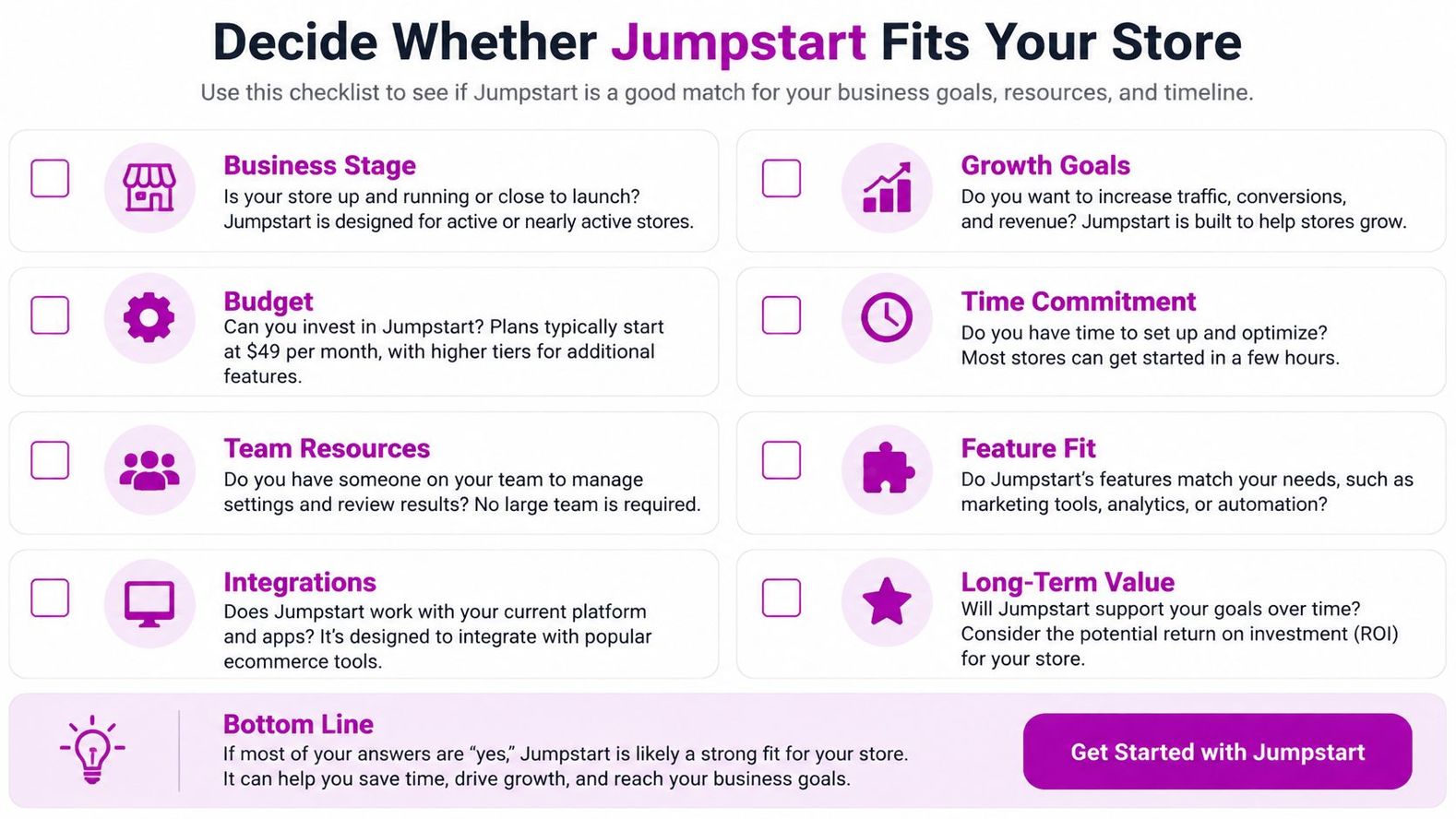
Fit criteria for keeping or replacing Jumpstart
| Criteria | Jumpstart suits you when | Consider another theme when |
|---|---|---|
| Catalog size | Small, focused product range | Many categories or frequent new products |
| Store purpose | Time-limited campaign or launch | Permanent store with ongoing content |
| Markets | One market and one currency | Several markets or storefronts |
| Team | A developer can maintain custom code | No one can maintain theme changes |
| Revenue stage | Validating demand before scaling | Scaling brand or Shopify Plus store |
Three outcomes, not two
Stay. The campaign is time-bound, the range is small, and someone can maintain the code. Nothing about a newer theme existing obliges you to move a store that's stable and rarely changes.
Customize and test. The store is stable but your apps, tracking or speed need work. Fix those in place, with the staging routine and the rollback thresholds, and judge the result on revenue per session rather than screenshots. Our CRO work follows that same sequence: an audit with recommendations and bug fixing, then A/B testing, then scaling the hypotheses that hold up.
Plan a migration. The store has outgrown campaign focus, added markets, or needs frequent landing-page experiments. Shopify's theme version documentation explains that Online Store 2.0 themes support sections on all pages through JSON templates and dynamic sources, while also confirming that upgrading isn't mandatory. The trade-off is editorial freedom against retrofit cost, and vintage themes receive no updates beyond security fixes, which is the fact that turns "it still works" into a risk on a long-term build.
Check status, then act
Before you decide, open the Theme Store listing and confirm the update status of the version you're running. A legacy foundation with no active development is a different proposition from a maintained theme, and it changes how much custom code you're willing to carry.
Then do three things this week: score your store against the five criteria, pull your slowest collection and product templates plus your app-embed inventory, and pick stay, customize or migrate. Write the choice down with a review date, because the answer changes as the catalog grows.
If you'd rather have a second opinion on that call, we run this exact audit as part of our Shopify work: theme fit, speed baselines, app-embed inventory and the conversion events that break during a redesign. Our Shopify Expertise packages start from 35 hours per month with no commitment, so you can test the fit on one project before scaling. Visit ECORN and tell us your product count, your markets and your next campaign date, and we'll tell you whether to stay on Jumpstart or plan the move.
[Related Media]