

Setting up pre-orders on Shopify is a powerful strategy that lets you sell products before you even have them in stock. It’s a brilliant way to test the waters for a new idea, get some cash flowing, and build up a ton of excitement for your launch. You can pull this off with a few native Shopify tricks or go all-in with a dedicated app for more firepower.
Why Shopify Pre-Orders Are a Game Changer for Your Store
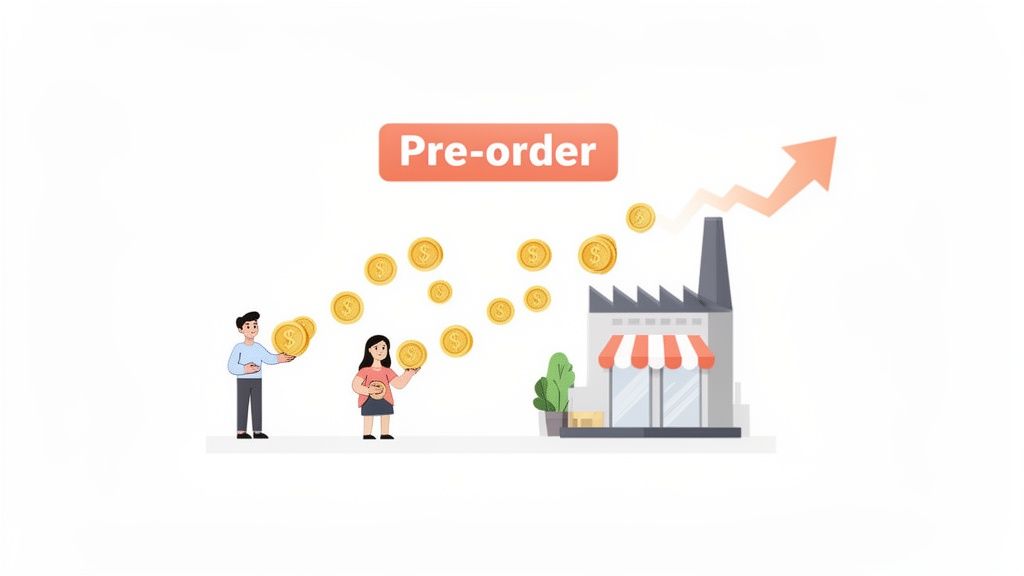
Let's be clear: pre-orders aren't just a sales gimmick. They're a fundamental shift in how you can approach inventory, manage your cash flow, and launch new products. Instead of sinking a bunch of capital into a product you think will sell, you get to validate the demand directly with your customers' wallets. This massively cuts down the financial risk of buying a warehouse full of inventory upfront.
Think about launching a new clothing line. Instead of just guessing which sizes and colors are going to fly off the shelves, a pre-order campaign gives you hard sales data. With that info, you can place a much smarter order with your manufacturer, which means less waste and healthier profit margins. For a new brand, that early cash injection can be the exact funding you need to get the first production run off the ground.
The Strategic Advantages of Pre-Orders
The upsides go way beyond just the money. Pre-orders tap into some powerful customer psychology, creating a real sense of exclusivity and anticipation. Customers who get in early feel like they're part of an inner circle, securing access to something special before anyone else. This is how you build a loyal community and generate organic buzz long before the product is even in hand.
This strategy is especially potent during major sales events. Just look at the last Black Friday Cyber Monday weekend, where Shopify brands collectively pulled in a mind-blowing $9.3 billion in sales. That's a 24% jump from the year before. A huge piece of that success came from using pre-orders for holiday exclusives and limited-edition drops, letting stores lock in revenue and gauge demand before the chaos hit. You can dig into more of these numbers on redstagfulfillment.com.
The real magic of a pre-order system is turning customer excitement directly into working capital. It changes a product launch from a financial gamble into a data-backed investment.
Choosing Your Pre-Order Method
So, you're ready to give this a shot. You've got a few different ways you can go, and the right choice really depends on your technical skills, how big your operation is, and what you're trying to accomplish.
Here are the main paths for setting up pre-orders on Shopify:
- Native Theme Edits: This is the quick-and-dirty method. You just dive into your theme code and change the "Add to Cart" button text to "Pre-Order." It’s fast and free, but that's about all you get—no fancy features here.
- Out-of-Stock Settings: A slightly more elegant native solution. You can configure Shopify to continue selling products even when the inventory count hits zero. This gives you a bit more control than a simple text change.
- Dedicated Pre-Order Apps: This is the most powerful and professional route. Apps built for pre-orders handle everything from partial payments and automated order tagging to managing mixed carts (with both in-stock and pre-order items). They also automate customer notifications, creating a smooth experience for everyone. To get a deeper look, check out our guide on how pre-orders work in ecommerce.
How to Set Up Pre-Orders Without Using an App
Jumping into the world of pre-orders on Shopify doesn't automatically mean you need to add another app to your monthly bill. If you're just looking to test the waters or run a simple, one-off campaign, Shopify's built-in tools can get the job done surprisingly well.
There are really two ways to tackle this without an app. The first is a super-quick theme edit, and the second is a more robust method using Shopify's inventory settings. Both are free and can be set up in minutes, but knowing their limitations is key. Let’s break down how each one works so you can decide which fits your store.
The Quick and Simple Theme Edit
This is the most direct way to get a pre-order button live on your site. The whole idea is to simply change the text on the "Add to Cart" button to read "Pre-Order." It’s a cosmetic change that relies entirely on your product description and other communications to set the right customer expectations.
To pull this off, you just need to pop into your theme's language editor.
- From your Shopify admin, head to Online Store > Themes.
- Find your current theme, click the three-dot menu, and choose Edit default theme content.
- In the search box, type in "Add to cart." You'll see this phrase in a few places; you want the one that appears on the product page.
- Just change the text from "Add to cart" to "Pre-Order" and hit save.
This is lightning-fast and requires zero technical skill. The major downside, however, is that it's a blunt instrument. This change applies the "Pre-Order" button text to every single product in your store. It's really only practical if your entire catalog is temporarily shifting to a pre-order model—a pretty rare scenario.
A Smarter Native Method Using Inventory Settings
For much better control, the superior native option is to configure a specific product to allow sales even when its inventory hits zero. This approach is far more practical for running a pre-order campaign for one or two items while the rest of your products are business as usual. It correctly reflects the inventory situation and makes backend management a whole lot cleaner.
Here’s how to set it up on a product-by-product basis:
- Find Your Product: Go to Products in your Shopify admin and click into the item you want to set up for pre-order.
- Manage Inventory: Scroll down to the Inventory section. If you have variants, you'll need to do this for each one you want to offer. Make sure Track quantity is checked.
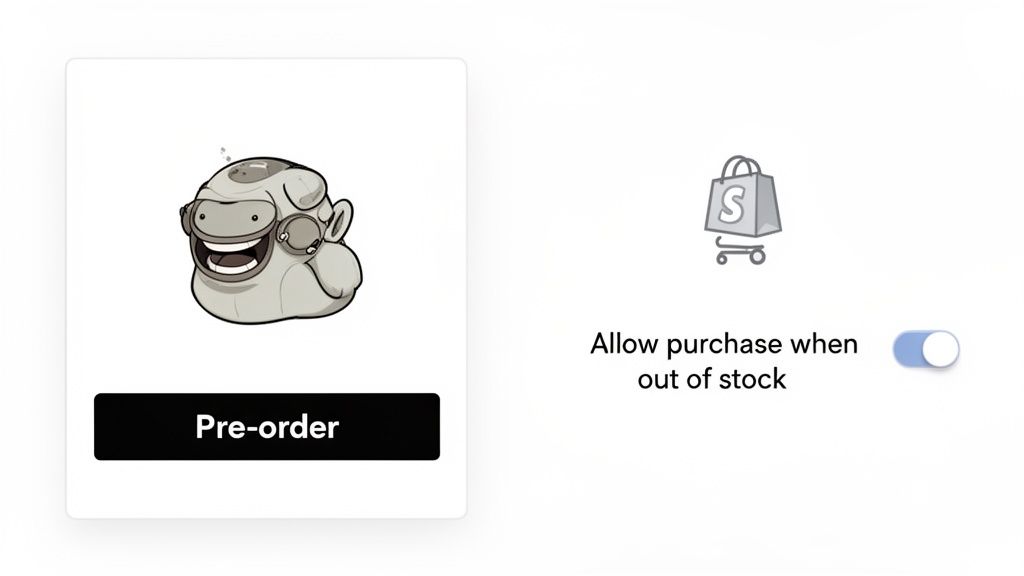
- Enable Overselling: Right below the quantity field, you'll see a checkbox for Continue selling when out of stock. Tick that box.
- Set Inventory to Zero: For this to work as a true pre-order, set the available quantity for that product or variant to 0 (or a negative number). Now, customers can buy it, but Shopify knows it's technically on backorder.
This method gives you much tighter control and far better tracking. For most stores trying to avoid an app, this is the way to go.
Crucial Insight: When using the out-of-stock method, Shopify flags these sales as "unfulfilled" orders that are technically overdue. From a risk management perspective, a high volume of old, unfulfilled orders can occasionally trigger an account review. Always have your manufacturer agreements and clear customer communications handy to prove the legitimacy of your pre-order campaign if Shopify ever asks.
Comparing Native Shopify Pre-Order Methods
Here's a quick look at the two primary built-in methods for setting up pre-orders on Shopify, highlighting their strengths and weaknesses.
Ultimately, while the theme edit is a neat trick for a quick change, the out-of-stock method is the more robust and professional way to handle pre-orders on Shopify without an app. It properly aligns your backend data with your sales reality, which will save you a ton of headaches when it's finally time to start fulfilling those orders.
Choosing the Best Shopify Pre-Order App for Your Business
While Shopify’s built-in tools can get you started, you'll likely hit their limits pretty fast once your pre-order strategy gets serious. When you're juggling things like partial payments, mixed carts with both pre-order and in-stock items, or complex fulfillment workflows, it’s time to call in the specialists—the dedicated pre-order apps.
Think of these apps as more than just a button-changer. They're complete systems designed to create a smooth, professional pre-order experience for both you and your customers. They step in to handle all the tricky logistics that the native setup just can't, saving you a ton of manual work and preventing costly fulfillment mistakes down the line.
Key Features to Look for in a Pre-Order App
Diving into the Shopify App Store can feel like a chore. To cut through the noise, you need to know exactly what to look for. The right features will solve your biggest pre-order headaches and turn a basic tool into a serious business asset.
Here are the non-negotiables:
- Mixed Cart Handling: This is a big one. A customer should be able to buy an in-stock t-shirt and pre-order a new jacket in the same transaction. A good app will automatically split these orders behind the scenes so your fulfillment team doesn't get a migraine.
- Partial Payments and Deposits: Want to lock in a sale without asking for 100% of the cash upfront? This feature lets customers put down a deposit, and the app will automate the final payment collection when you're ready to ship. It’s a game-changer for higher-ticket items.
- Automated Order Tagging: This might sound simple, but it's critical. The app should automatically tag pre-orders in your admin, making them incredibly easy to filter and manage. This is the key to keeping your fulfillment process organized.
- Dynamic Button Changes: The app needs to be smart enough to swap the "Add to Cart" button to "Pre-Order" on specific products, and then automatically switch it back when the product is officially in stock.
The real secret sauce of a quality app is its ability to play nicely with Shopify’s own systems. Top-tier apps can assign an official "Scheduled" status to orders, signaling to Shopify that these are legitimate pre-orders. This can drastically reduce the risk of your payment processor flagging your account for having a backlog of old, unfulfilled orders.
Evaluating Top Shopify Pre-Order Apps
With those features in mind, let’s look at a few of the heavy hitters in the app store. The best choice for you really depends on your sales volume, what you're selling, and your specific campaign goals.
Pre-Order Now is a popular starting point for a reason. It has a comprehensive feature set and is genuinely easy to use. It's particularly strong with mixed cart management, has solid email notifications to keep customers updated, and even lets you offer pre-order discounts to sweeten the deal. It’s a fantastic all-rounder for brands that are scaling up.
Timesact (you might know it as Pre-Order Manager) is another powerhouse, especially if you want to set things and forget them. It excels at automating the entire pre-order lifecycle. You can schedule start and end dates for your campaigns, automatically release inventory holds, and send out payment links for deposits. If you're a high-volume store, its automation features will save you hours.
Finally, PreProduct takes a slightly different angle with its "coming soon" approach. It lets you gauge customer interest and collect payment details, but only charges the customer's card closer to the actual ship date. This is perfect for brands that are validating a new product idea and want to measure demand with lower risk before committing.
Matching an App to Your Business Needs
The right app for a startup launching its very first product is worlds away from what a Shopify Plus brand needs for a global drop. A small boutique might just need simple setup and clear order tagging. A high-growth brand, on the other hand, will need an app that can process thousands of split shipments and integrate cleanly with its inventory management software.
The massive growth of the Shopify platform, now home to millions of stores, shows just how critical these kinds of scalable tools have become. This expansion is fueled by smart strategies like pre-orders, which let merchants launch new products with minimal risk. You can dig into some of Shopify's impressive growth stats over at ecommercetrix.com.
Ultimately, the best Shopify pre-order app is the one that solves your biggest operational problems and helps you grow. Start by listing your pain points—is it managing deposits? Organizing fulfillment? Communicating with customers?—and then pick the tool that turns those weaknesses into strengths.
Crafting Your Pre-Order Marketing Plan
Flipping the switch on pre-orders in Shopify is the easy part. The real work is making sure people actually show up to buy. Without a solid marketing plan, you're just hoping for the best, and hope isn't a strategy. A great pre-order campaign builds a story, creates a real sense of urgency, and convinces casual visitors to become committed buyers before the product is even in their hands.
Your goal here is to whip up so much excitement that customers are genuinely counting down the days. This isn't a one-day event; it's a process that starts well before your "pre-order now" button ever goes live and doesn't stop until the last box is out the door. Let’s get into the channels and tactics that will make your next pre-order a sell-out success.
Optimizing Your Product Page for Pre-Orders
Think of your product page as campaign headquarters. It has to do more than just show off the item—it needs to sell the idea of the pre-order itself. This is all about building trust and managing expectations right from the jump.
Start with your copy. Don't just list features. Explain why this is a pre-order. Is it a limited run? Are you letting your best customers secure theirs first? Is there a special early-bird price? Frame it as an opportunity, not a waiting game.
You have to be brutally honest about timing. This is non-negotiable.
- State the Estimated Ship Date: Put this front and center, right near the pre-order button. Something like "Expected to ship early August" is perfect. Don't make people hunt for it.
- Explain the "Why": A quick line can make all the difference. Try something like, "You're getting first access as this limited collection is currently in production." It adds context and builds a ton of trust.
- Use High-Quality Visuals: Since you don't have the final product, your images have to work overtime. Invest in killer mockups, slick 3D renders, or polished photos of your prototype. Show it from every conceivable angle to build buying confidence.
A great pre-order product page answers every question before the customer even thinks to ask it. Crystal-clear timelines and a compelling reason to order early are your best weapons for boosting conversions and avoiding a flood of "where's my order?" emails later.
Building Hype with Email and Social Media
Your existing audience is gold. These are the people who already know you, like you, and trust you, making them the perfect group to get the ball rolling.
Set up a VIP email list just for launch news. Give them the first sneak peek and offer them an exclusive 24-hour head start before the pre-order goes public. This small gesture rewards loyalty and creates a powerful sense of exclusivity that can drive a huge chunk of your initial sales.
Over on social media, you need to stop selling and start storytelling.
- Behind-the-Scenes Content: Share raw, authentic content. Post videos of the design process, photos of material sourcing, or clips of early prototypes. This stuff makes your audience feel like they're part of the product's journey.
- Countdown Timers: Instagram and Facebook Stories are perfect for this. Simple daily countdowns build palpable anticipation and keep your launch top-of-mind.
- Engage with Questions: Run an "Ask Me Anything" session about the product, the pre-order process, or shipping. Being transparent here is how you build an unshakeable foundation of trust.
Expanding Your Reach Beyond Your Core Audience
Once your loyal fans are fired up, it’s time to find new ones. This is where targeted ads and influencer partnerships come into play. Spin up ad campaigns on platforms like Meta or TikTok, targeting lookalike audiences or those with interests related to your product. Your ad copy should scream "pre-order," using phrases like "Be the first to get it" or "Secure yours before it sells out."
Influencer marketing can be a game-changer here. Find creators who genuinely fit your brand's vibe. Send them a prototype if you can, or at least a detailed brief, and let them share their honest excitement. Their stamp of approval provides powerful social proof and puts your pre-order in front of a fresh, highly engaged audience.
Pre-orders are a critical piece of any solid launch. They let you build momentum and test the waters before you go all-in on production. For a complete blueprint, check out this Product Launch Strategy Template. By layering these channels, you create a wave of excitement that can carry your campaign from a simple announcement to a sold-out success story.
Managing Pre Order Fulfillment and Customer Communication
Getting the sale is just the starting line. When it comes to a pre orders Shopify campaign, the real work begins after the checkout. This post-purchase phase is where you forge trust and turn a customer who's willing to wait into a genuine fan of your brand. It’s all about the operational nitty-gritty: managing fulfillment and, maybe most importantly, keeping your customers in the loop.
If you drop the ball here, you’re looking at a support inbox flooded with "where's my order?" tickets, a spike in chargebacks, and a bruised brand reputation. But get it right? You create an incredible sense of loyalty that pays off for years. Let's walk through the workflows that make the journey from "pre-ordered" to "shipped" a smooth one.
Organizing Your Shopify Admin for Pre Orders
First things first, you need to bring some order to the chaos in your Shopify admin. When you've got a mix of regular and pre-order sales hitting your dashboard, you absolutely have to be able to tell them apart at a glance. This isn't just about being tidy; it's a critical step for preventing fulfillment nightmares.
The simplest, most effective way to do this is with order tags. If you’re using a dedicated pre-order app, it will almost certainly do this for you automatically, slapping on tags like pre-order or preorder-august2024.
If you're using a more manual, native approach, you’ll need to apply these tags yourself or set up a quick Shopify Flow automation. A solid tagging system could look something like this:
- General Pre-Order Tag: A simple
pre-orderto catch them all. - Campaign-Specific Tag: Something like
productname-preorderto zero in on a specific launch. - Fulfillment Window Tag: A tag like
q3-2024-shipto group orders by their estimated shipping date.
With your orders properly tagged, you can then create custom "Saved Views" on your main Orders page. This is a game-changer. It lets you create one-click filters to instantly separate pre-orders from your standard, in-stock orders that need to ship out today. This simple bit of organization keeps your fulfillment team from accidentally trying to ship products that are still on a container ship somewhere.
The Fulfillment Workflow When Stock Arrives
The day your inventory finally lands is a huge moment. You've got to have a clear plan ready to roll to get those packages out the door fast. A messy fulfillment process at this stage can undo all the customer goodwill you've spent months building.
Your workflow should be a well-oiled machine:
- Receive and QC Your Inventory: Before you even think about printing a label, get eyes on the product. Do a quality check to make sure the shipment meets your standards. The last thing you want is to ship out a faulty product after a long wait.
- Filter Your Orders: Head straight to that pre-order "Saved View" you created in Shopify. This is your master list. No guesswork involved.
- Batch Process Your Shipments: Don't do this one by one. Use a tool like Shopify Shipping or any third-party shipping software to process labels in bulk. Efficiency is the name of the game here.
- Send Shipping Confirmations: As you generate labels, Shopify will automatically send out those glorious shipping confirmation emails. This is the update your customers have been waiting for. For a deeper dive into streamlining your whole shipping operation, you might want to explore some different ecommerce fulfillment solutions.
The Art of Proactive Customer Communication
Honest and frequent communication is the absolute foundation of a successful pre-order campaign. Silence is your worst enemy. People are surprisingly patient and understanding, but only if they feel like they’re being kept informed. It’s the radio silence that breeds anxiety, frustration, and eventually, anger.
This is a great way to visualize how communication drives the entire process, from the initial buzz to the final sale.
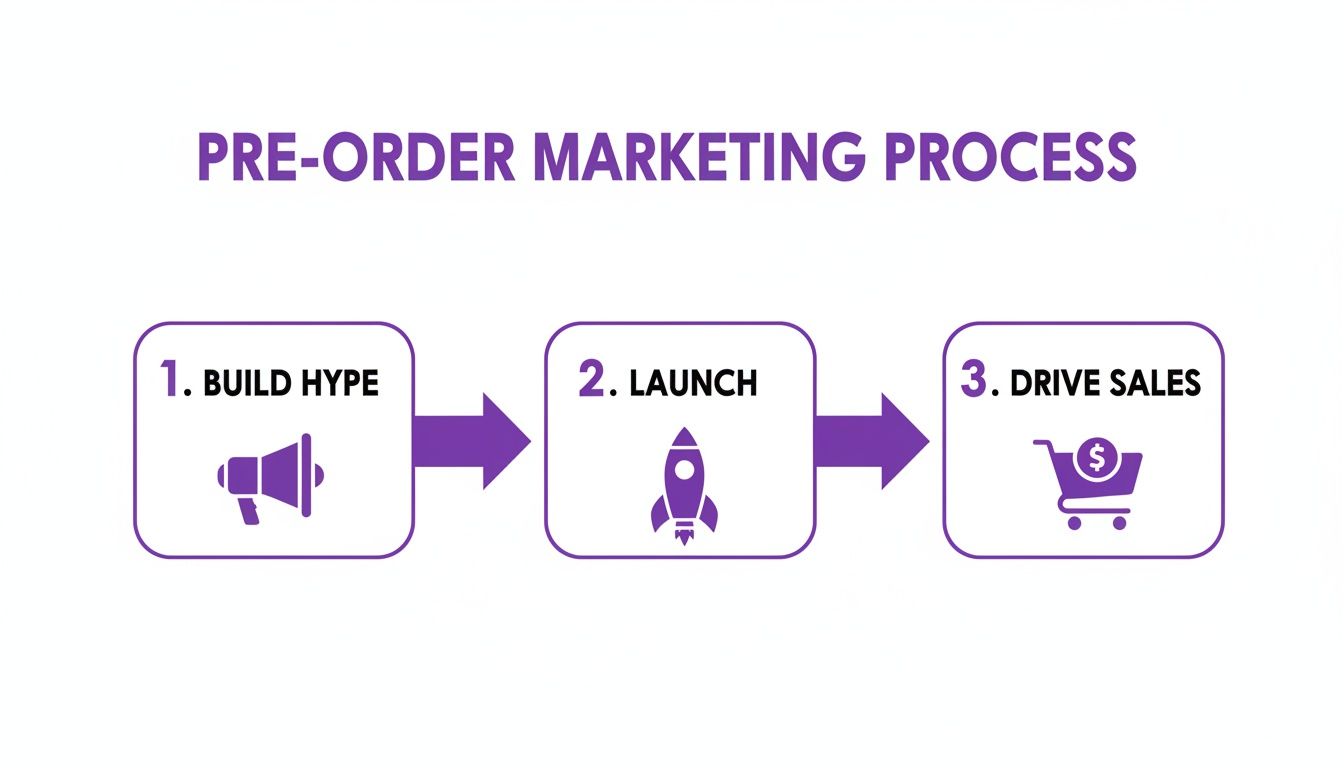
As you can see, the conversation begins with building hype and carries all the way through, directly impacting both sales and customer happiness. You need to plan your communication cadence from day one.
Key Takeaway: When in doubt, over-communicate. A quick, honest update—even if it's just to say "no new updates, but we're still on track"—reassures customers that you haven't forgotten about them or their money.
Set up a dedicated email flow just for your pre-order customers. Think of it as a mini-narrative you're telling them.
Managing customer expectations is crucial. The table below outlines a simple checklist for your pre-order communications, ensuring you hit the right notes at every stage.
By following a clear communication plan, you keep customers engaged and confident in their purchase. It transforms the waiting period from a point of friction into an opportunity to build a stronger relationship.
And be prepared for questions. Many customers don't fully understand what does awaiting shipment mean, a status their order might be in for weeks or months. Proactively explaining these terms in your emails or on an FAQ page can save your support team a lot of time. By mastering expectations and maintaining a transparent dialogue, you can navigate the operational side of pre orders Shopify and turn a logistical challenge into a powerful loyalty-building machine.
Common Questions About Shopify Pre-Orders
Even with the best plan laid out, you're bound to run into some specific questions once you start setting up pre-orders on Shopify. Let's walk through some of the most common hurdles merchants face. The answers here are practical and straight to the point, designed to help you handle these situations like a pro.
Can I Offer Discounts on Pre-Orders in Shopify?
Not only can you, but you absolutely should. An "early bird" discount is one of the most effective motivators for any pre-order campaign. It's a great way to reward your most enthusiastic customers and give everyone else a compelling reason to buy now instead of later.
You’ve got a few solid options for setting this up:
- Automatic Discounts: This is the easiest route. Just create an automatic discount in your Shopify admin that applies only to your pre-order product for a set period. Simple and effective.
- Discount Codes: If you want to create a more exclusive vibe, generate a unique code like
EARLYBIRD15. You can share this with your email list or social media followers to make them feel like insiders. - App-Based Pricing: For the most seamless experience, a good pre-order app will let you set a special "pre-order price" right on the product page. When the pre-order window closes, the price automatically flips back to the standard retail price. Clean and hands-off.
How Should I Handle Shipping Costs for Pre-Orders?
Your best bet is to keep it consistent. Charge shipping for pre-orders using the same rates and rules you have for your in-stock products. The key here is to be completely transparent so there are no nasty surprises at checkout.
Make it impossible for customers to miss the estimated shipping date. Put it on the product page, in the cart, and in the order confirmation email. If you're looking at a particularly long wait, think about offering free or discounted shipping as a thank-you for their patience. It's also smart to update your store's shipping policy page to specifically mention how you handle pre-order fulfillment.
The rule of thumb for shipping is simple: charge what's fair, but communicate what's happening with absolute clarity. A customer who understands the timeline is a happy customer.
What Should I Do if My Pre-Order Shipment Is Delayed?
Get in front of it. Immediately, honestly, and proactively. The second you find out about a potential delay, you need to be the one to break the news—don't wait for your support inbox to fill up with anxious emails.
Draft a clear, apologetic email to every affected customer. Briefly explain why it's delayed (without making excuses), give them a new, realistic shipping window, and tell them you're sorry. If the delay is significant, offering a small discount code for a future purchase is a fantastic gesture that can save the relationship and show you truly value their business.
Can Customers Buy Pre-Order and In-Stock Items Together?
This is where Shopify's native functionality can create a real mess. When a customer adds an in-stock item and a pre-order item to the same cart, Shopify treats it as one order. This usually means you either have to manually split the order or hold onto the in-stock item until the pre-order is ready—both of which are bad for the customer experience.
Honestly, this logistical nightmare is the single biggest reason merchants move to a dedicated pre-order app. Most of them solve this problem beautifully. They can:
- Automatically split the order into two shipments in your admin.
- Display a clear message at checkout that the entire order will ship together once everything is available.
If you expect customers to buy a mix of products, choosing an app with this feature is non-negotiable. It keeps your fulfillment process from turning into chaos and manages customer expectations from the start.
At ECORN, we specialize in refining these complex eCommerce workflows. If you're looking to build a seamless and scalable pre-order system on Shopify, our team has the expertise to make it happen. Explore our Shopify development services and let's create an exceptional experience for your customers together.


10 Social Selling Platforms for Shopify Merchants

Shopify Website Design Examples: 7 Stores Worth Studying
7 Ecommerce Newsletter Examples for Shopify Brands
One Product Shopify Store: Build and Scale
Mobile Pop Up Strategy for Shopify Stores That Converts
Sitemap for Shopify: How to Find, Optimize, and Submit It
7 Single Product Websites Worth Emulating
Product Variants Shopify: The Complete 2026 Guide
Ecommerce Analytics Consulting for Growth
What Is AI Integration for eCommerce
How to Choose the Right eCommerce Website Development Firm
E Business Strategy Implementation
Conversion Tracking Setup for Shopify Stores
BigCommerce vs Shopify Plus Which Enterprise Wins in 2026
Shopify Theme Kit: Setup, Commands, and Migration Guide
Shopify Extension Development: A Practical 2026 Guide
Shopify Speed Score Explained and How to Improve It
Shopify Mobile Optimization: The 2026 Playbook
How to Add Subcategory in Shopify for Better UX
How to Implement Structured Data for Ecommerce in 2026
SEO App Mobile: Shopify Store Optimization Guide
Shopify Plus Support: What It Includes and How to Choose

Google Ads for Shopify: The Complete 2026 Playbook

Shopify New York: How to Find and Hire the Right Agency
Google Search Console for Shopify: The Complete Setup
First Party Data Collection for eCommerce Growth
FAQ Online Store Guide: Build and Measure It Right
Do FB Ads Work for eCommerce in 2026?
One Page Checkout for Shopify: Design and Implementation
Shopify GraphQL vs REST: The 2026 Developer Decision
Shopify Ecommerce Consulting: Strategy, Pricing &
Are Reddit Ads Worth It for eCommerce Brands

Shopify Title and Meta Description: A Practical 2026 Guide

Product Video Best Practices for Shopify Brands
Real-Time Inventory Management: A 2026 Guide
AI Chatbot Integration for Shopify Stores
Affiliate Program Management: A Shopify Guide
10 Best Performance Monitoring Tools for Shopify in 2026
Digital Asset Management for eCommerce Brands in 2026
Every Type of Facebook Ads Explained for eCommerce Growth
Product Information Management Explained for Shopify Brands
Support Ticket System: A Guide for Shopify Stores

10 Best Customer Service Tools for Shopify in 2026

Can I Start a Business with No Money? a 2026 Blueprint

What Sells Good on Etsy: Best Niches for 2026

Shopify Add to Cart Button: A Practical 2026 Guide

Customer Feedback Automation: A Practical eCommerce Guide
Critical Rendering Path: A Guide for Shopify Stores

How to Promote on TikTok for eCommerce in 2026

B2B eCommerce Consulting That Drives Real Revenue
10 Best Practices for Site Navigation in 2026
Return vs Refund for Shopify Stores: A Practical Guide
What Is Customer Lifetime Value and Why It Matters
What Is Voice of Customer Research for eCommerce

SMS Marketing for Ecommerce That Actually Converts

Master How to Improve Email Deliverability in 2026

Top 7 eCommerce Partners NYC for Shopify Brands in 2026
Machine Learning for Ecommerce: Boost Your Shopify Store

Beauty Market Research: Your 2026 Growth Guide

Shopify International Expansion: A 2026 Roadmap
What Does CRO Stand for in Business: Understanding CRO

Shopify Visual Merchandising: A Playbook for Higher Sales

Shopify Landing Page Design: Master Conversion in 2026

10 Best AI SEO Optimization Tools for Shopify in 2026

Agentic AI for Ecommerce: Boost Your Sales in 2026
Mastering Email Marketing Data for eCommerce Growth

Conversion Rate Optimisation Australia: Boost Your Sales
Conversion Rate Optimization AI: Your Shopify Store Guide

10 Product Bundling Strategies for Shopify in 2026
How to Increase Customer Lifetime Value: A Shopify Playbook
AI Customer Service Automation: Shopify Guide 2026

Clean Website Design: A Shopify Conversion Playbook

Omnichannel Retail Strategy: A Shopify Playbook
Product Data Enrichment: A Guide for Shopify Brands
Instagram Shopping Features a Guide for Shopify Stores
What Is Revenue Optimization: A Holistic RevOps Guide

Benefits of Conversion Rate Optimization: Boost Your
WordPress to Shopify Migration: Your 2026 Seamless Switch
Boost Sales: Ecommerce Payment Processing Guide 2026
Unified Commerce Platform: Benefits, KPIs & Shopify Guide
How to Reduce Bounce Rate eCommerce: Your 2026 Guide
Shopify API Integration: A Practical End-to-End Guide

How to Implement Data Governance: A 2026 Guide
Shopify Store Development Cost: A 2026 Breakdown
What Is Server Side Tracking: The Shopify Guide 2026
Marketing Automation Workflows: A Shopify Guide for 2026
Shopify: How to Reduce Technical Debt

Shopify UX Design Change: A Playbook for Growth
User Generated Content Strategy: Shopify Playbook

Shopify Pause and Build Plan Cost: A Complete 2026 Guide
Compare at Price on Shopify: A Complete Guide for 2026
Where Can I Sell My Prints? 10 Best Platforms for 2026
Shopify Order Management System: The Ultimate Guide 2026
What Is Marketing Attribution? an eCommerce Guide for 2026
10 Best Black Friday Sales Sheets for 2026

Discover the Top Social Media Marketing Agencies For
Consumer Confidence Definition for eCommerce in 2026
What Is Social Commerce? Your 2026 Guide to Boosting Sales
A Social Ad Campaign Playbook for eCommerce Growth

7 Best FAQ Page Examples for SaaS & eCommerce


newsletter in your inbox