


Thursday afternoon is when this usually becomes urgent. A sale needs to go live. A supplier changed costs. A merchandising lead wants tags cleaned up before a campaign starts. Then someone opens Shopify and realizes the same update has to be repeated across dozens, hundreds, or thousands of products.
That’s where bulk edit Shopify stops being a convenience and starts being an operational skill.
Manual edits don’t just burn hours. They create inconsistency. One product gets the right price, another keeps the old compare-at price, a third loses a tag, and suddenly the storefront looks sloppy at the exact moment traffic is about to rise. The right bulk editing method fixes that, but only if you choose the method that matches the job.
Why Manual Product Edits Are Costing You More Than Time
Shopify merchants hit this problem early, and at scale. Shopify’s native bulk editing workflow became a core part of store operations during the platform’s growth years. By 2023, Shopify powered over 1.7 million active stores globally, and for larger operations bulk editing cut manual labor by 80-90% on tasks like seasonal price updates, according to Describely’s overview of Shopify bulk editing.
That matters because the true cost of manual editing isn’t the clicking. It’s the delay and the mistakes.
A team preparing a weekend promotion might need to change prices, update tags, adjust inventory labels, and clean up SEO fields before paid traffic starts hitting product pages. If those edits happen one by one, the work drags into launch windows and review cycles. If someone misses a subset of products, the issue becomes customer-facing.
This is why bulk editing belongs in the same conversation as automation and inventory control. If you're working on ways to boost business efficiency, product data workflows are one of the first places to look because they affect pricing, merchandising, operations, and campaign timing all at once.
A lot of brands also discover that product edits and stock operations are tied together more tightly than expected. If that’s already showing up in your store, this guide on automated inventory management systems is useful context for the operational side of the problem.
Manual product updates look small until they stack up across a catalog. Then they start slowing down revenue-critical work.
The practical question isn’t whether to bulk edit. It’s which layer to use:
- Native Bulk Editor for quick admin-side updates
- CSV import/export for catalog-wide work
- Apps when you need preview, rollback, or scheduling
- Developer workflows when scale and complexity outgrow all of the above
Using the Native Bulk Editor for Fast and Simple Changes
The native editor is the fastest tool in Shopify when the job is small, direct, and low risk. If you need to change tags on a batch of products, update pricing on a limited set of SKUs, or correct vendor names without leaving the admin, this is the first place to start.

Shopify’s built-in Bulk Editor supports editing up to 100 products or variants at once directly in the admin. For the use case it was designed for, agencies report an 85-90% success rate on jobs under that threshold. The same source notes that unfiltered operations on large catalogs can lead to a 20% error rate, which is why filtering matters before you touch anything in the grid, as shown in this walkthrough of Shopify’s Bulk Editor workflow.
When the native editor is the right choice
Use it when the edit is straightforward and you want immediate control inside Shopify.
Good examples:
- Price cleanup on a small range when a vendor changed MSRP for one line
- Tag updates for a campaign, such as adding a seasonal label
- Inventory or SKU corrections on a limited group of products
- Vendor or product type standardization after imports created inconsistent naming
If the task can be solved by opening Products, applying a clean filter, selecting the right rows, and editing visible fields in a spreadsheet-style view, the native editor is usually enough.
The clean workflow that avoids most mistakes
A disciplined process matters more than speed here.
- Go to Shopify Admin > Products.
- Filter hard before selecting anything. Use vendor, product type, tag, status, or collection logic.
- Select the intended products and click Edit products.
- Add only the columns you need, such as Price, SKU, Vendor, or Tags.
- Edit the grid carefully, review visible rows, then save and wait for confirmation.
The biggest preventable mistake is using broad selection without confirming the filter set. Teams often trust the checkbox too quickly. They shouldn’t.
Practical rule: If you can’t describe the filter in one sentence, it probably isn’t safe enough to bulk edit live data.
Where the native editor falls short
The native editor is useful, but it has a ceiling.
It doesn’t give you a native undo function. It isn’t built for complex formulas. It also isn’t the right tool for deep catalog changes across thousands of rows. If your edits depend on conditional logic, recurring jobs, percentage-based pricing logic, or rollback protection, you’ve outgrown it.
There’s also a content gap that catches many operators by surprise. Shopify’s native bulk editor handles common product fields well, but it doesn’t solve every merchandising task. One frequent frustration is bulk assigning products to manual collections, which Shopify store operators continue to raise in the Shopify Community discussion about bulk editing products and adding them to collections. For that specific job, you usually need an app, a workaround using tags and automated collections, or a custom solution.
The decision point
If you’re editing fewer than a hundred products, changing standard fields, and you can tolerate immediate live updates with no rollback button, use the native editor.
If any part of that sentence makes you uncomfortable, move to CSV or apps.
Managing Thousands of Products with CSV Files
CSV is still the workhorse for large catalog operations. It isn’t elegant, but it’s powerful. When a brand needs to touch a large percentage of the catalog in one controlled pass, CSV usually beats clicking around the admin.
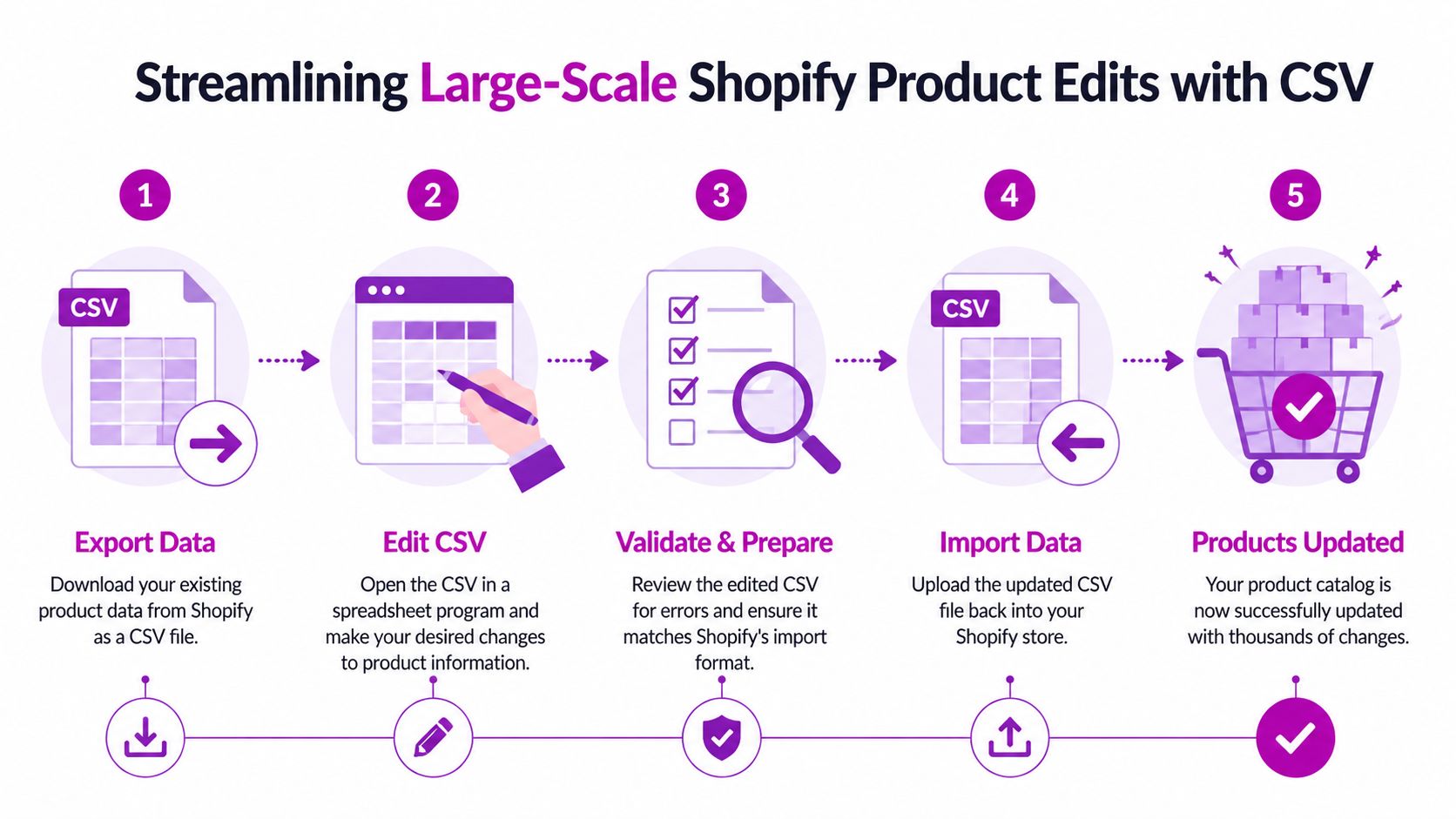
The reason teams keep coming back to CSV is simple. Spreadsheets make bulk logic easy. You can sort, filter, compare values, and apply formulas across entire product sets without relying on repetitive manual work inside the admin.
The method scales for thousands of products, and with proper validation it’s reported to be 3x faster for bulk tasks. But there are real failure points. 25-35% of import failures come from column mismatches or formatting issues, and unchecking Overwrite causes duplicates in about 15% of cases for growing brands, according to this guide to Shopify CSV bulk editing.
The professional CSV workflow
The basic flow is familiar. The professional version is stricter.
- Export first: Download the exact product set you plan to change. Don’t edit blind and don’t start from an old spreadsheet if you can avoid it.
- Work in Sheets or Excel: Use formulas where they reduce manual repetition. Percentage changes, field cleanup, and standardized naming are all easier here.
- Preserve key identifiers: The Handle field is what keeps an update tied to the correct existing product.
- Import with overwrite: If you’re updating existing products, the overwrite setting matters.
- Review the import preview: Catch bad mappings in the import preview before they hit the catalog.
A common pricing example is a formula-driven increase or discount. If a merchant wants a percentage adjustment across a range of products, spreadsheet logic is much safer than manually typing revised numbers row by row.
What works well in CSV
CSV shines on structured, repeatable edits.
| Bulk task | Why CSV works well |
|---|---|
| Price changes across large catalogs | Formulas let you calculate changes consistently |
| SEO field cleanup | You can standardize titles and descriptions in one pass |
| Tag cleanup | Comma-separated values are easier to normalize in a sheet |
| Variant-heavy edits | Row-level control is easier than admin clicking |
| Multi-person review | Teams can inspect a file before import |
This is also the better route when merchandising and operations need to collaborate. One person can prepare the file, another can QA it, and a final reviewer can approve import.
The mistakes that cause damage
CSV doesn’t forgive sloppy handling. Most problems come from a short list of avoidable errors:
- Wrong columns: If the file structure drifts from Shopify’s format, imports fail or map data incorrectly.
- Missing handle logic: If the identifiers aren’t preserved, updates won’t land where intended.
- Overwrite confusion: If you import without overwrite when updating existing products, duplicates can be created.
- No backup: Shopify doesn’t give you a native undo for CSV imports, so the export you started with becomes your rollback file.
- Too many edits at once: If you changed pricing, tags, body HTML, and variant data all in one upload, isolating a problem gets harder.
Keep an untouched export before every major import. That file is your recovery plan if the updated CSV behaves unexpectedly.
When CSV is the wrong tool
CSV is a strong method, but not for every operator.
If your team isn’t comfortable with spreadsheet structure, product handles, and import review, the risk rises fast. It’s also not ideal for time-sensitive updates where someone wants a visual preview and a one-click rollback. In those cases, apps are often the safer middle ground.
Automating Edits Safely with Third-Party Apps
A lot of growing brands land in the same place. The native editor feels too limited. CSV feels too brittle. They want bulk editing power without spreadsheet risk.
That’s the space where Shopify apps make sense.

By 2025, the Shopify App Store hosted over 13,000 apps, with bulk editors among the top installed categories. Apps such as Edited and Setary support percentage-based price changes and undo functions across thousands of SKUs, and this category has reduced management time by 70% compared to CSV cycles. That demand aligns with the fact that 82% of merchants report catalogs over 100 products, according to Barn2’s review of Shopify bulk edit collection and app workflows.
What apps solve that native tools and CSV don’t
The biggest difference is safety.
Good bulk edit apps give you a working layer between your team and live catalog data. Instead of editing directly in Shopify’s grid or pushing a spreadsheet import, you define the job inside the app, preview the changes, then run it.
That matters for a few reasons:
- Undo and rollback: This is the feature many operators care about most.
- Scheduled edits: Useful when a sale must start at a specific time.
- Percentage-based changes: Easier than building formulas manually in CSV.
- Filtering and saved rules: Better for repeat operational tasks.
- Job history: Helpful when multiple people touch product data.
If your team runs frequent merchandising changes, app history becomes more than convenience. It becomes accountability.
What to look for in a bulk editing app
Not every app belongs in a production workflow. The strongest ones usually handle a few key jobs well instead of trying to do everything.
Look for:
- Preview before run: You should be able to inspect the exact effect before publishing changes.
- Revert support: If the app can’t undo or roll back, treat it carefully.
- Variant support: Product-level editing alone isn’t enough for many catalogs.
- Filtering depth: Vendor, collection, tag, status, and inventory-based filters matter.
- Recurring jobs: Useful for repeated operational changes.
- Clear logs: Teams need to know what changed and when.
A practical split is this. If you run occasional big jobs and want a safer interface than CSV, apps are a strong fit. If your edits are highly custom and tied to external systems, apps may still be too shallow.
A short product demo can help clarify what this category looks like in practice:
Where apps still have trade-offs
Apps reduce risk, but they don’t remove the need for process.
They add another layer in your stack. They can require onboarding. They may also be overkill if you only do simple edits a few times a month. And for stores with unusual data models, custom product logic, or external ERP dependencies, even the best app can hit a wall.
The best app choice usually comes down to one question. Do you want power, or do you want controlled power with recovery options?
For many brands, apps are the most balanced answer to bulk edit Shopify safely. They offer more control than the native editor and less fragility than raw CSV work.
Advanced Bulk Editing for Shopify Plus and Developers
At enterprise scale, bulk editing stops being a merchandising task and starts becoming infrastructure.
For Shopify Plus stores with 10,000+ products, native tools often break down because of browser freezes and page limits. Community data also shows 40% of bulk edit queries from Plus users seek undo or rollback strategies, and these merchants are seeing 25% YoY growth in product volume, according to Barn2’s analysis of bulk editing challenges for Shopify Plus stores.

Why Plus merchants need a different approach
The problem isn’t just product count. It’s complexity.
A Plus brand may be managing multiple storefronts, regional pricing rules, channel-specific assortments, ERP-driven inventory, or custom workflows that don’t map cleanly to app interfaces. At that point, even a good app can become a bottleneck because the logic lives outside the business systems that control the catalog.
GraphQL APIs, Shopify CLI workflows, and custom scripts become necessary. They give developers precise control over what changes, when it changes, and how rollback is handled.
The use cases that justify custom tooling
Developer-led bulk editing makes sense when the job depends on logic that isn’t easy to express in admin tools.
Examples include:
- Multi-store synchronization where product data must stay aligned across storefronts
- Conditional pricing logic tied to inventory state or internal business rules
- ERP or PIM integration where Shopify is one endpoint in a larger data flow
- Controlled rollback systems that need job history beyond app-level logs
- High-volume recurring updates where manual execution is too risky
For Plus operators weighing broader platform capabilities as they scale, this overview of the benefits of Shopify Plus gives useful business context around when enterprise tooling starts to matter.
Native tools help teams edit products. API-driven workflows help teams govern product data.
What doesn’t work at this level
Trying to manage a very large Plus catalog through browser-based bulk editing alone usually creates operational drag. Teams spend time splitting jobs into smaller chunks, manually validating partial updates, and patching mistakes after the fact.
CSV can still play a role here, especially for one-off data-heavy operations, but it shouldn’t be the only line of defense once catalog scale and business logic get more demanding. At that stage, custom tooling isn’t overengineering. It’s how teams avoid downtime, data drift, and rollback chaos.
Choosing Your Shopify Bulk Edit Strategy
The right method depends less on preference and more on risk profile. Bulk edit Shopify efficiently by matching the tool to the job, not by forcing every task through the same workflow.
Here’s a practical comparison.
Bulk Edit Method Comparison
| Method | Best For | Scale | Safety (Undo) | Technical Skill |
|---|---|---|---|---|
| Native Bulk Editor | Fast updates to standard product fields inside admin | Small | Low | Low |
| CSV Import Export | Large structured catalog changes | Large | Low unless you keep backups | Medium |
| Third-party apps | Scheduled edits, previews, rollback, repeat operations | Medium to large | High relative to native and CSV | Low to medium |
| Developer workflows | Complex logic, multi-store sync, external system integration | Enterprise | Depends on implementation, but can be strong | High |
A simple way to choose is to ask:
- How many products or variants are involved
- Am I changing basic fields or applying logic
- Do I need rollback if this goes wrong
- Does the edit need to be scheduled
- Is my team comfortable working with spreadsheets
- Is this connected to other systems
If the task is small and immediate, use native tools. If the task is broad and structured, CSV is still strong. If the task is recurring or risky, apps usually offer the best balance. If the task touches multiple systems or very large Plus catalogs, use developer-led workflows.
For merchants also comparing broader platform fit as operations mature, an e-commerce platform guide for NZ tech offers useful perspective on how Shopify stacks up operationally against WordPress-based commerce setups.
The mistake is treating all bulk edits as equal. They aren’t. A tag cleanup, a catalog-wide price revision, and a cross-store data sync each need different tooling and different controls.
Frequently Asked Questions About Bulk Editing in Shopify
What’s the safest way to roll back a bad CSV import
Keep the original export before you change anything. That untouched file is the simplest rollback asset because Shopify doesn’t provide a native undo for CSV imports. If the import creates bad data, you can correct the issue by preparing a clean re-import based on the original file.
For higher-risk operations, split one large import into smaller controlled batches so recovery is easier.
Can you bulk assign products to manual collections in Shopify
Not reliably with Shopify’s native bulk editor. That’s a common pain point for stores managing large catalogs. In practice, merchants usually solve it by using tags and automated collections, using an app that supports collection workflows, or building a custom process.
If manual collections are central to your merchandising model, test that workflow before committing to a tool.
Can you bulk edit metafields
Yes, but the best method depends on your setup. Native Shopify bulk editing is limited for this kind of work. CSV can help in structured cases if the file format supports the fields you need. Apps or custom developer workflows are often the better fit when metafields are central to merchandising, search filtering, or integrations.
What’s best for multi-storefront Shopify Plus brands
Once multiple storefronts are involved, consistency matters more than editing speed. Browser-based editing becomes hard to govern because teams can easily create drift between stores. The safer route is usually an app with good controls or a developer-led workflow using APIs and scripts.
Should you use apps or CSV for recurring edits
Use apps if the same type of edit happens repeatedly and you want a preview, history, or rollback path. Use CSV when the task is large, structured, and handled by people who are comfortable validating spreadsheet data carefully.
If the edit is repeatable, build a repeatable process around it. Don’t rely on memory and manual checking.
If your team is hitting the limits of native tools, spreadsheets, or off-the-shelf apps, ECORN can help you build a safer bulk editing workflow for Shopify, from day-to-day catalog operations to Shopify Plus automation and custom development.



How to Choose a Shopify Plus Web Design Agency in 2026

Shopify Plus Ecommerce Agency: How to Pick the Right One

Shopify Themes Retina: How to Serve 2x Images

How to Cross Sell on Shopify Without Friction

Best Shopify Theme for Custom Products Compared
Multi Store Inventory Management: A Practical Guide

SEO Consulting for Ecommerce: A Practical Guide

Shopify Theme Updater App: A Safe Update Playbook

Shopify Git Integration: A Developer's Guide to 2026

Headless Ecommerce Development Services Explained

How to Build a Shopify Clothing Website That Converts

How to Launch a Box Subscription Business in 2026

Luxury Skincare Branding Playbook That Converters

10 Best Podcast Ecommerce Shows for Store Growth in 2026

Shopify Developer Hourly Rate: What to Pay in 2026

Critical Shopify Setup Errors That Are Secretly Sabotaging Your Store

Ecommerce Conversion Tracking: The Complete How-To Guide

Shopify Design Agency: How to Pick the Right Partner

Mastering Multi Store Management on Shopify

Scale Shopify Store

10 Shopify App Ideas Worth Building in 2026

Conversion Rate Optimization for Landing Pages: The Playbook

Shopify Plus Automation: A Guide for 2026

10 Social Selling Platforms for Shopify Merchants

Shopify Website Design Examples: 7 Stores Worth Studying

7 Ecommerce Newsletter Examples for Shopify Brands

One Product Shopify Store: Build and Scale

Mobile Pop Up Strategy for Shopify Stores That Converts

Sitemap for Shopify: How to Find, Optimize, and Submit It

7 Single Product Websites Worth Emulating

Product Variants Shopify: The Complete 2026 Guide

Ecommerce Analytics Consulting for Growth

What Is AI Integration for eCommerce

How to Choose the Right eCommerce Website Development Firm

E Business Strategy Implementation
Conversion Tracking Setup for Shopify Stores

BigCommerce vs Shopify Plus Which Enterprise Wins in 2026

Shopify Theme Kit: Setup, Commands, and Migration Guide

Shopify Extension Development: A Practical 2026 Guide

Shopify Speed Score Explained and How to Improve It

Shopify Mobile Optimization: The 2026 Playbook

How to Add Subcategory in Shopify for Better UX
How to Implement Structured Data for Ecommerce in 2026

SEO App Mobile: Shopify Store Optimization Guide

Shopify Plus Support: What It Includes and How to Choose

Google Ads for Shopify: The Complete 2026 Playbook

Shopify New York: How to Find and Hire the Right Agency

Google Search Console for Shopify: The Complete Setup

First Party Data Collection for eCommerce Growth

FAQ Online Store Guide: Build and Measure It Right

Do FB Ads Work for eCommerce in 2026?

One Page Checkout for Shopify: Design and Implementation

Shopify GraphQL vs REST: The 2026 Developer Decision

Shopify Ecommerce Consulting: Strategy, Pricing &

Are Reddit Ads Worth It for eCommerce Brands

Shopify Title and Meta Description: A Practical 2026 Guide

Product Video Best Practices for Shopify Brands

Real-Time Inventory Management: A 2026 Guide

AI Chatbot Integration for Shopify Stores

Affiliate Program Management: A Shopify Guide

10 Best Performance Monitoring Tools for Shopify in 2026

Digital Asset Management for eCommerce Brands in 2026

Every Type of Facebook Ads Explained for eCommerce Growth

Product Information Management Explained for Shopify Brands

Support Ticket System: A Guide for Shopify Stores

10 Best Customer Service Tools for Shopify in 2026

Can I Start a Business with No Money? a 2026 Blueprint

What Sells Good on Etsy: Best Niches for 2026

Shopify Add to Cart Button: A Practical 2026 Guide

Customer Feedback Automation: A Practical eCommerce Guide

Critical Rendering Path: A Guide for Shopify Stores

How to Promote on TikTok for eCommerce in 2026

B2B eCommerce Consulting That Drives Real Revenue

10 Best Practices for Site Navigation in 2026

Return vs Refund for Shopify Stores: A Practical Guide

What Is Customer Lifetime Value and Why It Matters

What Is Voice of Customer Research for eCommerce

SMS Marketing for Ecommerce That Actually Converts

Master How to Improve Email Deliverability in 2026

Top 8 eCommerce Partners NYC for Shopify Brands in 2026

Machine Learning for Ecommerce: Boost Your Shopify Store

Beauty Market Research: Your 2026 Growth Guide

Shopify International Expansion: A 2026 Roadmap

What Does CRO Stand for in Business: Understanding CRO

Shopify Visual Merchandising: A Playbook for Higher Sales

Shopify Landing Page Design: Master Conversion in 2026

10 Best AI SEO Optimization Tools for Shopify in 2026

Agentic AI for Ecommerce: Boost Your Sales in 2026
Mastering Email Marketing Data for eCommerce Growth

Conversion Rate Optimisation Australia: Boost Your Sales

Conversion Rate Optimization AI: Your Shopify Store Guide

10 Product Bundling Strategies for Shopify in 2026

How to Increase Customer Lifetime Value: A Shopify Playbook

AI Customer Service Automation: Shopify Guide 2026

Clean Website Design: A Shopify Conversion Playbook

Omnichannel Retail Strategy: A Shopify Playbook

Product Data Enrichment: A Guide for Shopify Brands

Instagram Shopping Features a Guide for Shopify Stores

What Is Revenue Optimization: A Holistic RevOps Guide

Benefits of Conversion Rate Optimization: Boost Your


newsletter in your inbox