

A Shopify sitemap is an automatically generated sitemap.xml file that serves as a roadmap to all of your store’s important content. Think of it as an architectural blueprint you hand directly to search engines like Google, making sure they can efficiently discover and rank your products, collections, and pages. This file is one of the first building blocks of a solid Shopify SEO strategy.
What Is a Shopify Site Map and Why It Matters for SEO
Imagine your online store is a massive, multi-level library. Each book is a product, each shelf a collection, and each room a blog or information page. How would a new visitor—or a search engine crawler—find anything? They’d need a directory. A Shopify sitemap is exactly that: a digital directory built specifically for search engines.
This isn't a page your customers will ever see. It’s a file written in XML (Extensible Markup Language) that lives on your server, providing a clean, organized list of all the URLs you want search engines to find and index. Without it, crawlers would have to discover all your pages just by following links—a process that can be slow, inefficient, and incomplete, especially for large or complex stores.
The Foundation of Technical SEO
Your sitemap is a core piece of your technical SEO puzzle. It has a direct impact on how effectively search engines can crawl, understand, and ultimately rank your store.
- Better Crawl Efficiency: It gives Google, Bing, and others a direct path to all your content, ensuring no important product or collection page gets overlooked.
- Faster Indexing: When you add new products or publish a blog post, Shopify updates your sitemap automatically. This signals to search engines that there's fresh content to crawl, speeding up the time it takes for those new pages to show up in search results.
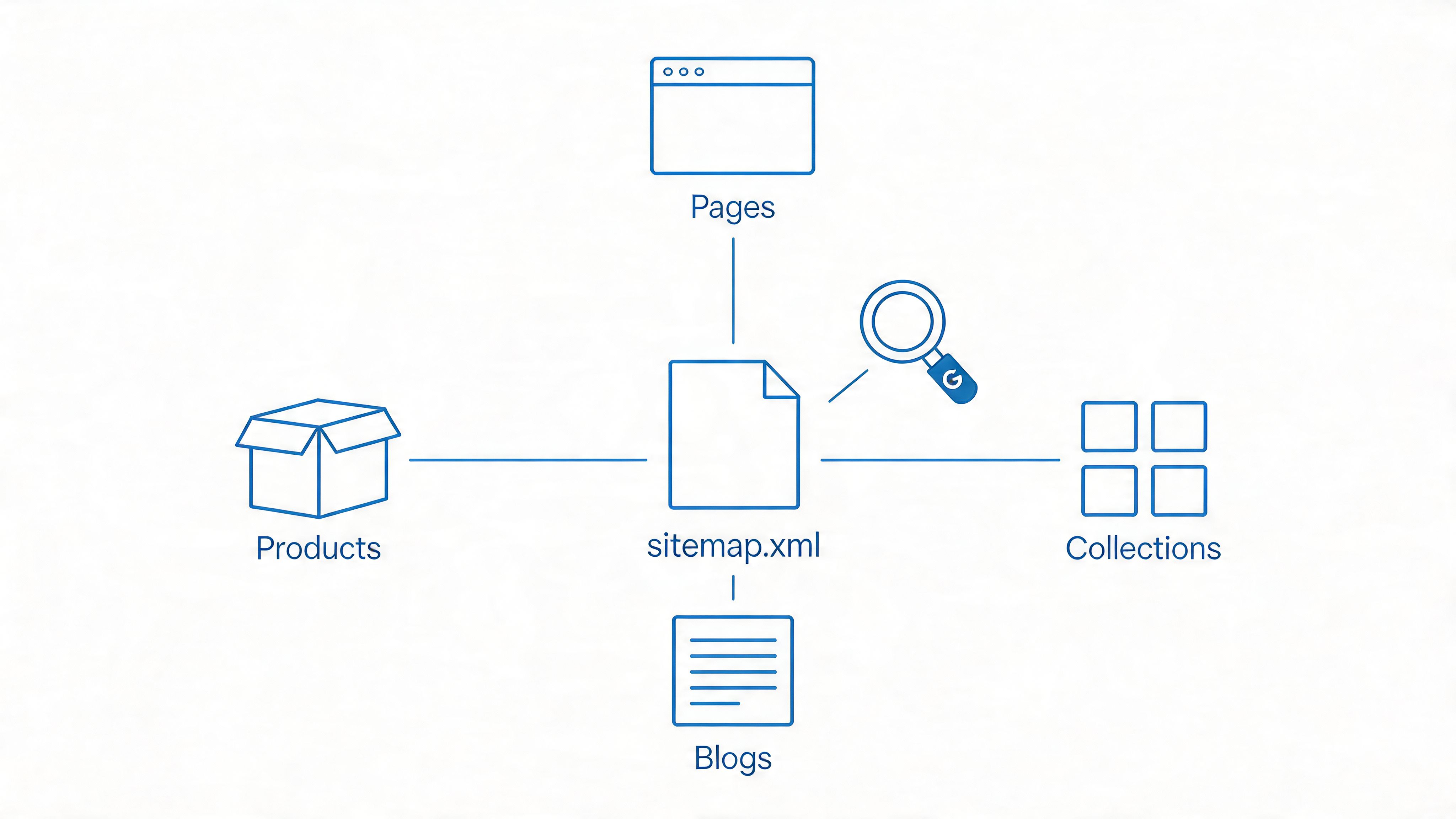
- Smart Organization: Shopify cleverly organizes your main sitemap into smaller "child" sitemaps for products, collections, pages, and blogs. This structure helps search engines process your content much more effectively.
To better understand how Shopify structures this, here's a quick breakdown of the different files you'll find within your main sitemap.xml index.
Shopify Sitemap File Structure
| Sitemap File | Contains URLs for | Key Purpose |
|---|---|---|
sitemap_products_1.xml | Individual product pages. | Ensures every product in your catalog can be found and indexed. |
sitemap_collections_1.xml | Collection (category) pages. | Helps search engines understand how your products are grouped. |
sitemap_pages_1.xml | Standard pages like "About Us" or "Contact." | Indexes your store's informational and static content. |
sitemap_blogs_1.xml | Blog posts and the main blog page. | Indexes your content marketing efforts and articles. |
Each of these files makes it incredibly easy for search engine bots to understand the different types of content on your store and how they relate to one another.
Automated but Essential
One of the best parts about the platform is that Shopify automatically creates and maintains this XML sitemap for you. It's always located at your-store.com/sitemap.xml, and search engines are programmed to look for it there.
While Shopify handles the heavy lifting of creating XML sitemaps, understanding what's happening under the hood is crucial. It empowers you to spot and troubleshoot issues, ensuring your SEO foundation remains strong.
Key Takeaway: Your Shopify sitemap isn't just a technical file; it's a direct line of communication with search engines. It tells them what’s important on your site and helps make sure that content gets seen by potential customers.
A well-managed sitemap is a fundamental piece of the puzzle. It works hand-in-hand with all your other optimization efforts, which we cover in our complete Shopify SEO checklist. This automated file is your first and most important step toward getting found on Google.
How to Find and Submit Your Shopify Site Map to Google
Alright, now that you know what a Shopify sitemap is, let's put that knowledge to work. While search engines are pretty smart about finding your sitemap.xml file on their own, you should never leave it to chance.
Manually submitting your sitemap to Google Search Console is a fundamental SEO task. Think of it as formally handing Google the blueprints to your store instead of waiting for them to stumble upon it. This simple step gives you more control and a much clearer view of your store's performance.
Finding your sitemap is incredibly easy. Shopify uses the exact same location for every single store, so you won’t have to dig through theme files or admin settings.
Just go to your browser, type in your store's main domain, and add /sitemap.xml to the end. It will look exactly like this:
yourstorename.com/sitemap.xml
That's the URL you'll need. When you visit it, you'll see the main sitemap index file, which acts as a table of contents, linking out to all the other sitemaps for your products, collections, pages, and blogs.
Submitting to Google Search Console
Submitting your Shopify sitemap is a quick, one-time setup that pays off for years. It gives you a direct line to Google's crawling data, helps you catch errors much faster, and tells Google you’re serious about your store's SEO.
Here’s exactly how to do it:
- Sign in to Google Search Console: If you haven’t already, you’ll need to set up and verify your Shopify store with Google Search Console (GSC). It's a free, non-negotiable tool for anyone monitoring their site's search performance.
- Find the Sitemaps Section: Look at the menu on the left. Under the "Indexing" group, you'll see a "Sitemaps" link. Click it. This is your mission control for all things sitemap-related.
- Add Your New Sitemap: In the "Add a new sitemap" box, you don't need the full URL. Just type
sitemap.xmland hit the "Submit" button.
GSC makes this process dead simple. Once you click submit, Google will get to work processing your sitemap.
You'll then see your sitemap.xml file pop up in the "Submitted sitemaps" list below. Don't panic if it initially says "Couldn't fetch"—this is common. It usually updates to "Success" within a few hours or, at most, a couple of days as Google's crawlers do their thing.
A "Success" status is the confirmation you're looking for. It means Google has successfully read your sitemap and found all the URLs you've listed. It’s your green light, confirming Google has the most up-to-date map of your store.
While Shopify is great at creating and updating this file for you, this manual submission is what closes the loop. In rare situations, like with highly complex stores or during troubleshooting, you might need more firepower. A dedicated Sitemap Generator can be a lifesaver for creating or tweaking sitemaps in those advanced scenarios.
However, for over 95% of Shopify store owners, the file Shopify generates automatically and this one-time submission is all you'll ever need for a solid technical SEO foundation. It’s a five-minute task that ensures your store is perfectly cataloged by the world's biggest search engine, setting you up for better indexing and visibility down the road.
Decoding the Structure of Your Shopify Site Map
Opening your Shopify sitemap for the first time can feel a little intimidating. You’re greeted by a wall of code, not a user-friendly webpage. But once you get the hang of its logic, you'll find it's a surprisingly simple and powerful tool for communicating with search engines.
Your main sitemap.xml file isn't just a giant list of every single URL on your store. Think of it more like a master index or a table of contents. This is a smart approach that's absolutely necessary for stores that are growing or already have a large catalog.
This main index file simply points to other, more specific sitemaps. Each one is dedicated to a certain type of content, like products or collections. This keeps everything organized and makes it incredibly efficient for search engine bots to crawl your site.
The Anatomy of Child Sitemaps
Shopify automatically organizes your store's URLs into these separate files, which we call "child" sitemaps. This structure helps Google and Bing quickly figure out what's new and what type of content they're looking at.
When you look at your main sitemap.xml, you’ll see links to files like these:
sitemap_products_1.xml: This is the big one. It contains all the URLs for your individual product pages and is the foundation of your ecommerce SEO.sitemap_collections_1.xml: Here you'll find all your collection pages. These are crucial for targeting broader, category-level keywords that shoppers use.sitemap_pages_1.xml: This file lists out your standard web pages, like your "About Us," "Contact Us," or policy pages.sitemap_blogs_1.xml: All of your blog posts live here. This is key for your content marketing efforts and for bringing in traffic from people who aren't ready to buy just yet.
This segmented structure is built for scale. Search engines have a hard limit of 50,000 URLs per sitemap file. By automatically creating new files (like sitemap_products_2.xml) when one gets full, Shopify makes sure that even massive stores stay perfectly organized and easy for Google to crawl.
The visual guide below breaks down the entire process, from finding your sitemap to getting it into Google's hands. It’s a foundational best practice for any serious store owner.
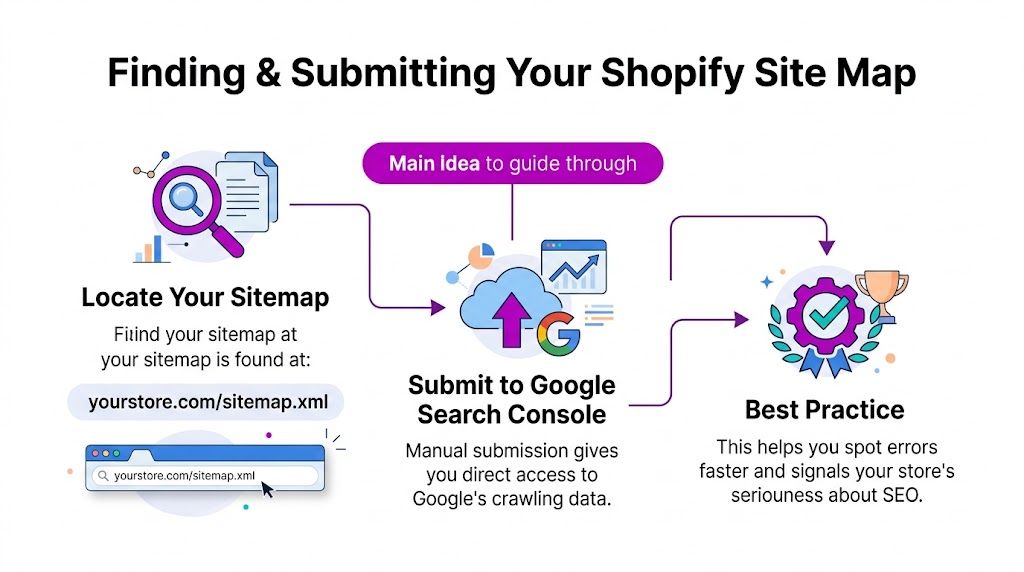
This infographic simplifies the workflow, showing that submitting your sitemap is a straightforward but incredibly powerful SEO action.
Translating the XML Tags
Inside each child sitemap, every URL is wrapped in a few important XML tags. These tags give search engines extra context, almost like little sticky notes that help them crawl your store more intelligently.
Let’s break down what the most important ones mean in plain English:
<loc>(Location): This is the most critical tag. It’s simply the full, direct URL of the page. Think of it as the page’s unique address.<lastmod>(Last Modified): This tag shows search engines the exact date and time the page's content was last updated. It's a huge signal for content freshness and tells crawlers to come back and look at pages you’ve recently changed.<changefreq>(Change Frequency): This tag used to be a way to suggest how often a page might be updated (e.g., daily or weekly). Today, major search engines like Google mostly ignore this, preferring to rely on the<lastmod>signal and their own observations.<image:image>: This is a fantastic tag that Shopify automatically adds for product pages. It points directly to the product's main image, which helps it get indexed in Google Image Search—a surprisingly good source of traffic for many stores.
Once you understand these tags, you're no longer just staring at code. You're starting to see your store the way a search engine does. You now know that simply updating a product description changes the
<lastmod>date, which can trigger Google to re-crawl and re-evaluate that page sooner.
This knowledge completely demystifies your Shopify site map. It isn't some technical black box; it's a logical file that gives you a direct line to the bots that influence your search rankings. Understanding its structure is the first real step toward mastering your store's technical SEO.
Advanced Site Map Strategies for Growing Stores
When your Shopify store graduates from a fresh startup to a scaling brand, your SEO needs get a whole lot more complex. That simple, out-of-the-box Shopify site map is a fantastic starting point, but growth brings new challenges. Things like international stores, duplicate content from product variants, and sneaky third-party apps can create major technical SEO headaches if you're not paying attention.
For ambitious stores, especially those on Shopify Plus, the sitemap isn't just a list of URLs anymore. It has to become a core piece of your technical SEO machine, working perfectly with your robots.txt file and canonical tags to give search engines crystal-clear directions.
International SEO and Multiple Sitemaps
One of the biggest hurdles for a growing brand is selling internationally. When you start using Shopify Markets to sell in different countries, Shopify does something pretty smart: it generates separate domains or subdomains for each market (like yourstore.com/en-us or fr.yourstore.com).
This is where your sitemap strategy has to level up. Shopify automatically creates a unique sitemap.xml file for every single one of these international domains. For instance:
- US Store:
yourstore.com/sitemap.xml - French Store:
fr.yourstore.com/sitemap.xml - German Store:
yourstore.com/de-de/sitemap.xml
Each sitemap only contains URLs for its specific market and language. To get Google to index each regional store correctly, you have to submit each country-specific sitemap to Google Search Console under its own domain property. This is how you tell Google which pages are for which audience—an absolutely critical step for any global SEO plan.
The Technical SEO Trio: Sitemaps, Robots.txt, and Canonicals
Thinking about your sitemap in a vacuum is a classic mistake for scaling stores. It’s actually one part of a powerful trio that works together to tell search engines exactly what to do. Getting them in sync prevents the kind of technical issues that plague larger sites.
The Sitemap (The Map): Your sitemap is you telling Google, "Hey, here are all the important pages I want you to find and index." It's your official guest list of valuable content.
The
robots.txtFile (The Gatekeeper): This file acts as a bouncer, telling crawlers, "Don't even try to look at these parts of my site." You use it to block crawlers from junk pages like/cart,/admin, or internal search results that have zero SEO value. Just make sure yourrobots.txtisn't accidentally blocking pages you've listed in your sitemap!The Canonical Tag (The Tie-Breaker): This is a small piece of code on a page that says, "If you see a few versions of this page, treat this specific URL as the real one." It's a lifesaver for Shopify stores, where product variants, collection filters, and URL parameters can create dozens of duplicate URLs for the exact same content.
The harmony between these three is everything. Your sitemap shows Google the ideal URLs, the canonical tag confirms which URL is the master copy, and
robots.txtkeeps crawlers out of the messy, unimportant sections. Without this coordination, you’re just confusing Google and watering down your SEO power.
Think about a filtered collection page, like /collections/shoes?color=blue. That page should have a canonical tag pointing back to the main collection page, /collections/shoes. This makes sure all the link authority flows to the primary page you actually want to rank, even if people share the filtered URL.
How Third-Party Apps Affect Your Site Map
As you add more apps for reviews, search, or loyalty programs, you’re also adding more potential for chaos. Many of these apps create their own pages on your site, and this is where you need to stay sharp.
Some apps will add their pages to your Shopify sitemap automatically, but others won't. Even worse, some might create low-value pages (like user profiles or app-specific search results) that get indexed and drag down your overall SEO.
After you install any new app that creates pages on your storefront, make it a habit to check two things:
- Review your
sitemap.xml: Look for any new or weird-looking URLs that have shown up. - Check the app's settings: Most good SEO or page-builder apps will give you an option to "noindex" the pages they create. This stops them from getting indexed by Google and keeps your sitemap focused on what matters.
By getting a handle on these advanced strategies, you can make sure your Shopify site map stays a powerful asset as your brand grows, not a source of technical debt. It goes from being a simple list to a strategic tool for managing your crawl budget, killing duplicate content, and conquering international markets.
How to Troubleshoot Common Shopify Site Map Issues
Finding an error in your Google Search Console sitemap report can feel a bit jarring, but don't worry. Most of the issues that pop up are surprisingly common and have straightforward fixes.
Think of your Shopify site map as the official directory you hand to Google. Keeping it clean and error-free is essential for your store's SEO health. Let's walk through how to diagnose and solve the most frequent problems you'll encounter.
If you see a "Couldn't Fetch" or "Sitemap could not be read" error, that's your first stop. Before you start digging into complex theme code, run through this quick diagnostic list. More often than not, it's a simple oversight.
- Check the URL: Did you submit
sitemap.xmlexactly as written? A tiny typo is the usual suspect here. - Verify Your Domain in GSC: Make sure the domain property you're looking at in Google Search Console is the exact primary domain set in Shopify. This includes getting the
www.or non-www.part right. - Test the Sitemap URL: Just pop
yourstore.com/sitemap.xmlinto your browser. If it loads up a nice XML file for you, then the file itself is fine. The problem is likely with how GSC is trying to access it.
If those basics check out, it’s time to look a little deeper at the specific errors GSC reports.
Diagnosing Submitted URL Errors
Once Google can actually fetch your sitemap, it starts looking at the URLs inside it. This is when you might see warnings in the Index Coverage report. Again, don't panic. Many of these are totally normal and just a byproduct of how Shopify is built. The trick is knowing which ones need your attention and which ones you can safely ignore.
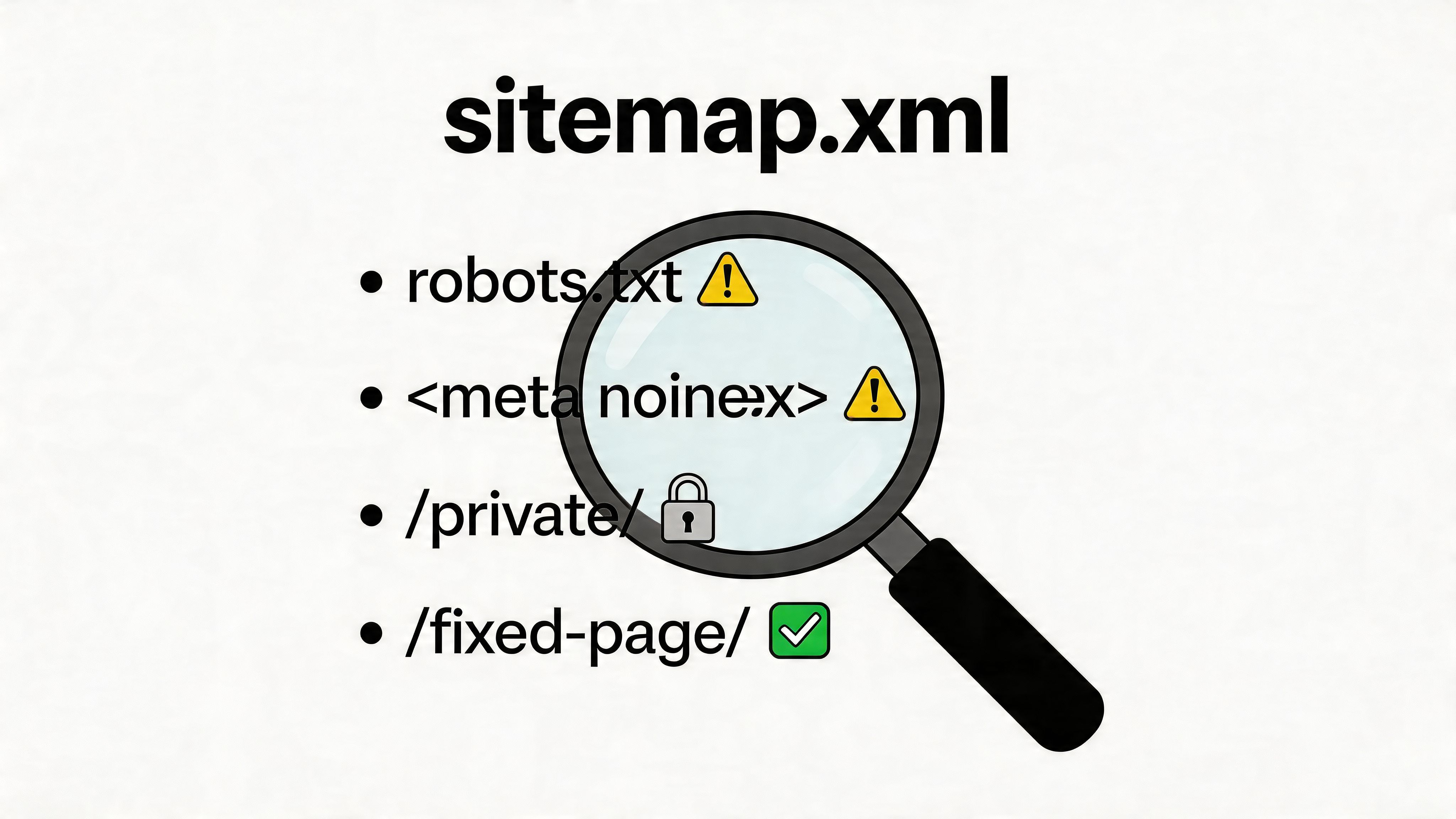
You’ll most likely see two common warnings: "Submitted URL blocked by robots.txt" and "Submitted URL marked ‘noindex’."
1. Submitted URL Blocked by robots.txt
This error simply means a URL in your sitemap is being told "do not enter" by a rule in your robots.txt file. For a Shopify store, this is often intentional.
Common Cause: Shopify automatically blocks pages that offer zero SEO value from being crawled by search engines. This includes URLs for the cart (
/cart), admin area (/admin), and internal search results (/search). Seeing this warning for these specific URLs is completely normal.
The time to worry is when this error pops up for an important product, collection, or blog post. That usually means you or an app has edited your robots.txt.liquid theme file and accidentally blocked something valuable. The fix is to go into that file and remove the faulty "Disallow" rule.
2. Submitted URL Marked ‘noindex’
This one’s pretty direct. It tells you a page listed in your sitemap has a meta tag on it that explicitly tells search engines not to index it.
Common Cause: The most common reasons are that the page is password-protected (like a private wholesale portal) or you've intentionally hidden a page using a theme setting or SEO app. Sometimes, a third-party app might add this tag without you realizing it.
To fix this, head over to the page in your Shopify admin. If it's password-protected, simply removing the password will also remove the "noindex" tag. If that's not it, you'll need to do some detective work in the page's theme template or sift through the settings of your SEO apps to find and remove the tag.
A Quick Guide to Common Sitemap Errors
To make things even easier, here's a quick reference table for tackling the most frequent sitemap errors you'll see in Google Search Console.
| Error Message | Common Cause in Shopify | How to Fix It |
|---|---|---|
| Couldn't Fetch | Typo in the submitted URL; GSC property doesn't match the primary domain; temporary server issue. | Double-check the URL is exactly sitemap.xml. Ensure GSC is set to your primary domain. If both are correct, click "Validate Fix" and wait. |
| Submitted URL blocked by robots.txt | Intentional blocking of non-SEO pages (/cart, /search); an incorrect custom rule in robots.txt.liquid. | Ignore for non-essential pages. For product/collection pages, edit robots.txt.liquid to remove the incorrect "Disallow" rule. |
| Submitted URL marked ‘noindex’ | The page is password-protected; a theme setting or SEO app has added a "noindex" tag. | Remove the password from the page, or check theme/app settings to remove the "noindex" tag from the affected page. |
| Submitted URL seems to be a Soft 404 | A page has been deleted, but the server is not sending a proper 404 "not found" signal. This is rare in Shopify. | Ensure the page is truly deleted. If it was a valuable page, set up a 301 redirect to a relevant, live page. |
This table covers the vast majority of issues you'll face. Sticking to these steps will help you resolve them quickly and get your indexing back on track.
Resolving Missing Pages and Other Problems
But what if the issue isn't an error message, but something that’s just... missing? If you've launched a new product line and the pages aren't showing up in Google, it points to a different kind of snag.
- New Products Not Appearing: Your Shopify sitemap is dynamic and updates on its own. If a new product isn't in the sitemap, the first thing to check is its status. A product set to "Draft" won't be included. Make sure it's "Active" and available on your online store sales channel.
- Redirect Chains: If you've migrated platforms or recently overhauled your URL structure, you might have created messy redirect chains that confuse search crawlers. You can learn more about how to manage these effectively in our guide to Shopify URL redirects.
By systematically working through these common issues, you can turn your sitemap into a clean, accurate, and powerful asset that helps Google discover and rank every important page on your store.
Shopify Sitemap FAQs: Your Questions Answered
Even after you get the hang of Shopify sitemaps, a few specific questions always seem to pop up. Think of this as your go-to reference for those nagging "what if" and "how do I" moments that come up during day-to-day store management.
Let's clear up some of the most common points of confusion.
Can I Manually Edit My Shopify sitemap.xml File?
The short answer is no. You can't just open an editor and start changing the code in your main sitemap.xml file. Shopify generates this file on the fly based on your store's live content, and this hands-off approach is actually a good thing. It’s designed to keep your sitemap perfectly in sync with your products, pages, and collections at all times.
So, how do you control what’s in it? You influence the sitemap by managing your content directly inside the Shopify admin panel. Your control comes from:
- Adding or deleting content: Publish a new product or unpublish an old blog post, and Shopify updates the sitemap automatically.
- Changing an item's status: If you switch a product from "Active" to "Draft," it gets pulled from the sitemap.
- Using 'noindex' tags: You can exclude a page by adding a "noindex" tag, either through your theme's code or with a Shopify SEO app. This tells search engines to ignore the page, and Shopify follows suit by removing it from the sitemap.
For very specific or advanced SEO strategies, some third-party apps let you create a separate, custom sitemap. But honestly, that's an advanced tactic that almost no Shopify store really needs.
How Often Does the Shopify Site Map Automatically Update?
Your Shopify sitemap updates pretty much instantly. The second you add a new product, publish a blog post, or update a collection, Shopify regenerates the sitemap.xml file to reflect the change. The system is built for real-time accuracy.
But here’s the critical distinction: the sitemap updating is not the same as Google crawling it. While your sitemap file is fresh right away, search engines work on their own schedule. It could take hours, or even a few days, for Google to come back, re-crawl your sitemap, and discover your new URLs.
Submitting your sitemap in Google Search Console is a must-do, as it gets it on Google's radar. Just know that it doesn’t force Google to crawl every single URL on the list immediately.
I Have a Site Map Error in Google Search Console—What Should I Do?
First off, don't panic. A lot of the "errors" or warnings you see in Google Search Console are often just informational—and sometimes, they’re even intentional. The key is to look at the specific error and understand it in the context of how Shopify works.
A great example is the "Submitted URL blocked by robots.txt" warning. This is perfectly normal for pages like /cart or /admin, since you want to block those from search results. If you see this error for an important product page, however, that's your cue to check your robots.txt.liquid file for any custom rules that might be causing trouble.
If a URL is flagged with a "noindex" error, it’s time to investigate. Check your page's theme settings or any SEO apps you've installed. Often, it's something simple, like a password-protected page or a setting you toggled by mistake.
Does Shopify Create a Site Map for Images and Videos?
Shopify’s approach here is a bit different for images versus videos.
For images, the answer is yes—to an extent. Shopify automatically includes your main product image in the sitemap for each product page using the <image:image> tag. This is fantastic for helping your products show up in Google Image Search results.
Videos, on the other hand, are a different story. Shopify does not create a separate video sitemap out of the box. If video SEO is a big part of your marketing strategy, you'll almost certainly need a specialized third-party app to generate a dedicated video sitemap. You would then submit that new sitemap file to Google Search Console to give your video content the best possible chance of ranking.
At ECORN, we know that wrestling with the technical side of your Shopify store can feel overwhelming. If you're ready to optimize your site for serious growth and want to ensure every technical detail is handled by experts, our team is here to help. Explore our flexible subscription packages to see how we can take your eCommerce project to the next level at ECORN.


Headless Ecommerce Development Services Explained

How to Build a Shopify Clothing Website That Converts

How to Launch a Box Subscription Business in 2026

Luxury Skincare Branding Playbook That Converters
10 Best Podcast Ecommerce Shows for Store Growth in 2026

Shopify Developer Hourly Rate: What to Pay in 2026
Critical Shopify Setup Errors That Are Secretly Sabotaging Your Store
Ecommerce Conversion Tracking: The Complete How-To Guide

Shopify Design Agency: How to Pick the Right Partner
Mastering Multi Store Management on Shopify
Scale Shopify Store

10 Shopify App Ideas Worth Building in 2026
Conversion Rate Optimization for Landing Pages: The Playbook
Shopify Plus Automation: A Guide for 2026
10 Social Selling Platforms for Shopify Merchants

Shopify Website Design Examples: 7 Stores Worth Studying
7 Ecommerce Newsletter Examples for Shopify Brands
One Product Shopify Store: Build and Scale

Mobile Pop Up Strategy for Shopify Stores That Converts
Sitemap for Shopify: How to Find, Optimize, and Submit It
7 Single Product Websites Worth Emulating
Product Variants Shopify: The Complete 2026 Guide

Ecommerce Analytics Consulting for Growth

What Is AI Integration for eCommerce

How to Choose the Right eCommerce Website Development Firm

E Business Strategy Implementation
Conversion Tracking Setup for Shopify Stores

BigCommerce vs Shopify Plus Which Enterprise Wins in 2026
Shopify Theme Kit: Setup, Commands, and Migration Guide

Shopify Extension Development: A Practical 2026 Guide
Shopify Speed Score Explained and How to Improve It
Shopify Mobile Optimization: The 2026 Playbook

How to Add Subcategory in Shopify for Better UX
How to Implement Structured Data for Ecommerce in 2026
SEO App Mobile: Shopify Store Optimization Guide

Shopify Plus Support: What It Includes and How to Choose

Google Ads for Shopify: The Complete 2026 Playbook

Shopify New York: How to Find and Hire the Right Agency
Google Search Console for Shopify: The Complete Setup
First Party Data Collection for eCommerce Growth
FAQ Online Store Guide: Build and Measure It Right

Do FB Ads Work for eCommerce in 2026?

One Page Checkout for Shopify: Design and Implementation
Shopify GraphQL vs REST: The 2026 Developer Decision
Shopify Ecommerce Consulting: Strategy, Pricing &

Are Reddit Ads Worth It for eCommerce Brands
Shopify Title and Meta Description: A Practical 2026 Guide

Product Video Best Practices for Shopify Brands

Real-Time Inventory Management: A 2026 Guide

AI Chatbot Integration for Shopify Stores

Affiliate Program Management: A Shopify Guide
10 Best Performance Monitoring Tools for Shopify in 2026

Digital Asset Management for eCommerce Brands in 2026

Every Type of Facebook Ads Explained for eCommerce Growth
Product Information Management Explained for Shopify Brands
Support Ticket System: A Guide for Shopify Stores

10 Best Customer Service Tools for Shopify in 2026

Can I Start a Business with No Money? a 2026 Blueprint

What Sells Good on Etsy: Best Niches for 2026

Shopify Add to Cart Button: A Practical 2026 Guide

Customer Feedback Automation: A Practical eCommerce Guide
Critical Rendering Path: A Guide for Shopify Stores

How to Promote on TikTok for eCommerce in 2026

B2B eCommerce Consulting That Drives Real Revenue
10 Best Practices for Site Navigation in 2026
Return vs Refund for Shopify Stores: A Practical Guide

What Is Customer Lifetime Value and Why It Matters
What Is Voice of Customer Research for eCommerce

SMS Marketing for Ecommerce That Actually Converts

Master How to Improve Email Deliverability in 2026

Top 8 eCommerce Partners NYC for Shopify Brands in 2026

Machine Learning for Ecommerce: Boost Your Shopify Store

Beauty Market Research: Your 2026 Growth Guide

Shopify International Expansion: A 2026 Roadmap
What Does CRO Stand for in Business: Understanding CRO

Shopify Visual Merchandising: A Playbook for Higher Sales

Shopify Landing Page Design: Master Conversion in 2026

10 Best AI SEO Optimization Tools for Shopify in 2026

Agentic AI for Ecommerce: Boost Your Sales in 2026
Mastering Email Marketing Data for eCommerce Growth

Conversion Rate Optimisation Australia: Boost Your Sales
Conversion Rate Optimization AI: Your Shopify Store Guide

10 Product Bundling Strategies for Shopify in 2026

How to Increase Customer Lifetime Value: A Shopify Playbook
AI Customer Service Automation: Shopify Guide 2026

Clean Website Design: A Shopify Conversion Playbook

Omnichannel Retail Strategy: A Shopify Playbook
Product Data Enrichment: A Guide for Shopify Brands
Instagram Shopping Features a Guide for Shopify Stores

What Is Revenue Optimization: A Holistic RevOps Guide

Benefits of Conversion Rate Optimization: Boost Your
WordPress to Shopify Migration: Your 2026 Seamless Switch
Boost Sales: Ecommerce Payment Processing Guide 2026

Unified Commerce Platform: Benefits, KPIs & Shopify Guide

How to Reduce Bounce Rate eCommerce: Your 2026 Guide
Shopify API Integration: A Practical End-to-End Guide

How to Implement Data Governance: A 2026 Guide
Shopify Store Development Cost: A 2026 Breakdown
What Is Server Side Tracking: The Shopify Guide 2026
Marketing Automation Workflows: A Shopify Guide for 2026


newsletter in your inbox