

You're probably here because a sale is ready to launch, but your storefront still isn't showing the pricing the way customers expect. The old price isn't crossed out. Variant pricing looks inconsistent. Or the discount appears in one market and disappears in another.
That's usually where compare at price on Shopify stops being a simple admin field and starts becoming a merchandising system. Used well, it makes promotions clearer, supports a cleaner product page, and helps shoppers understand the value of buying now. Used poorly, it creates mismatched prices, broken sale badges, and compliance risk in markets that take discount presentation seriously.
Most articles stop at “enter the higher number in Compare-at price and the lower number in Price.” That's the starting point, not the operating model. Growing brands need to know how this behaves across variants, themes, markets, CSV workflows, and storefront logic. That's what determines whether sale pricing works in production.
Why Your Store Needs to Show Sale Prices Correctly
A sale only works if shoppers can understand it instantly. If your product page shows one price with no context, customers have to guess whether they're looking at a markdown, a permanent price, or a pricing error. That uncertainty hurts trust.
Compare at price on Shopify exists to solve that problem directly. It gives you a native way to show the original price and the current selling price on the same product. That sounds basic, but on a live store it affects more than appearance. It changes how products are merchandised, how promotions are perceived, and how consistently pricing shows across collections, product cards, and variant selections.
What customers need to see
When sale pricing is set up properly, the message is immediate:
- Original value: The shopper sees what the item was priced at before.
- Current offer: The active selling price is clear.
- Reason to act: The discount is visible without needing a code or extra explanation.
That matters most when you're running category-wide promotions, seasonal campaigns, or product-specific markdowns. A visible before-and-after price reduces friction. It also makes the page feel intentional rather than improvised.
Practical rule: If a customer has to work to figure out whether something is on sale, the merchandising is doing less than it should.
Why merchants get this wrong
The usual problem isn't that merchants don't know the feature exists. It's that they treat it like a one-field task. In reality, sale pricing on Shopify depends on three layers working together:
| Layer | What it controls | Common failure |
|---|---|---|
| Product data | Price and compare-at values | Wrong relationship between fields |
| Theme output | Whether the storefront renders the sale state | Theme doesn't show compare-at pricing |
| Market logic | Whether the sale is visible by region | Compare-at hidden for certain countries |
That's why a product can look correct in the admin and still fail on the storefront.
For a small catalog, manual updates may be enough. For larger catalogs, variant-heavy products, or region-specific pricing, you need a process that's repeatable. The goal isn't just to “show a discount.” The goal is to present sale pricing in a way that customers trust and your team can manage cleanly.
Understanding the Compare at Price Field in Shopify
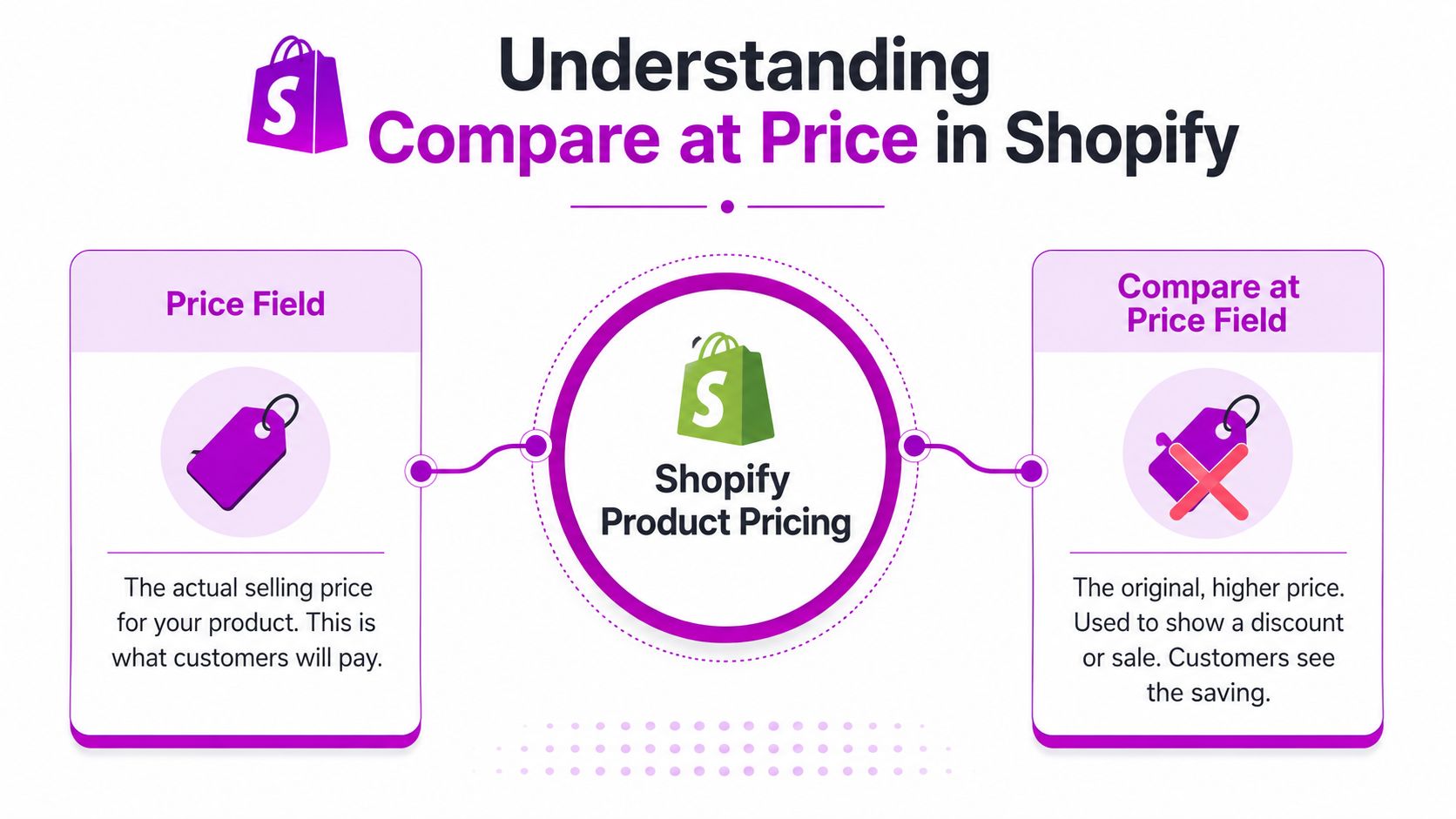
Shopify's pricing logic is simple, but it has to be followed exactly. According to Shopify's sale pricing documentation, the Compare-at price field is used for the original price of a sale item, while the Price field holds the reduced selling price. Shopify also notes that if compare-at pricing is used across variants, the compare-at price must be higher than the regular price for that variant, or the sale display won't be valid.
Price versus compare-at price
A lot of merchants blur these two fields together. They shouldn't.
- Price is the live selling price. This is what the customer pays.
- Compare-at price is the reference price. It tells Shopify what higher price to display as the original amount.
That distinction matters because compare-at price is not the same thing as a discount code. It doesn't create a checkout promotion. It changes the product's displayed pricing structure.
If you want a product page, collection card, and featured product block to show a visible markdown without relying on coupon behavior, compare-at pricing is usually the cleaner tool.
Why this field matters strategically
The feature isn't just technical. It's visual merchandising.
A visible original price helps shoppers understand the offer without interpreting banners, popups, or fine print. On most storefronts, that means the higher price appears crossed out and the lower price becomes the focus. That's a straightforward way to communicate value.
Here's the part teams often miss. Because this is product-level pricing, it usually keeps the sale message closer to the merchandise itself. That can be better than relying entirely on discount codes, especially when you want:
- Consistent product cards across collection pages
- Cleaner reporting between regular pricing and code-based promotions
- A simpler customer experience with no code entry step
Compare-at price works best when the sale should be visible before the customer reaches checkout.
The variant rule that breaks sale displays
Variant-heavy catalogs create the most confusion. Apparel, bundles with options, and products with size or color pricing often fail here.
If one variant has a compare-at price that isn't higher than its actual price, the sale logic becomes inconsistent. You might see one size show a markdown while another appears as regular price. That makes the product page feel unreliable, even when the issue is only in the data.
Use this quick check:
| Scenario | Outcome |
|---|---|
| Compare-at price is higher than Price | Sale display can appear |
| Compare-at price equals Price | No valid markdown display |
| Compare-at price is lower than Price | Invalid sale setup |
That's the baseline. Everything else in this article builds on that logic.
How to Add Compare at Price in Shopify
There are three practical ways to manage compare at price on Shopify. The right one depends on catalog size, how often pricing changes, and whether your store uses market-specific logic.
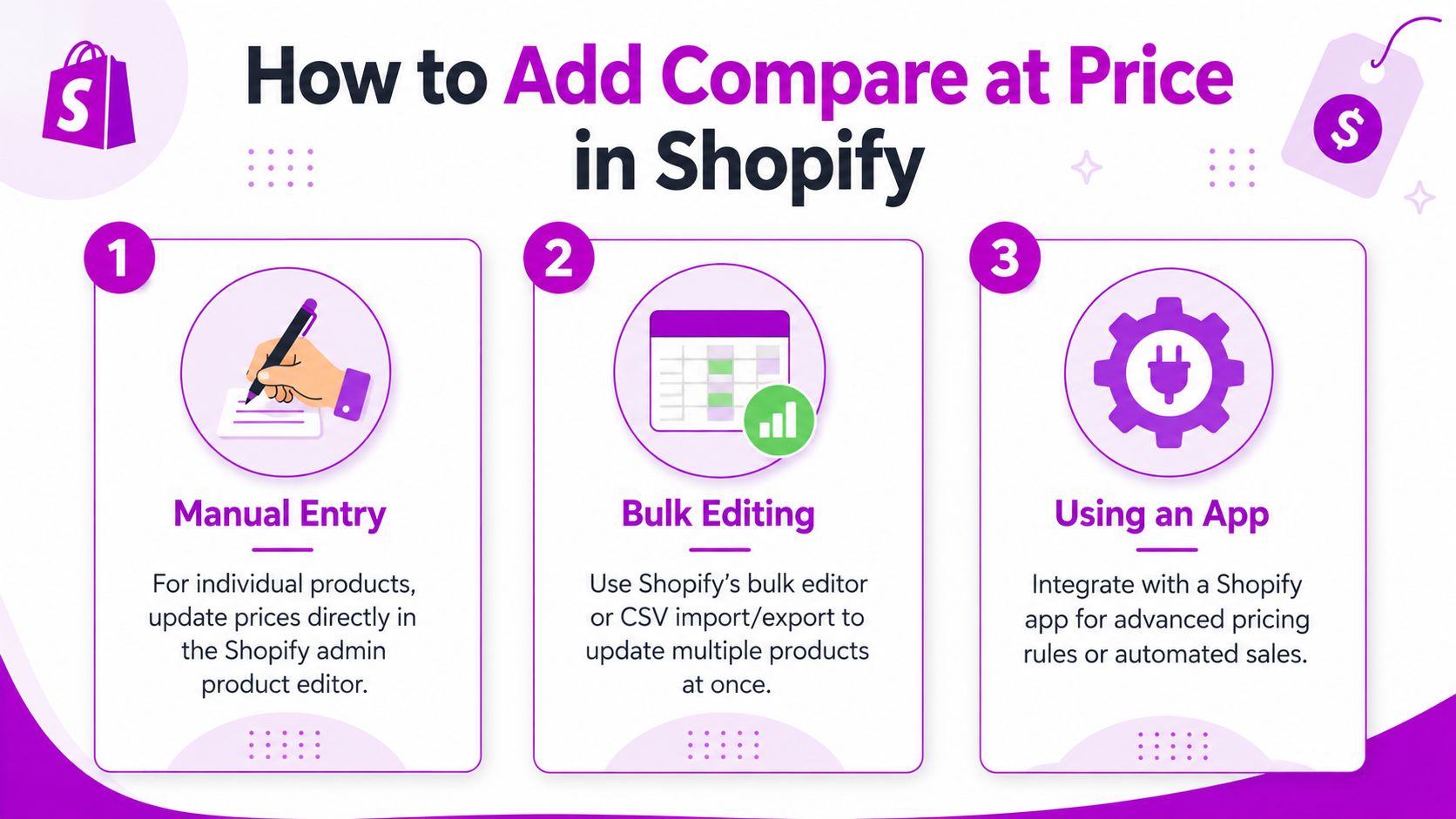
Manual entry for single products
If you're updating a handful of products, the admin is the fastest route.
Open the product in Shopify admin. In the pricing area, enter the original higher value in Compare-at price and the current lower value in Price. Save the product, then check the storefront.
This method is best when you're:
- launching a limited promotion on a few SKUs
- testing how your theme displays sale prices
- correcting one product or one variant quickly
For variant products, open each variant and make sure the values are correct at the variant level. A parent product can look fine in admin while individual variants still break the sale display.
Bulk editing when the catalog is larger
Once the catalog grows, manual entry becomes error-prone. That's when bulk workflows matter more than convenience.
You can use Shopify's bulk editor for straightforward updates, but CSV is more flexible when you need to stage, review, and re-import pricing at scale. It's also easier to hand off across merchandising and operations teams because the work lives in a spreadsheet before it touches production.
A practical flow looks like this:
- Export the product data from Shopify.
- Update the compare-at price fields for the products or variants you want on sale.
- Review handles, variant rows, and pricing columns before import.
- Re-import the CSV and validate the storefront output.
If your team already manages product data in spreadsheets, this is usually the most stable path. For larger sale events, it's also easier to QA than clicking through product pages one by one.
If you want a broader workflow for spreadsheet-based merchandising, this guide to bulk editing Shopify products is a useful companion.
CSV workflows for multi-market pricing
Multi-market sale pricing is where people often assume Shopify has a simple toggle. It usually doesn't work that way.
Shopify community guidance notes that different compare-at prices by market are not handled as a simple inline UI setting. Merchants typically export the product CSV, add compare-at values for the relevant market logic, and re-import with Overwrite products with matching handles enabled, as discussed in this Shopify Community thread on compare-at prices for different markets.
That has two big implications:
- CSV becomes the scalable method when pricing differs by geography.
- Import accuracy matters because incomplete column handling or accidental overwrites can create storewide pricing issues.
Don't treat a multi-market sale like a normal product edit. Treat it like a data operation.
Using apps for dynamic sale logic
Apps make sense when your sale rules are more complex than “set a higher number and a lower number.” For example, some brands want promotional logic tied to schedules, campaign windows, customer groups, or merchandising automation.
That said, apps introduce trade-offs:
| Method | Best for | Trade-off |
|---|---|---|
| Manual admin edits | Small updates | Doesn't scale well |
| CSV import/export | Large catalogs and multi-market workflows | Requires careful data handling |
| Apps | Rule-based or automated promotions | Can add theme and pricing complexity |
Apps also don't replace understanding Shopify's native price fields. They usually sit on top of that logic or interact with it. If the underlying product data is messy, an app won't save the setup.
For teams that need implementation help across pricing data, app behavior, and storefront output, an agency such as ECORN can handle Shopify development and app-related pricing workflows as one coordinated task rather than splitting them across separate vendors.
A short walkthrough can help if you want to see the mechanics in action:
Displaying Sale Prices on Your Shopify Storefront
Entering the values in admin is only half the job. Your theme still has to render them correctly. On many stores, that's where compare at price on Shopify appears to “not work,” even though the product data is fine.
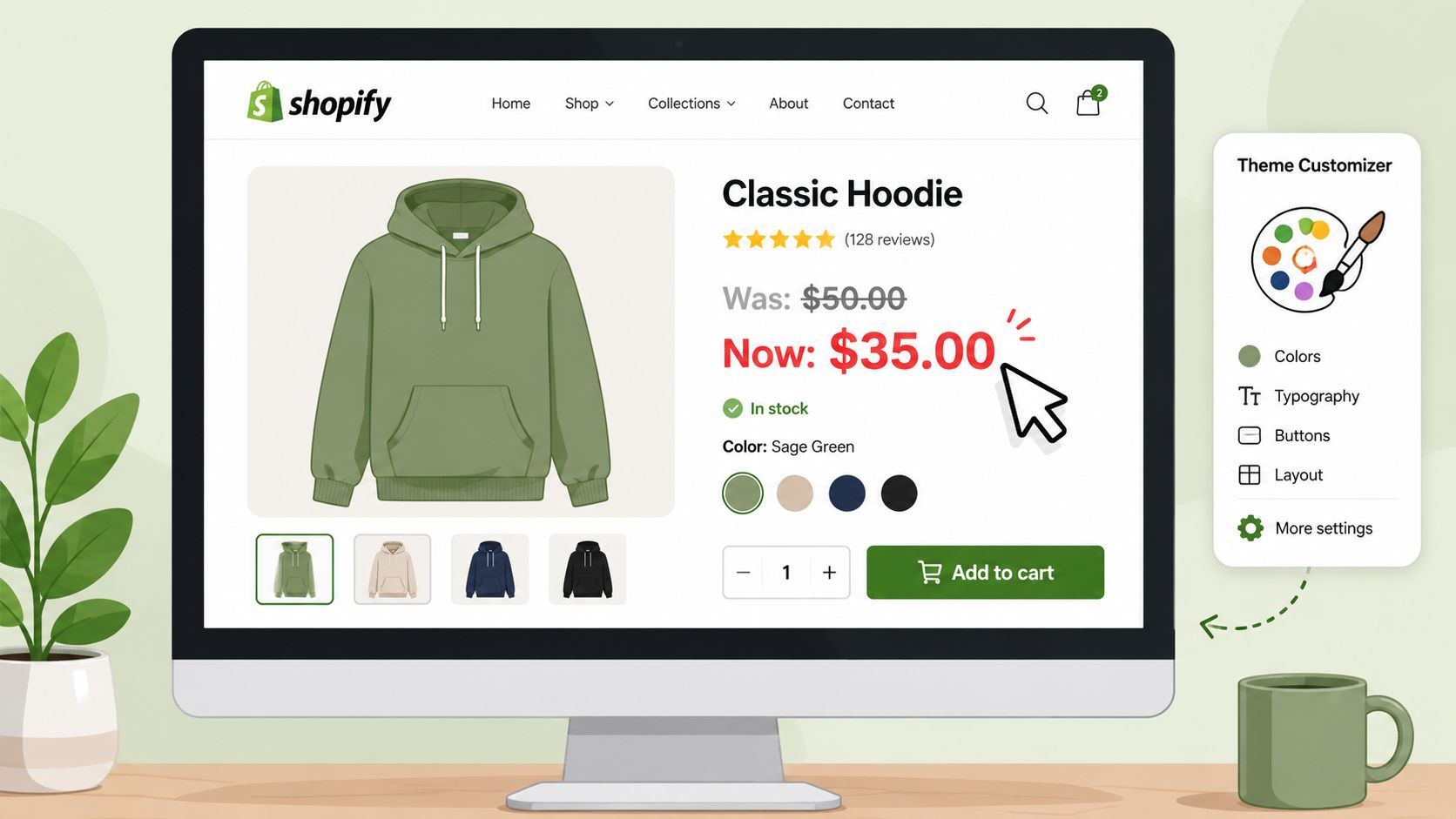
Start with the theme customizer
If you're using a modern Online Store 2.0 theme, check the theme settings before touching code. Many themes include built-in options for sale prices, compare-at display, badges, and crossed-out pricing styles.
Look in areas such as:
- Product template settings
- Collection card or product grid settings
- Theme global price display options
- Sale badge or discount label settings
Sometimes the data is present, but the display is disabled at the section level. That's common when a theme has separate controls for product pages and collection cards.
A good test is to compare one product page, one collection card, and one featured product block on the homepage. If only one of them shows the sale state, the issue is almost always in the theme layer.
When you need Liquid changes
Older themes and heavily customized storefronts often need code edits. In those cases, the theme needs logic that checks whether the compare-at price is higher than the active price and then outputs both values.
A basic Liquid pattern looks like this:
{% if product.compare_at_price > product.price %}<span class="price price--sale">{{ product.price | money }}</span><span class="price price--compare"><s>{{ product.compare_at_price | money }}</s></span>{% else %}<span class="price">{{ product.price | money }}</span>{% endif %}You'd typically place this in the product price snippet or component your theme uses, such as price.liquid, card-product.liquid, or a product info partial. The exact file depends on the theme structure.
What this code actually does
The condition is simple. If the compare-at price is greater than the active product price, the theme outputs sale markup. If not, it outputs the standard price only.
That sounds obvious, but production issues usually come from one of these storefront realities:
- the theme is using selected variant pricing, not product-level pricing
- collection cards and product pages use different snippets
- a price app has replaced the native theme markup
- JavaScript updates the price after variant selection and ignores compare-at output
If the product page shows a sale before variant selection but loses it after a size or color change, inspect the variant price renderer first.
A quick storefront validation routine
After making theme changes, check sale pricing in four places:
- Product page default load
- Variant switch behavior
- Collection grid cards
- Search or recommendation blocks
That matters because many themes don't share one single pricing template. A merchant can update the main product component and still miss collection cards entirely.
For custom storefronts, ask your developer one direct question: “Which price snippets control product, collection, and variant rendering?” That usually gets you to the fix faster than generic troubleshooting.
Fixing When Your Compare at Price Is Not Showing
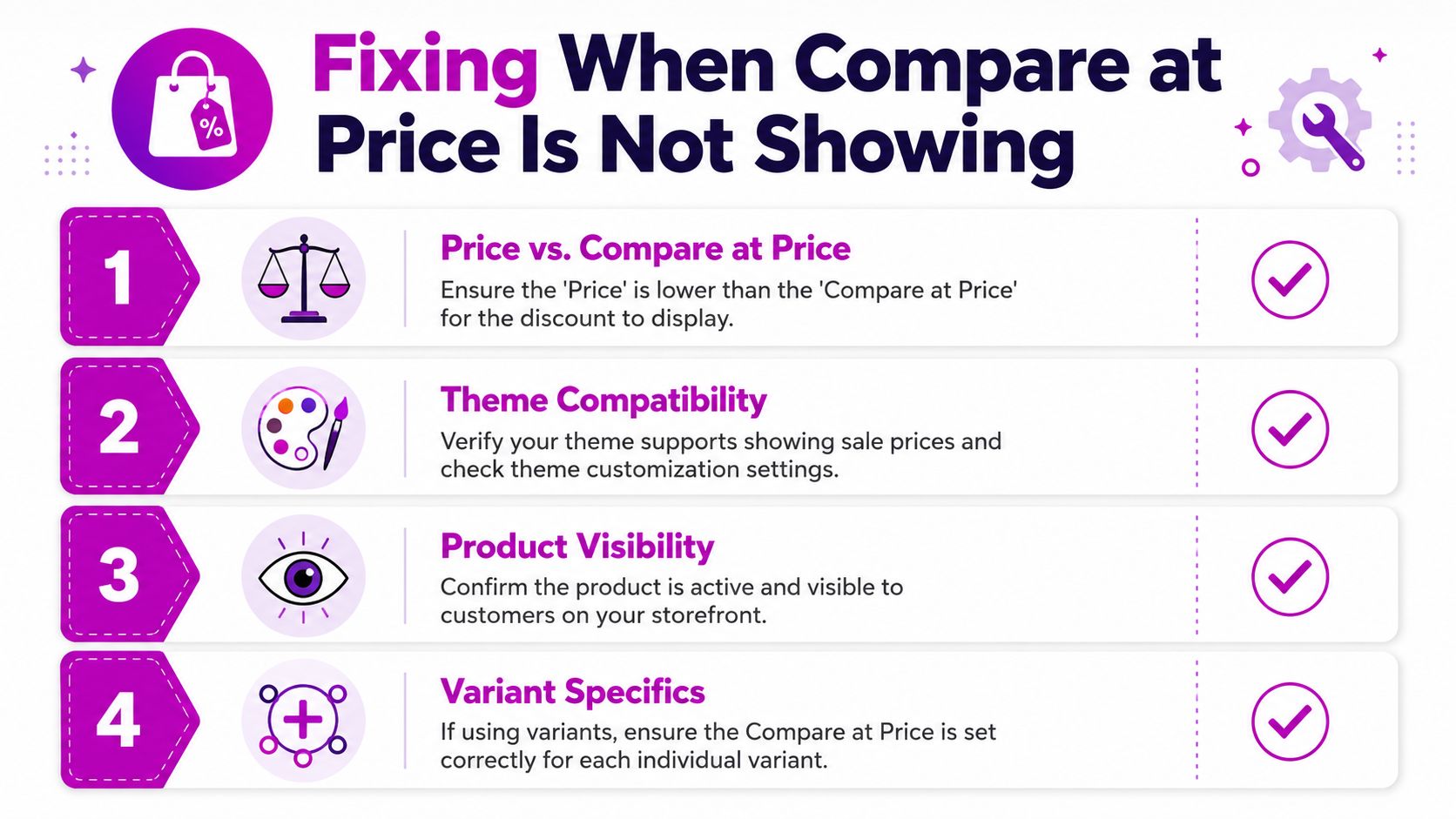
When compare at price doesn't show, the cause is usually one of a few predictable issues. The fastest way to solve it is to troubleshoot in the same order Shopify itself evaluates pricing. Start with product data, then theme output, then market visibility, then app conflicts.
Check the pricing relationship first
This is the most common issue and the easiest to miss during bulk updates. If the active Price is not lower than the compare-at value, the storefront won't display a valid markdown state.
Look at the actual sellable entity. On variant-based products, that means checking each variant instead of relying on the product overview.
Use this sequence:
- Open the affected product: Don't rely only on the collection view.
- Inspect each variant: One invalid row can make the sale state look inconsistent.
- Confirm the lower field is Price: Merchants sometimes reverse the fields by accident.
If the numbers are wrong, fix the product data before doing anything with theme code.
Verify the theme supports sale output
Some themes don't render compare-at pricing everywhere. Others support it on the product page but not in collection cards or quick view modules.
A practical test is to preview the same product in multiple storefront contexts. If the sale appears on the product page but nowhere else, the issue isn't your pricing data. It's the presentation layer.
Common theme problems include:
| Problem | What it looks like |
|---|---|
| Missing compare-at markup | Only current price appears |
| Variant renderer ignores sale state | Sale disappears after option selection |
| Card snippet lacks sale styling | Product page works, collection page doesn't |
If a pricing app is installed, inspect that too. Many apps replace or modify native price snippets, which can break expected compare-at behavior.
Review Shopify Markets settings
A lot of merchants waste time debugging products when the issue is market configuration.
One troubleshooting guide notes that a frequently missed reason for “compare at price not showing” is a Markets setting, where Shopify allows merchants to hide compare-at prices by market. That can affect specific countries and make the same product appear discounted in one region but not another, as described in this walkthrough on compare-at prices and Markets visibility.
That's why you should test pricing in the actual market context, not only in your default admin preview.
A product can be configured correctly and still hide compare-at pricing for a shopper in a specific country.
Rule out cache and app conflicts
If everything looks right in admin and code, stale rendering may be the issue. Browser cache, theme preview state, or app-injected scripts can all create false negatives.
Try this checklist:
- Preview in an incognito window: This removes many browser-level cached elements.
- Test with apps disabled in theme preview if possible: Especially pricing, personalization, or currency apps.
- Check the rendered HTML: If compare-at markup exists in HTML but not visually, it's probably CSS or JavaScript.
- Switch variants repeatedly: Dynamic scripts often fail on interaction, not page load.
A fast diagnosis order that saves time
When teams troubleshoot randomly, they end up editing code before confirming the product data. That slows everything down.
Use this order instead:
- Validate Price and compare-at values
- Check variant-level pricing
- Confirm theme output on product and collection views
- Review market visibility settings
- Inspect app overrides and caching
That sequence catches most failures without turning a pricing issue into a larger development task.
Using Compare at Price to Boost Conversions
The strongest use of compare at price on Shopify isn't technical. It's strategic. The feature helps when you want the value difference visible before checkout, directly on the merchandise. That can support stronger decision-making than a hidden discount code because the shopper sees the offer immediately on the product card and product page.
When compare-at price is the better tool
Use compare-at pricing when the discount should be part of the product presentation itself. That includes campaign landing pages, collection promotions, and hero products where visible markdowns matter.
Use discount codes when the promotion needs tighter control, such as segmented offers, affiliate campaigns, or checkout-triggered incentives. In practice, many stores need both, but they serve different jobs.
A simple decision view:
- Choose compare-at price for visible merchandising
- Choose discount codes for conditional promotions
- Combine carefully when you need both storefront clarity and checkout logic
If you're working on broader optimizing Shopify conversion rates, pricing presentation deserves the same attention as page speed, merchandising layout, and checkout friction.
Compliance matters in EEA and UK markets
Many “easy discount” tutorials fall short on this point. Compare-at price is not only a visual feature. In some regions, it touches compliance.
Community guidance notes that for EEA/UK stores, Shopify only allows discounts if the product has been at the higher price for at least 30 days before the discount, which makes compare-at pricing part of the store's compliance architecture, not just its merchandising setup, as discussed in this Shopify Community thread on compare-at price availability and discount rules.
That means your pricing workflow needs operational discipline. If your team updates sale pricing casually, without tracking what the product was priced at previously and for how long, the storefront can create avoidable legal risk in regulated markets.
The practical approach for growing brands
The brands that use compare-at pricing well usually do three things consistently:
- They decide promotion type upfront: visible markdown, code, or a mix
- They keep pricing operations organized: especially across variants and markets
- They treat sale pricing as merchandising plus compliance: not just a design detail
If you're revisiting your broader promotion framework, this guide to ecommerce pricing strategies is a useful next step because compare-at pricing works best when it fits a wider pricing model rather than acting as a one-off tactic.
If your team needs help implementing compare-at pricing across themes, variants, apps, or multi-market storefronts, ECORN can support the Shopify development and CRO side of the work. That's often the fastest route when the issue isn't a single setting, but the interaction between product data, theme logic, and conversion strategy.


Shopify Mobile Optimization: The 2026 Playbook
How to Add Subcategory in Shopify for Better UX
How to Implement Structured Data for Ecommerce in 2026

SEO App Mobile: Shopify Store Optimization Guide

Shopify Plus Support: What It Includes and How to Choose

Google Ads for Shopify: The Complete 2026 Playbook

Shopify New York: How to Find and Hire the Right Agency
Google Search Console for Shopify: The Complete Setup

First Party Data Collection for eCommerce Growth
FAQ Online Store Guide: Build and Measure It Right
Do FB Ads Work for eCommerce in 2026?
One Page Checkout for Shopify: Design and Implementation
Shopify GraphQL vs REST: The 2026 Developer Decision
Shopify Ecommerce Consulting: Strategy, Pricing &

Are Reddit Ads Worth It for eCommerce Brands
Shopify Title and Meta Description: A Practical 2026 Guide

Product Video Best Practices for Shopify Brands
Real-Time Inventory Management: A 2026 Guide

AI Chatbot Integration for Shopify Stores
Affiliate Program Management: A Shopify Guide
10 Best Performance Monitoring Tools for Shopify in 2026

Digital Asset Management for eCommerce Brands in 2026
Every Type of Facebook Ads Explained for eCommerce Growth
Product Information Management Explained for Shopify Brands
Support Ticket System: A Guide for Shopify Stores

10 Best Customer Service Tools for Shopify in 2026

Can I Start a Business with No Money? a 2026 Blueprint

What Sells Good on Etsy: Best Niches for 2026

Shopify Add to Cart Button: A Practical 2026 Guide

Customer Feedback Automation: A Practical eCommerce Guide
Critical Rendering Path: A Guide for Shopify Stores

How to Promote on TikTok for eCommerce in 2026

B2B eCommerce Consulting That Drives Real Revenue

10 Best Practices for Site Navigation in 2026
Return vs Refund for Shopify Stores: A Practical Guide
What Is Customer Lifetime Value and Why It Matters

What Is Voice of Customer Research for eCommerce

SMS Marketing for Ecommerce That Actually Converts

Master How to Improve Email Deliverability in 2026

Top 7 eCommerce Partners NYC for Shopify Brands in 2026

Machine Learning for Ecommerce: Boost Your Shopify Store

Beauty Market Research: Your 2026 Growth Guide

Shopify International Expansion: A 2026 Roadmap

What Does CRO Stand for in Business: Understanding CRO

Shopify Visual Merchandising: A Playbook for Higher Sales

Shopify Landing Page Design: Master Conversion in 2026

10 Best AI SEO Optimization Tools for Shopify in 2026

Agentic AI for Ecommerce: Boost Your Sales in 2026
Mastering Email Marketing Data for eCommerce Growth

Conversion Rate Optimisation Australia: Boost Your Sales
Conversion Rate Optimization AI: Your Shopify Store Guide

10 Product Bundling Strategies for Shopify in 2026
How to Increase Customer Lifetime Value: A Shopify Playbook

AI Customer Service Automation: Shopify Guide 2026

Clean Website Design: A Shopify Conversion Playbook

Omnichannel Retail Strategy: A Shopify Playbook
Product Data Enrichment: A Guide for Shopify Brands

Instagram Shopping Features a Guide for Shopify Stores

What Is Revenue Optimization: A Holistic RevOps Guide

Benefits of Conversion Rate Optimization: Boost Your
WordPress to Shopify Migration: Your 2026 Seamless Switch
Boost Sales: Ecommerce Payment Processing Guide 2026
Unified Commerce Platform: Benefits, KPIs & Shopify Guide
How to Reduce Bounce Rate eCommerce: Your 2026 Guide
Shopify API Integration: A Practical End-to-End Guide

How to Implement Data Governance: A 2026 Guide
Shopify Store Development Cost: A 2026 Breakdown
What Is Server Side Tracking: The Shopify Guide 2026
Marketing Automation Workflows: A Shopify Guide for 2026
Shopify: How to Reduce Technical Debt

Shopify UX Design Change: A Playbook for Growth

User Generated Content Strategy: Shopify Playbook

Shopify Pause and Build Plan Cost: A Complete 2026 Guide
Where Can I Sell My Prints? 10 Best Platforms for 2026
Shopify Order Management System: The Ultimate Guide 2026
What Is Marketing Attribution? an eCommerce Guide for 2026

10 Best Black Friday Sales Sheets for 2026

Discover the Top Social Media Marketing Agencies For

Consumer Confidence Definition for eCommerce in 2026
What Is Social Commerce? Your 2026 Guide to Boosting Sales

A Social Ad Campaign Playbook for eCommerce Growth

7 Best FAQ Page Examples for SaaS & eCommerce

Market Research in Fashion Industry: A Guide for Shopify
Shopify Migration Services: Expert Guide for 2026

Mastering FB Retargeting Ads for Shopify in 2026
What Is Omnichannel Ecommerce

Master Your Shopify Plus Migration: The 2026 Guide
Shopify Integration Services: A Merchant's 2026 Guide
Shopify Collection Description: A Guide to SEO & Sales

Shopify Plus Contact: Reach Sales & Support Effectively

Top Luxury Shopify Stores: Design & UX Strategies

How to Improve Customer Experience: A Shopify Roadmap

Creative Facebook Ads: 10 Examples for Shopify Brands

Remarketing with Facebook Ads: A Shopify Guide for 2026

SEO Linking Strategies for Shopify Stores
Top 7 Statistics YouTube Channels for eCommerce in 2026

Hiring Shopify Plus Designers: A Founder's Guide

Shopify Product Variation: Master Your Variants for 2026

Leverage Ai Solutions Brands: Your 2026 Shopify Growth Guide

Filters in Shopify: A Guide for Growing Brands


newsletter in your inbox