

Your WooCommerce store probably didn't become a problem overnight. It usually happens in layers. A plugin update breaks checkout styling. A tax rule needs another extension. The site slows down before a campaign. Your team starts asking which dashboard controls what, and simple merchandising changes turn into support tickets.
That's the point where a WordPress to Shopify migration stops being a platform preference and becomes an operations decision. The technical move matters, but the bigger issue is whether your store can keep up with the business you're trying to run. For growing brands, the migration work isn't just about moving products and pages. It's about reducing complexity, protecting revenue, and giving the team a backend they can use without friction.
Is Your WordPress Store Holding You Back
A lot of brands outgrow WordPress in a very predictable way. WooCommerce is flexible, which is exactly why early-stage teams like it. You can shape almost anything with plugins, custom fields, and theme edits. Then growth exposes the downside. The same flexibility starts creating operational drag.
One common scenario looks like this. The catalog has grown, paid traffic is increasing, and the team is preparing for promotions across multiple regions. Instead of focusing on merchandising and conversion, they're dealing with plugin compatibility, checkout edge cases, and backend workarounds. The store still functions, but it no longer feels dependable.
The signs usually show up in operations first
You don't need a dramatic outage to know the stack is fighting you. The warning signs are usually quieter:
- Routine changes need technical help: Merchants can't update layouts, adjust product logic, or change key content without a developer.
- Checkout feels fragmented: Payment, taxes, and shipping rely on separate add-ons that need constant monitoring.
- Store maintenance eats planning time: The team spends more time testing updates than improving offers, bundles, or landing pages.
- Growth creates hesitation: Every campaign introduces a fear that some plugin, script, or customization won't hold up.
Shopify appeals to teams in this stage because the operational model is simpler. Checkout is unified. Core commerce settings are centralized. The platform supports global payment gateway options and built-in commerce workflows that many WooCommerce stacks assemble through multiple tools.
The real cost of staying put isn't only technical debt. It's the number of commercial decisions your team postpones because the store feels fragile.
Migration should solve a business problem
A move to Shopify shouldn't be framed as “WordPress is bad.” For content-heavy businesses, keeping both systems connected can still make sense, especially if the brand has a strong editorial engine. If that's your situation, this guide to integrating Shopify and WordPress is often the better first step than a full rebuild.
But for stores where commerce is the priority, migration usually becomes the cleaner path when the backend complexity starts slowing execution. At that point, the question isn't whether WooCommerce can be patched again. It's whether the current setup is helping the business move faster.
Your Migration Blueprint Planning and Scoping
A migration plan usually looks tidy in a spreadsheet. The disruption shows up later, when the team realizes the new store does not just change the platform. It changes who owns product updates, how promotions go live, where content gets edited, and how quickly people can work without second-guessing themselves.
Planning and scoping exist to prevent that friction. Before any data moves, the business needs a clear view of what is being rebuilt, what is being retired, and what the team will need to relearn inside Shopify.
Start with an operational audit, not a feature list
Products, customers, and orders are only the visible layer. Essential scoping work starts by identifying the routines behind the store.
Audit these four areas:
Commerce data
Products, variants, collections, customer records, order history, discount rules, tax setup, shipping logic.Content assets
Landing pages, blog posts, help content, policy pages, media files, downloadable resources, navigation structure.Functional dependencies
Subscriptions, bundles, reviews, search, wishlists, upsells, loyalty tools, email capture, feed management.Team workflows
Who creates products, who updates merchandising, who publishes campaigns, who handles support changes, and which shortcuts they rely on today.
The fourth category gets skipped too often. That is where hidden migration cost lives.
A WordPress store can survive on informal habits for years. One manager edits homepage sections through a page builder. Another adjusts shipping through a plugin nobody else wants to touch. A developer knows which custom field controls a bundle message. Shopify usually improves that sprawl, but the cleanup has a price. People need new rules, new permissions, and time to stop doing work the old way.
Define what moves, what gets rebuilt, and what should disappear
Migration is a chance to cut weight.
If everything gets carried over by default, the new store inherits the same clutter, the same inconsistencies, and many of the same maintenance problems. A better approach is to classify each asset before anyone starts mapping fields or copying content.
Use a simple decision model:
| Asset type | Move as-is | Rebuild | Archive |
|---|---|---|---|
| Core products and active variants | Yes | Sometimes | No |
| Historical blog content | Sometimes | Sometimes | Sometimes |
| Legacy landing pages | Rarely | Often | Often |
| Plugin-specific custom fields | Rarely | Often | Sometimes |
| Old media library clutter | No | No | Yes |
This decision matters for more than technical cleanliness. It also reduces training overhead. Every unnecessary page template, outdated workflow, or leftover app replacement gives the team one more thing to learn and maintain after launch.
If an asset does not support current revenue, support volume, or acquisition goals, it should justify its place in the new store.
Scope the business rules before the data transfer
Shopify can handle a large amount of standard commerce logic cleanly, but it does not mirror every WooCommerce setup one-to-one. That gap needs to be scoped early.
Review questions such as:
- Which discount rules depend on plugins or custom code?
- Are product options true variants, line-item properties, or bundled logic?
- Does the current tax setup rely on region-specific exceptions?
- Which customer tags, notes, or segments matter to marketing and support?
- What order history needs to be available in Shopify admin?
These decisions shape the migration method later. They also affect staff training. If the support team expects to see a field in the order view and that field is missing or moved into an app, productivity drops immediately after launch.
Use a phased plan with a test environment
The safest migration plans follow a straightforward sequence: back up the current store, audit the data structure, test the import in a Shopify environment, then run the full transfer once the test is clean.
A workable planning model looks like this:
- Backup: Export the database, media library, and any configuration records the team may need to reference later.
- Audit: Map WooCommerce fields to Shopify fields and flag custom logic that has no direct equivalent.
- Dry run: Import sample data into Shopify, review products, variants, images, collections, and customer records, then document every exception.
- Full import: Run the production transfer only after pricing, handles, images, and key workflows validate correctly.
The dry run is where smart teams save money. Fixing a mapping issue before launch is routine. Fixing it after the merchandising team has started editing live products is expensive and messy.
Budget for retraining, review time, and slower output after launch
Software and migration tools are only part of the cost. The bigger miss is usually operational drag in the first few weeks after go-live.
Expect time for:
- Data cleanup: Standardizing SKUs, tags, product types, image references, and inconsistent formatting.
- Functional replacement: Choosing Shopify apps or native workflows to replace WordPress plugins.
- Cross-team review: Merchandising, operations, marketing, and support each need to validate what they will use every day.
- Team retraining: Staff need guided practice in Shopify admin before launch, especially around products, collections, discounts, pages, and reporting.
- Short-term productivity loss: Routine tasks often take longer at first, even when the new system is better long term.
This is the part growing brands underestimate. Leadership approves a migration to remove technical friction, then wonders why campaign execution slows for two weeks. The reason is usually simple. The platform changed faster than the team's habits did.
A strong scope does not aim for a perfect rebuild. It aims for a controlled transition, where the new Shopify store supports the business model and the people running it can do their work with confidence.
Executing the Core Data Transfer
This is often the initial focus, even though it shouldn't be. By the time you reach the transfer stage, the decision you need to make is simple: what's the least risky method for your catalog, customer data, and order structure?
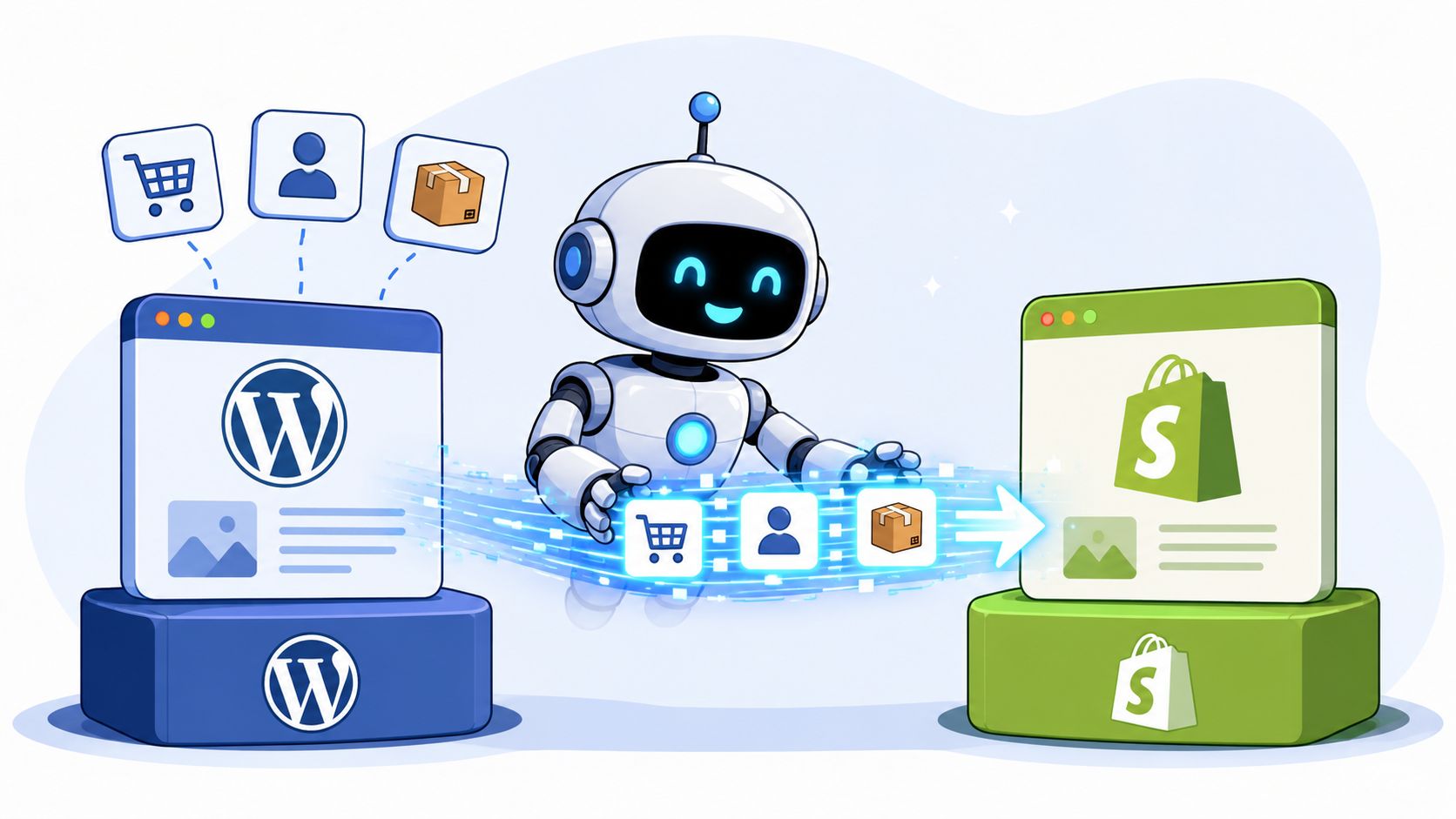
There are three viable paths. Manual CSV. Migration apps such as Matrixify, LitExtension, Store Importer, or Cart2Cart. Or an agency-led transfer with custom handling around the edge cases. None is universally best. The right one depends on catalog complexity, not optimism.
What each migration method is good at
| Method | Best for | Strength | Trade-off |
|---|---|---|---|
| Manual CSV | Small, simple catalogs | Full visibility into data | Slow, fragile, tedious |
| Migration apps | Mid-size and structured stores | Faster transfers and repeatable imports | Still needs mapping review |
| Agency-led migration | Complex stores with custom logic | Better control over exceptions | Higher upfront spend |
If the store has a modest product set with simple variants, a manual export from WooCommerce and import into Shopify may be enough. But once variant structures, bundled logic, image dependencies, or legacy customer fields become messy, manual handling turns into risk management by spreadsheet.
Manual CSV works until it doesn't
CSV migration sounds straightforward because the mechanics are familiar. Export products. Reformat columns. Import to Shopify. In practice, WooCommerce and Shopify don't think about products the same way.
WooCommerce stores often include flexible product types that don't map neatly into Shopify's stricter variant model. That means the CSV usually needs intervention before import:
- Descriptions need cleanup: Remove bad HTML and check formatting.
- Image paths need work: Shopify needs usable image references, and those often need reworking.
- SKUs need consistency: Variant logic breaks fast when identifiers are inconsistent.
- Collections need reinterpretation: Categories in WordPress often become collections in Shopify.
Apps are faster, but not hands-off
Matrixify, LitExtension, Sheetify, and Shopify's Store Importer reduce a lot of repetitive work. They're especially useful when you need to repeat imports during testing or when customer and order data matter as much as product data.
The mistake is assuming automation removes the need for validation. It doesn't. Successful migrations require validation of SKUs, variants, descriptions, images, pricing, customer accounts, and order histories, along with Shopify-specific settings such as multi-tax rules according to this migration overview from 20North Marketing.
Run a dry import on purpose, not as a courtesy. The dry run is where you catch the errors that would otherwise become live-store defects.
Agency-led transfers are about exceptions
Agencies earn their value on migrations when the store contains more than standard commerce data. Examples include custom checkout rules, review data tied to product IDs, subscriptions, segmented customer tags, or a large image library with inconsistent references.
A specialist team usually builds the transfer around these checkpoints:
- Pre-import normalization: Standardize product and customer records before anything enters Shopify.
- Test imports with review files: Inspect import outputs, not just front-end pages.
- Manual exception handling: Fix edge cases one by one instead of forcing bad data through.
- Operational validation: Confirm the support, ops, and merchandising teams can use the resulting records.
What to verify before you accept the import
Don't sign off because products “look fine” on collection pages. Check the records the business relies on.
Use this review list:
- Variants: Are sizes, colors, and option names grouped correctly?
- Pricing: Compare regular prices, sale prices, and any unusual decimal formatting.
- Customer accounts: Confirm names, tags, and addresses imported in a usable structure.
- Orders: Check a representative sample from different periods and order types.
- Images: Review product pages manually, especially products with multiple media assets.
The best transfer method is the one that gives you clean data and fewer operational problems after launch. Speed matters. Clean data matters more.
Rebuilding Your Storefront and Functionality
A migration isn't complete when the data lands in Shopify. It's complete when the store works better than the old one. That means the storefront has to be rebuilt with intent, not copied page by page.
Many teams try to recreate their WordPress front end exactly. That usually carries old problems into the new platform. Shopify gives you a chance to simplify navigation, sharpen merchandising, and reduce the number of moving parts behind every customer interaction.
Pick the theme based on trading needs
Start with the commercial requirements, not visual preference alone. If the brand relies on collection filtering, fast campaign landing pages, rich PDP storytelling, or region-specific merchandising, the theme has to support that cleanly.
A practical decision split looks like this:
- Theme Store theme: Best when the brand can work within proven patterns and wants faster deployment.
- Heavily customized premium theme: Useful when the business needs stronger merchandising flexibility without a full custom build.
- Custom theme build: Best for brands with a distinct UX model or complex content-commerce interactions.
The wrong move is choosing a theme because it visually resembles the old WordPress site. The right move is choosing a theme architecture your team can manage without developer dependency every week.
Don't replace plugins one for one
Excessive accumulation of digital tools often leads to bloated migrations. WordPress stores often accumulate plugins over time. Shopify stores can do the same with apps if no one challenges each function.
Audit every plugin and place it into one of three buckets:
| WordPress function | Best Shopify response |
|---|---|
| Native commerce tasks | Use Shopify native features first |
| Specialized business logic | Add a focused app |
| Legacy or low-value extras | Drop it |
For example, product organization that once depended on WordPress categories, tags, and plugin widgets may be cleaner with Shopify collections, metafields, and theme sections. Review systems, subscription tools, and loyalty programs usually need dedicated apps, but many layout tweaks and merchandising controls can move into the theme itself.
A cleaner Shopify stack usually comes from saying no more often than yes. Every extra app adds logic, cost, and another admin surface for your team.
Rebuild for customer flow, not nostalgia
Use the rebuild to improve the buying journey:
- Navigation should be clearer: Reduce menu sprawl and make collection paths obvious.
- Product pages should sell better: Rework image order, trust content, shipping information, and variant clarity.
- Collection pages should merchandise: Add filters, badges, and sorting that support how people shop.
- Content should support conversion: Move educational content closer to product discovery instead of burying it in an isolated blog structure.
The same discipline applies to backend functionality. If the old store had custom workarounds because WooCommerce needed plugins to behave a certain way, don't assume Shopify needs the same pattern. Often it doesn't.
The goal isn't parity at any cost. It's a leaner store that customers understand quickly and your team can operate confidently.
Preserving SEO and Preventing Traffic Loss
A migration can look polished in staging and still lose hard-won search equity the week it goes live. I have seen teams sign off on design, content, and product data, then miss the quieter SEO details that protect revenue. The result is familiar. Rankings slip, old backlinks hit dead URLs, image references fail, and the team burns time chasing issues that should have been handled before launch.
If you want a visual walkthrough before launch, this explainer is worth reviewing with your team:
The highest-risk mistake is poor redirect planning. WordPress and Shopify do not structure URLs the same way, especially across product pages, blog content, category archives, and media paths. If old destinations are not mapped carefully, search engines and customers both hit friction immediately.
Redirects are revenue protection
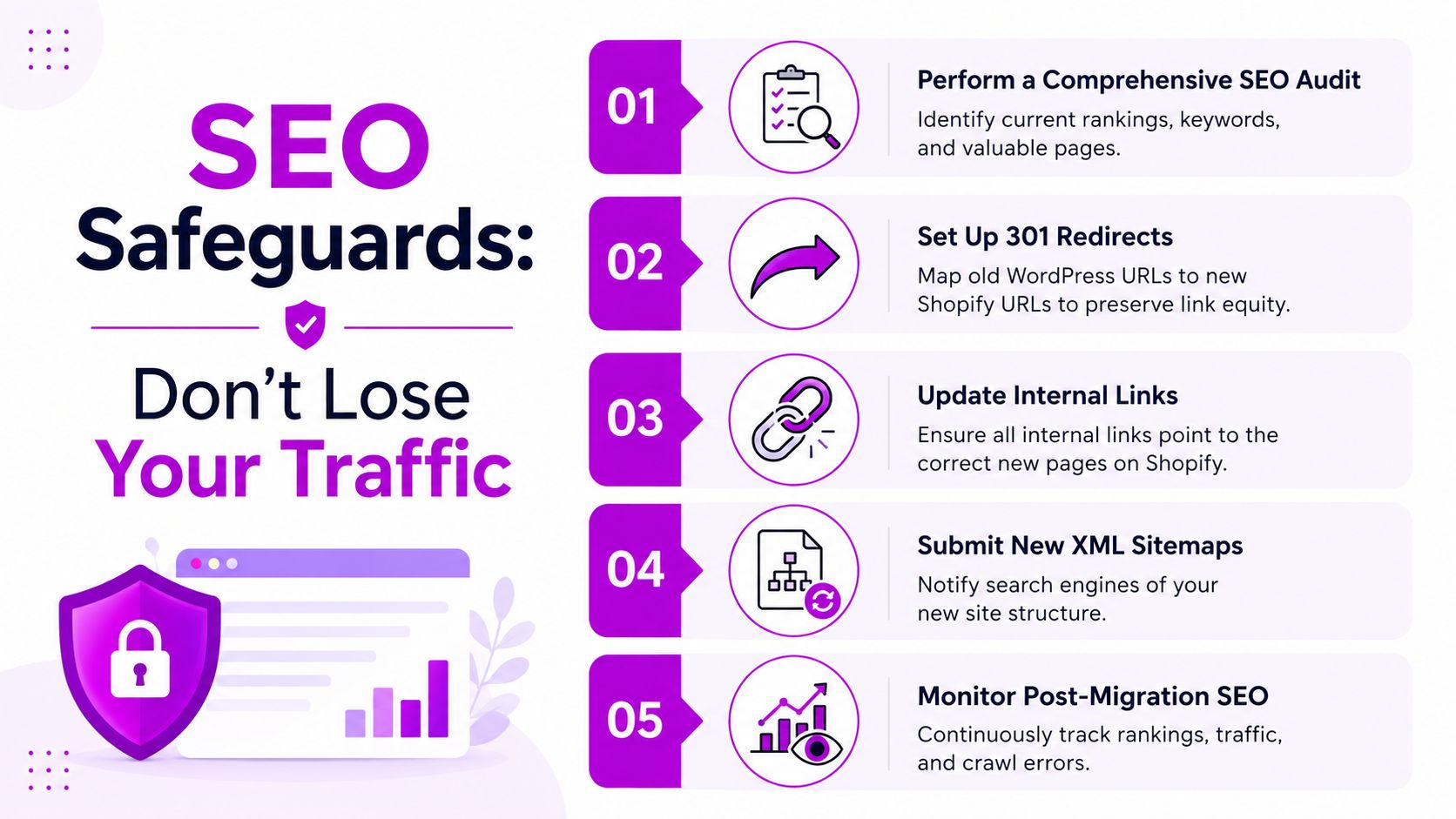
URL mapping belongs in the migration plan early, alongside data scoping and storefront rebuild decisions. Every meaningful WordPress URL needs a clear Shopify destination. That includes products, categories, blog posts, evergreen pages, campaign landing pages, and any URL with backlinks or consistent organic traffic.
Use a redirect sheet with two fields:
- Old WordPress URL
- New Shopify URL
Simple format. High stakes.
On larger stores, this file becomes one of the most valuable assets in the project because it aligns SEO, paid traffic, email links, support documentation, and the internal team responsible for QA. A detailed WooCommerce to Shopify migration process should include URL mapping before DNS changes or final launch approval.
Preserve the signals that made pages rank
Redirects are only part of the job. Search performance also depends on whether the new store preserves the context around those URLs.
Review these areas carefully:
- Page titles and meta descriptions: Recreate them for priority products, collections, pages, and articles.
- Image references: Check that product, collection, and editorial images load correctly after import and theme setup.
- Internal links: Update links inside blog posts, guides, and evergreen pages so they point to live Shopify URLs.
- Blog architecture: Keep content that attracts search traffic or supports assisted conversions, even if the new site structure is cleaner.
- Canonical logic and indexation settings: Confirm Shopify pages are indexable where they should be, and avoid duplicate versions created by tags, filters, or app behavior.
A common mistake is assuming Shopify defaults will preserve the search intent built in WordPress. They will not. Important pages need deliberate handling.
Use a launch-day SEO checklist
Before go-live, run a practical sequence:
Crawl the live WordPress store
Export URLs, metadata, status codes, and image references before anything changes.Identify priority pages
Flag top revenue pages, pages with backlinks, and pages that bring qualified organic traffic.Load and test redirects
Check standard URLs first, then test edge cases like old blog slugs, tagged URLs, and retired campaign pages.Validate media and internal links
Open product pages, blog posts, and collection templates to catch broken images and outdated links.Submit the sitemap after launch
Once the Shopify store is live, submit the sitemap through your search workflow and monitor for errors.
Watch page-level performance, not just total traffic
Post-launch reporting should go deeper than a top-line traffic number. Review indexing issues, crawl errors, landing page performance, and the specific URLs that lost visibility. That is how teams find whether the problem sits in redirects, template content, internal linking, or missing metadata.
There is also a human cost here that brands often miss. When redirects are incomplete or page structures change without clear logic, the marketing team spends the first weeks after launch fixing links in campaigns, updating content manually, and answering avoidable support questions about missing pages. SEO mistakes do not just affect rankings. They create extra operational work at the exact point when the team is still adjusting to Shopify.
The stores that hold organic traffic best usually do the boring work early, document every mapping decision, and test more than feels necessary. That discipline protects both search visibility and the people who have to run the store the next day.
The Human Element Team Retraining and Workflows
Most migration guides treat launch as the finish line. In practice, launch is when the human problems begin. The platform has changed, the team is under pressure, and everyone assumes the new admin will be self-explanatory.
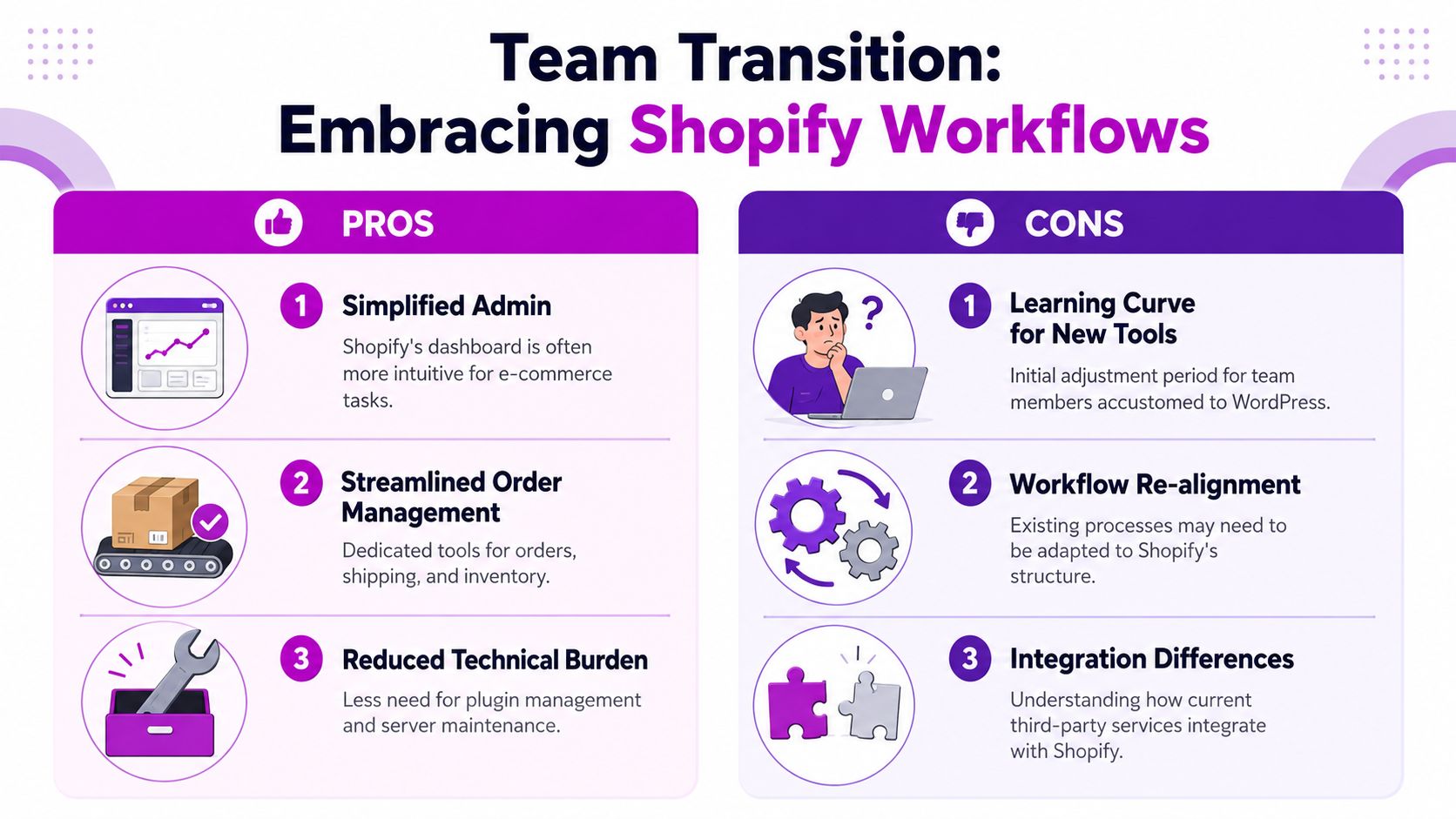
That assumption costs brands time. The hidden cost of retraining is rarely planned well, even though Shopify community discussions cited by LitExtension show that 45 percent of post-migration errors come from staff using old WordPress workflows, leading to an estimated 30 percent productivity drop for resource-constrained brands, as noted in this WordPress to Shopify migration resource from LitExtension.
Why smart teams still struggle after migration
WordPress and Shopify organize work differently. In WordPress, teams often rely on plugins, theme files, and flexible content structures. In Shopify, they work through products, collections, theme sections, apps, and a more opinionated commerce model.
That creates friction in predictable places:
| Old WordPress habit | What happens in Shopify |
|---|---|
| Editing around issues with plugin settings | The team needs to learn app scopes and native settings |
| Treating pages and products as equally flexible content objects | Shopify separates commerce objects more strictly |
| Expecting direct theme-file access for routine changes | The theme editor becomes the primary workflow for many tasks |
A merchandiser who was comfortable in WooCommerce may suddenly feel blocked by concepts that seem minor to a Shopify specialist. Metafields. Collections. App embeds. Theme sections. None of these are hard forever. They are hard during the first weeks.
Retraining needs structure
Don't train the team with a generic dashboard tour. Train by role.
A practical enablement plan looks like this:
Merchandising team
Focus on product updates, collections, tags, metafields, and campaign changes.Support team
Train on customer lookup, order views, account issues, and refund workflows.Marketing team
Cover landing page editing, navigation updates, blog publishing, and app touchpoints.Operations team
Walk through shipping settings, tax review, discount logic, and order exceptions.
Teams don't need “Shopify training.” They need training on the exact tasks they perform every day in the new environment.
Rewrite the playbook, not just the platform
You should expect a period where people ask, “Where did that setting go?” That's normal. What helps is replacing old documentation immediately.
Create fresh SOPs for:
- Creating and editing products
- Launching a campaign page
- Changing navigation
- Updating promotions and discounts
- Checking orders and customer records
- Escalating anything that requires developer support
Short screen-recorded walkthroughs usually beat long manuals. So do role-based checklists.
The deeper point is this. A WordPress to Shopify migration isn't only a systems change. It's a behavior change. Brands that ignore that tend to blame Shopify for post-launch confusion when the underlying issue is that no one translated the old workflows into new ones.
Your Go-Live Checklist and Post-Migration Growth
Launch day should feel controlled, not dramatic. If the project feels tense at the final switch, something important probably got postponed too long. The safest launches happen when every team knows what they're checking, what success looks like, and what to do if something looks off.
Use a go-live sequence with owners
Assign each item to a person, not a department. Ambiguity causes delays.
Use a final checklist like this:
Storefront QA
Review homepage, navigation, collection pages, product pages, cart, and account areas on desktop and mobile.Commerce testing
Run test purchases, verify order flows, review taxes, shipping logic, and payment behavior.Customer data spot checks
Confirm accounts, historical records, and essential profile information are visible where expected.Security signals
Verify that the store shows secure browsing indicators after the domain update and SSL validation.Redirect and content review
Test priority redirects, blog links, top landing pages, and campaign URLs.Operational readiness
Make sure support, merchandising, and marketing know where to work in Shopify from day one.
One launch detail many teams underestimate is the domain cutover sequence. The migration process needs a proper DNS update after the Shopify setup is ready, followed by SSL verification so the secure padlock appears. The technical guidance summarized earlier also notes that failing SSL validation can contribute to customer hesitation during launch, which is why this check should happen immediately after domain connection is complete.
Keep a contingency plan
Good teams still hit surprises. A product image may not load. A collection may sort incorrectly. A customer support workflow may break because the team expected data in a different place.
Prepare a short issue-response matrix:
- Critical revenue issues: Checkout, payment, cart, product availability.
- High-priority trust issues: Broken images, wrong prices, visible policy errors.
- Operational issues: Team permissions, app settings, notification mismatches.
- Non-blocking issues: Cosmetic styling defects and lower-priority content cleanup.
This keeps launch-day decisions rational. Not every issue deserves rollback panic.
Growth work starts immediately after launch
The migration is only justified if the new store performs better operationally and commercially. After launch, shift quickly into optimization.
Focus on these post-migration priorities:
- CRO review: Reassess product page clarity, cart friction, trust messaging, and mobile buying flow.
- Theme performance: Remove unnecessary app scripts and simplify anything that slows customer journeys.
- Analytics validation: Confirm the events and reporting views the team uses to make decisions.
- App discipline: Add new Shopify apps slowly. Every install should solve a clear business problem.
- Team feedback loops: Ask merchandisers, support staff, and marketers where the new workflows still feel clumsy.
Shopify gives growing brands a cleaner base for experimentation. That matters most after the move, when the team can finally spend less energy maintaining the stack and more energy improving the store.
The best migration outcome isn't “nothing broke.” It's this: the team launches campaigns faster, updates the store with less friction, and makes clearer decisions because the platform stopped getting in the way.
If you want expert help planning or executing a WordPress to Shopify migration, ECORN can support the move from strategy through launch and post-migration optimization. Their team focuses on Shopify design, development, CRO, and scalable eCommerce systems that help brands migrate cleanly and grow with fewer operational bottlenecks.



Sitemap for Shopify: How to Find, Optimize, and Submit It

7 Single Product Websites Worth Emulating

Product Variants Shopify: The Complete 2026 Guide
Ecommerce Analytics Consulting for Growth

What Is AI Integration for eCommerce
How to Choose the Right eCommerce Website Development Firm

E Business Strategy Implementation
Conversion Tracking Setup for Shopify Stores
BigCommerce vs Shopify Plus Which Enterprise Wins in 2026
Shopify Theme Kit: Setup, Commands, and Migration Guide

Shopify Extension Development: A Practical 2026 Guide
Shopify Speed Score Explained and How to Improve It
Shopify Mobile Optimization: The 2026 Playbook

How to Add Subcategory in Shopify for Better UX
How to Implement Structured Data for Ecommerce in 2026

SEO App Mobile: Shopify Store Optimization Guide

Shopify Plus Support: What It Includes and How to Choose

Google Ads for Shopify: The Complete 2026 Playbook

Shopify New York: How to Find and Hire the Right Agency

Google Search Console for Shopify: The Complete Setup

First Party Data Collection for eCommerce Growth
FAQ Online Store Guide: Build and Measure It Right

Do FB Ads Work for eCommerce in 2026?

One Page Checkout for Shopify: Design and Implementation

Shopify GraphQL vs REST: The 2026 Developer Decision
Shopify Ecommerce Consulting: Strategy, Pricing &

Are Reddit Ads Worth It for eCommerce Brands

Shopify Title and Meta Description: A Practical 2026 Guide

Product Video Best Practices for Shopify Brands
Real-Time Inventory Management: A 2026 Guide

AI Chatbot Integration for Shopify Stores
Affiliate Program Management: A Shopify Guide
10 Best Performance Monitoring Tools for Shopify in 2026

Digital Asset Management for eCommerce Brands in 2026

Every Type of Facebook Ads Explained for eCommerce Growth
Product Information Management Explained for Shopify Brands

Support Ticket System: A Guide for Shopify Stores

10 Best Customer Service Tools for Shopify in 2026

Can I Start a Business with No Money? a 2026 Blueprint

What Sells Good on Etsy: Best Niches for 2026

Shopify Add to Cart Button: A Practical 2026 Guide

Customer Feedback Automation: A Practical eCommerce Guide

Critical Rendering Path: A Guide for Shopify Stores

How to Promote on TikTok for eCommerce in 2026

B2B eCommerce Consulting That Drives Real Revenue

10 Best Practices for Site Navigation in 2026
Return vs Refund for Shopify Stores: A Practical Guide

What Is Customer Lifetime Value and Why It Matters
What Is Voice of Customer Research for eCommerce

SMS Marketing for Ecommerce That Actually Converts

Master How to Improve Email Deliverability in 2026

Top 7 eCommerce Partners NYC for Shopify Brands in 2026

Machine Learning for Ecommerce: Boost Your Shopify Store

Beauty Market Research: Your 2026 Growth Guide

Shopify International Expansion: A 2026 Roadmap
What Does CRO Stand for in Business: Understanding CRO

Shopify Visual Merchandising: A Playbook for Higher Sales

Shopify Landing Page Design: Master Conversion in 2026

10 Best AI SEO Optimization Tools for Shopify in 2026

Agentic AI for Ecommerce: Boost Your Sales in 2026
Mastering Email Marketing Data for eCommerce Growth

Conversion Rate Optimisation Australia: Boost Your Sales
Conversion Rate Optimization AI: Your Shopify Store Guide

10 Product Bundling Strategies for Shopify in 2026

How to Increase Customer Lifetime Value: A Shopify Playbook

AI Customer Service Automation: Shopify Guide 2026

Clean Website Design: A Shopify Conversion Playbook

Omnichannel Retail Strategy: A Shopify Playbook

Product Data Enrichment: A Guide for Shopify Brands

Instagram Shopping Features a Guide for Shopify Stores
What Is Revenue Optimization: A Holistic RevOps Guide

Benefits of Conversion Rate Optimization: Boost Your
Boost Sales: Ecommerce Payment Processing Guide 2026
Unified Commerce Platform: Benefits, KPIs & Shopify Guide

How to Reduce Bounce Rate eCommerce: Your 2026 Guide
Shopify API Integration: A Practical End-to-End Guide

How to Implement Data Governance: A 2026 Guide

Shopify Store Development Cost: A 2026 Breakdown
What Is Server Side Tracking: The Shopify Guide 2026
Marketing Automation Workflows: A Shopify Guide for 2026

Shopify: How to Reduce Technical Debt

Shopify UX Design Change: A Playbook for Growth
User Generated Content Strategy: Shopify Playbook

Shopify Pause and Build Plan Cost: A Complete 2026 Guide

Compare at Price on Shopify: A Complete Guide for 2026

Where Can I Sell My Prints? 10 Best Platforms for 2026
Shopify Order Management System: The Ultimate Guide 2026
What Is Marketing Attribution? an eCommerce Guide for 2026

10 Best Black Friday Sales Sheets for 2026

Discover the Top Social Media Marketing Agencies For
Consumer Confidence Definition for eCommerce in 2026

What Is Social Commerce? Your 2026 Guide to Boosting Sales

A Social Ad Campaign Playbook for eCommerce Growth

7 Best FAQ Page Examples for SaaS & eCommerce

Market Research in Fashion Industry: A Guide for Shopify

Shopify Migration Services: Expert Guide for 2026

Mastering FB Retargeting Ads for Shopify in 2026
What Is Omnichannel Ecommerce

Master Your Shopify Plus Migration: The 2026 Guide
Shopify Integration Services: A Merchant's 2026 Guide


newsletter in your inbox