

Shopify offers three distinct Git-backed deployment paths, native GitHub theme sync, Shopify CLI for CI/CD, and Oxygen for Hydrogen, and picking the wrong one is the single most common mistake teams make. A solid Shopify Git integration isn't one switch you flip, it's a decision about which surface you're shipping and which credentials control it.
That confusion usually starts on day one of an inherited store. Files live in the admin editor, someone has a ZIP on a laptop, and nobody can say which version is live. Merchants keep asking for small changes, so you keep editing directly, and the risk compounds. The fix isn't more discipline, it's putting the right surface under version control with the right deployment boundary.
What Shopify Git Integration Actually Means in 2026
You've probably taken over a theme where the live storefront doesn't match anything on your machine. You pull files down, edit locally, then realize there's no review step and no reliable way to undo a bad publish. That gap is what Shopify Git integration is meant to close, but it closes differently depending on what you're building.
Shopify introduced its native GitHub theme integration in June 2021 as part of Online Store 2.0, alongside an updated Shopify CLI and Theme Check, a launch Shopify described on its Partners Blog. Before that, Git on Shopify was an external workaround built around manual uploads. Since then, three separate paths have matured, and teams that treat them as interchangeable end up with broken deploys.
Three Paths, Three Surfaces
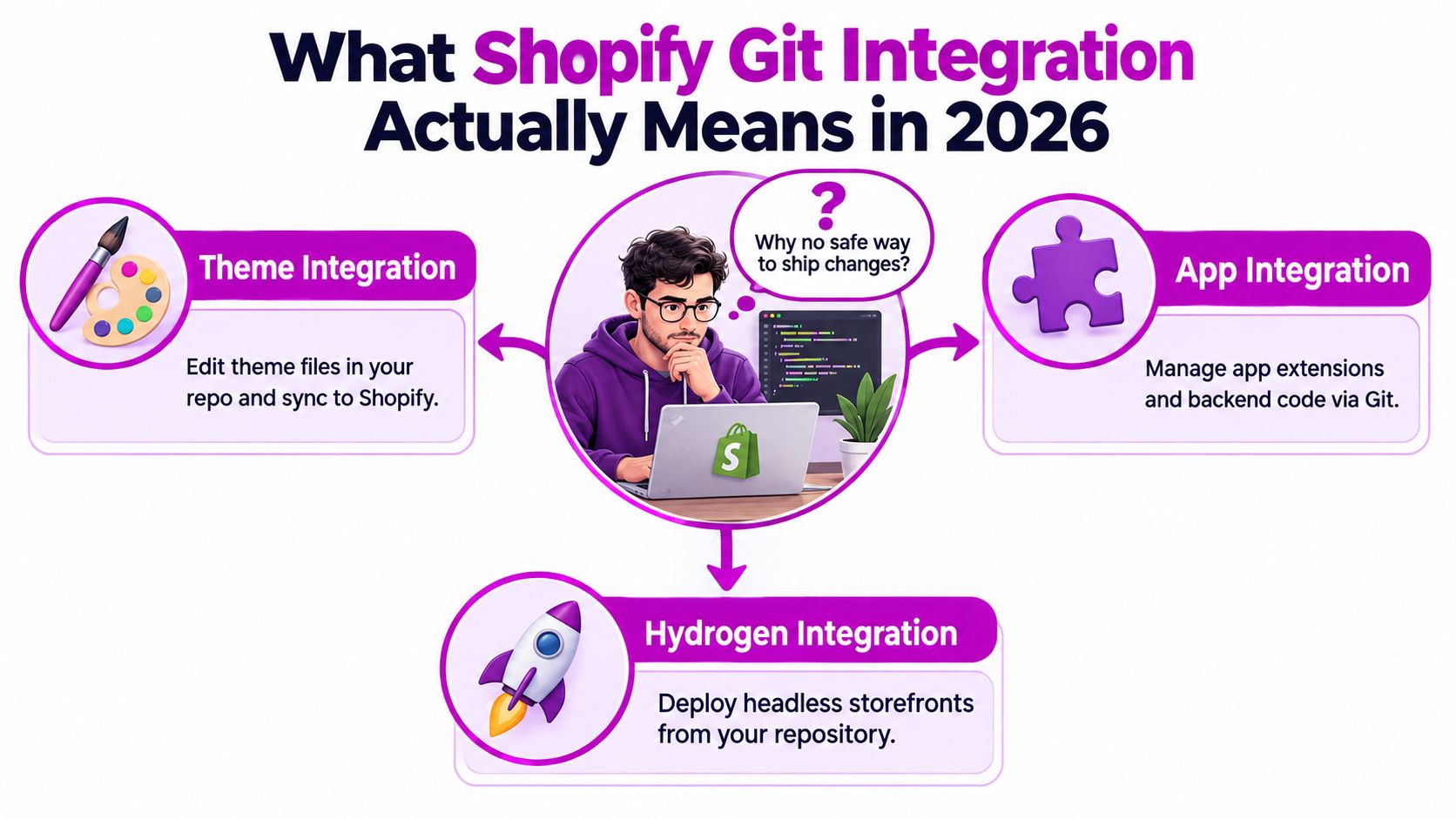
- Native GitHub theme sync: Connects a repository branch to a theme in the admin, with changes flowing both ways. This fits Liquid themes and teams that want pull requests before anything reaches production.
- Shopify CLI for CI/CD: Pushes, pulls, and deploys from the command line or a pipeline. This is programmatic control, and it comes with tokens you must store and rotate securely.
- Oxygen for Hydrogen: Hosts headless storefronts where merges can trigger deployments. It's a different runtime with a different token model entirely.
The infographic below maps those three surfaces so you can place your stack before touching any configuration.
Why the Choice Matters Beyond Code
The business case is straightforward. Pull requests give merchants and senior developers a review gate before a live theme changes. Commit history gives you an audit trail when a launch goes wrong at peak traffic. Branches let a campaign theme exist without polluting production, and tags give you rollback points instead of panic edits.
Multi-store brands feel this most. Promoting the same theme across regions without version control means copying files between admins and hoping nothing drifts. With Git, promotion becomes a merge and a deploy, repeatable across storefronts. If you're a solo developer on one theme, native sync may be all you need. If you're running apps or Hydrogen alongside that theme, you'll need the other paths too, and each one needs its own credentials and rollback plan.
Practical rule: Pick the integration by surface first, theme, app, or Hydrogen. Repository structure and secrets follow from that choice, not the other way around.
Prerequisites and One-Time Store Setup
Most failed setups aren't code problems. They're sequencing problems, developers clone a theme before they have store access, a clean repository, or anywhere safe to put a token. Spend the setup hour up front and you'll reuse every piece of it for the rest of the project.
The Checklist Before You Write Code
- A development store: Create one through your Partner Dashboard so you're never testing against production. Seed it with products and collections that resemble the live catalogue.
- Admin access with the right permissions: You need theme access at minimum, and app permissions if you'll deploy extensions later. Ask for a staff or collaborator account scoped to what you'll touch.
- Node and a package manager: Shopify CLI runs on Node, so install a current LTS release with npm or your team's standard manager. Pin the version in your repository so every machine matches.
- A clean remote repository: Create it on GitHub or GitLab before pulling anything down. An empty repo forces a deliberate first commit instead of a dumped ZIP.
- A decision on secrets: Decide now whether tokens live in GitHub Actions secrets, GitLab CI variables, or a password manager for local work. Postponing the decision is how tokens end up committed.
Create the Store and App Credentials
Start in the Partner Dashboard and spin up a development store. Then create a custom app in that store's admin and grant only the scopes your work needs, theme access for theme work, product or metafield scopes only if your build touches them. Least privilege sounds tedious, but a leaked token with narrow scopes is a nuisance, while a leaked token with broad scopes is an incident.
Record every credential you generate in your secret store immediately, with a label naming the store and purpose. Teams lose hours to tokens named "test" that nobody can identify six weeks later. If you're working across multiple client stores, one token per store, every time, no sharing.
Install and Authenticate the CLI
Install Shopify CLI globally, then run the login flow against your development store. The CLI opens a browser session and ties your local environment to that store. Verify it worked by listing the store's themes from the terminal, you should see the default theme and its ID.
Next, initialize Git in your project folder, add a sensible ignore file for build output and local configuration, and push the first commit to your remote. At this point you have three things working together, a store you can break safely, a CLI that can talk to it, and a repository that records every change. That's the foundation every later workflow assumes.
Set up in this order, store, credentials, CLI, repository. Reversing it is where the wasted half-day hides.
Shopify CLI vs Theme Kit for Local Development
This comparison has a short answer, followed by the nuance that matters. Use Shopify CLI as your default. Theme Kit still works on older projects, but it's legacy tooling, and new Shopify features land in the CLI first. Here's how they differ day to day.
Shopify CLI covers the full local loop, pull a theme, run a local development server with hot reload, push to an unpublished theme, and deploy when you're ready. It also handles apps, extensions, and Hydrogen from the same tool. That matters the moment your project grows beyond a single Liquid theme, because one command set travels with you.
Theme Kit does one job, syncing theme files between your machine and one store. It watches a folder and uploads changes. For a tiny maintenance engagement on an old theme, that's enough. Where it falls short is everything around the sync, no modern language server integration, no app workflow, and no path into CI/CD that Shopify continues to invest in.
Shopify CLI vs Theme Kit at a Glance
| Capability | Shopify CLI | Theme Kit |
|---|---|---|
| Theme pull, push, deploy | Full support, including unpublished themes | File sync to a configured theme |
| Local development server | Built in, with live reload | Not included, edits sync to the store |
| Apps and extensions | Supported in the same tool | Not supported |
| Hydrogen projects | Supported | Not supported |
| Editor and language tooling | Theme Check and language server support | Minimal |
| CI/CD use | Designed for pipelines with token auth | Possible but legacy |
| Git interaction | Works alongside your repo, you control commits | Also repo agnostic, but sync can race commits |
Performance on large themes is where the CLI earns its keep in practice. Initial pulls are comparable, but the CLI's development server avoids round tripping every file save to a remote theme just to preview a change. On a big catalogue theme with many sections, that local loop is the difference between iterating freely and batching guesses.
Git interaction deserves one caution for both tools. Neither tool commits for you in local development, that's your job, and it's a good thing. Commit deliberately, with messages that explain why, rather than letting a file watcher define your history. If you're evaluating the older tool for an existing project, the detailed walkthrough in ECORN's guide to Shopify Theme Kit covers its setup and limits.
For a growing brand, the defensible default is CLI everywhere, with Theme Kit kept only where an inherited project already depends on it. One tool means one onboarding path, one set of pipeline commands, and no dead end when the project adds an app.
Connecting a GitHub Branch to a Shopify Theme
The native integration is the simplest useful version of Shopify Git integration, and for many theme teams it's sufficient on its own. Shopify documents that connected themes stay in two-way synchronization with automatic commits, which is exactly what makes this more than a backup copy. The full behaviour is spelled out in Shopify's GitHub integration documentation.
Connect the Repository Step by Step
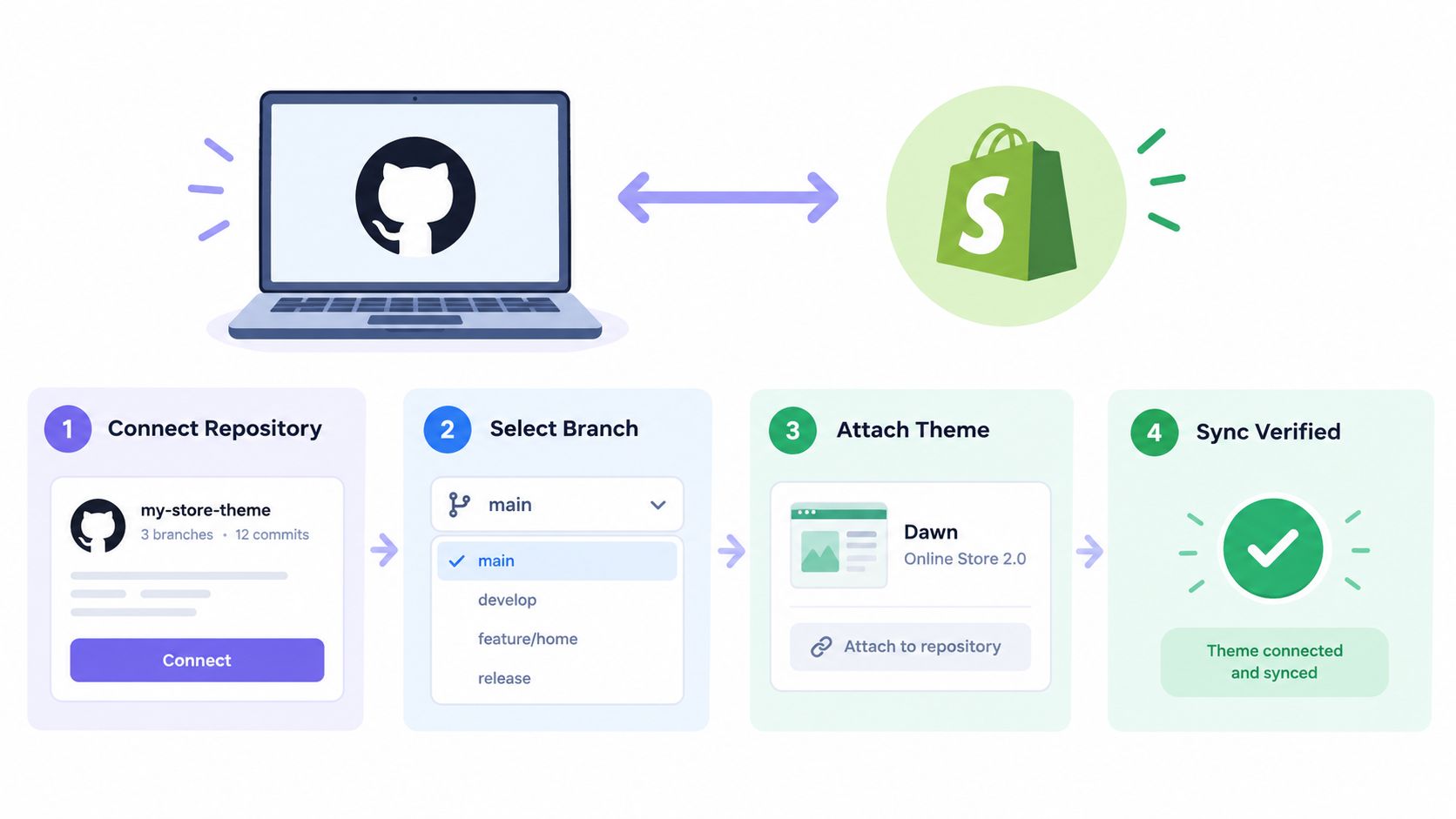
- Install the Shopify GitHub app: From the theme library in the admin, choose the option to add a theme from GitHub and authorize Shopify to access your organization or account. Grant access to the specific repository rather than everything you own.
- Choose the branch: Select the branch that holds your theme files. For a first connection, use a staging or development branch, not the one tied to production.
- Attach it to a theme: The branch appears as a theme in your library. Connect production branches to the published theme only after you've verified sync on an unpublished one.
- Verify with a deliberate edit: Change something harmless, a comment in a Liquid file, push it, and watch the theme update in the admin. Then make a small edit in the admin editor and confirm a commit appears in GitHub.
The four-step flow below shows the connection sequence at a glance.
How Two-Way Sync Actually Behaves
When anyone with access saves an edit in the code editor or theme editor, Shopify commits that change to the connected branch automatically. That's owners, staff, and collaborators, not just developers. In the other direction, when the branch changes through a merge, Shopify updates the connected theme. You get a genuine audit trail, and you also get a new failure mode, a merchant tweaking settings in the editor creates commits your team must pull before pushing. Agree with the client on who edits what, or you'll spend Fridays resolving avoidable conflicts.
Branches can connect to unpublished or published themes, which is how you separate concerns. A production branch feeds the live theme. A campaign branch feeds an unpublished theme a merchant can preview. Feature branches stay unconnected until review, then merge into a connected branch to deploy.
The Build Branch Rule That Trips Everyone
Connected branches must match Shopify's default theme folder structure and contain a buildless theme or already transformed output. If you compile Sass, bundle JavaScript, or run Tailwind, Shopify can't do that build for you. Your connected branch must hold the compiled result, which usually means a source branch where you work and a deployment branch your build writes to, or separate source and compiled repositories. Decide this before connecting anything, because retrofitting it mid project means rewriting your history.
CI/CD Pipelines for Themes Apps and Hydrogen
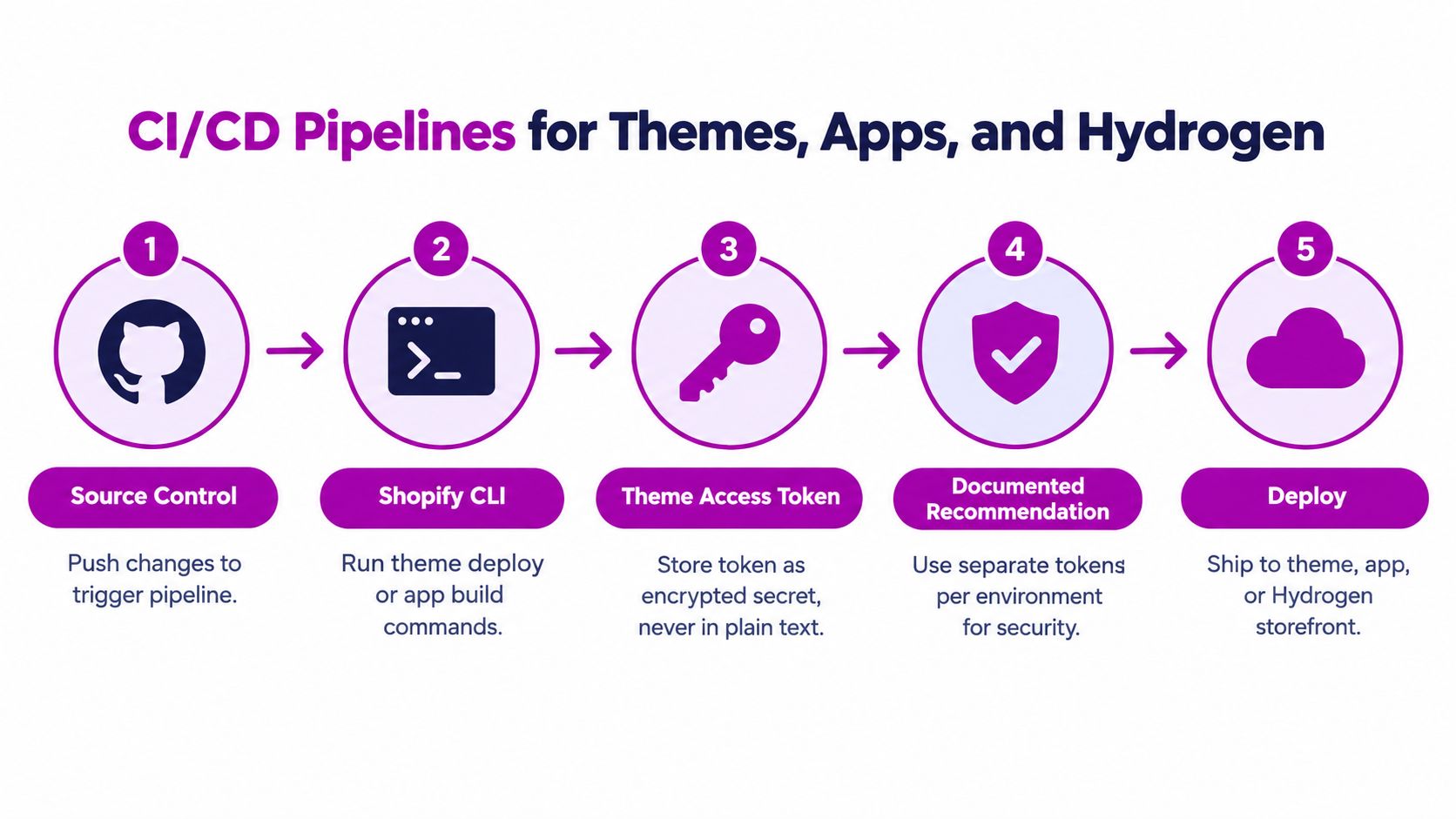
"Connect GitHub and deploy" is where most guidance stops, and it's where production problems start. Themes, apps, and Hydrogen each deploy through different commands, different tokens, and different rules about what a release can include. The pipeline diagram below gives the shared shape before the differences matter.
Themes Through Shopify CLI
Programmatic theme deployment runs through the CLI in your pipeline, and it needs a Theme Access password plus store variables identifying the target. That password is a credential with real power, so it lives in your CI secret store, masked in logs, never in the repository. Shopify's own guidance recommends masking or securely storing the token, and that's the minimum, we'd add one password per environment so a staging leak can't touch production. The detailed requirements sit in Shopify's CI/CD documentation for themes.
Why bother when native sync exists? Control. A pipeline can run Theme Check, block a merge that fails linting, and deploy to a preview theme for stakeholder review before anything reaches the connected production branch. Native sync moves code, a pipeline enforces process.
Apps Deploy as One Unit
App deployment has a constraint that surprises teams used to partial releases elsewhere. Shopify's deploy command releases a project's app configuration and extensions together. You can't ship one extension and hold back another from the same project. That single fact shapes repository design, extensions that release on different cadences may belong in separate projects, and configuration changes deserve the same pull request scrutiny as code, a point covered further in ECORN's Shopify extension development guide.
Plan versioning accordingly. Every deploy is a full release of that app, so your rollback story is redeploying the previous version, and your testing bar applies to the whole bundle, not just the file you touched.
Hydrogen on Oxygen
Hydrogen follows a third model. GitHub pushes or merges can automatically trigger Oxygen deployments, which makes the default path feel effortless. The moment you want custom CI/CD, running your own checks or deploying from another provider, you'll need an Oxygen deployment token, stored with the same care as any production credential.
Watch the walkthrough below to see how these deployment triggers behave in a real project before you wire your own.
The Synthesis Most Guides Skip
Git integration reduces collaboration friction. It doesn't give you mature release management by itself. A brand running a theme, a custom app, and a Hydrogen storefront operates three deployment boundaries, three credential types, and three rollback procedures. Pretending one GitHub workflow covers all of it guarantees a 2 a.m. surprise.
Separate secrets, separate environments, separate rollback plans per surface. The repository can be shared, the release process can't be assumed.
Multi-storefront teams should also separate credentials per store, not just per surface. Promotion then becomes explicit, merge, deploy to staging store, verify, deploy to production with its own token. It's more configuration up front and far fewer incidents later.
Branch Promotion Workflows With GitHub Actions or GitLab CI
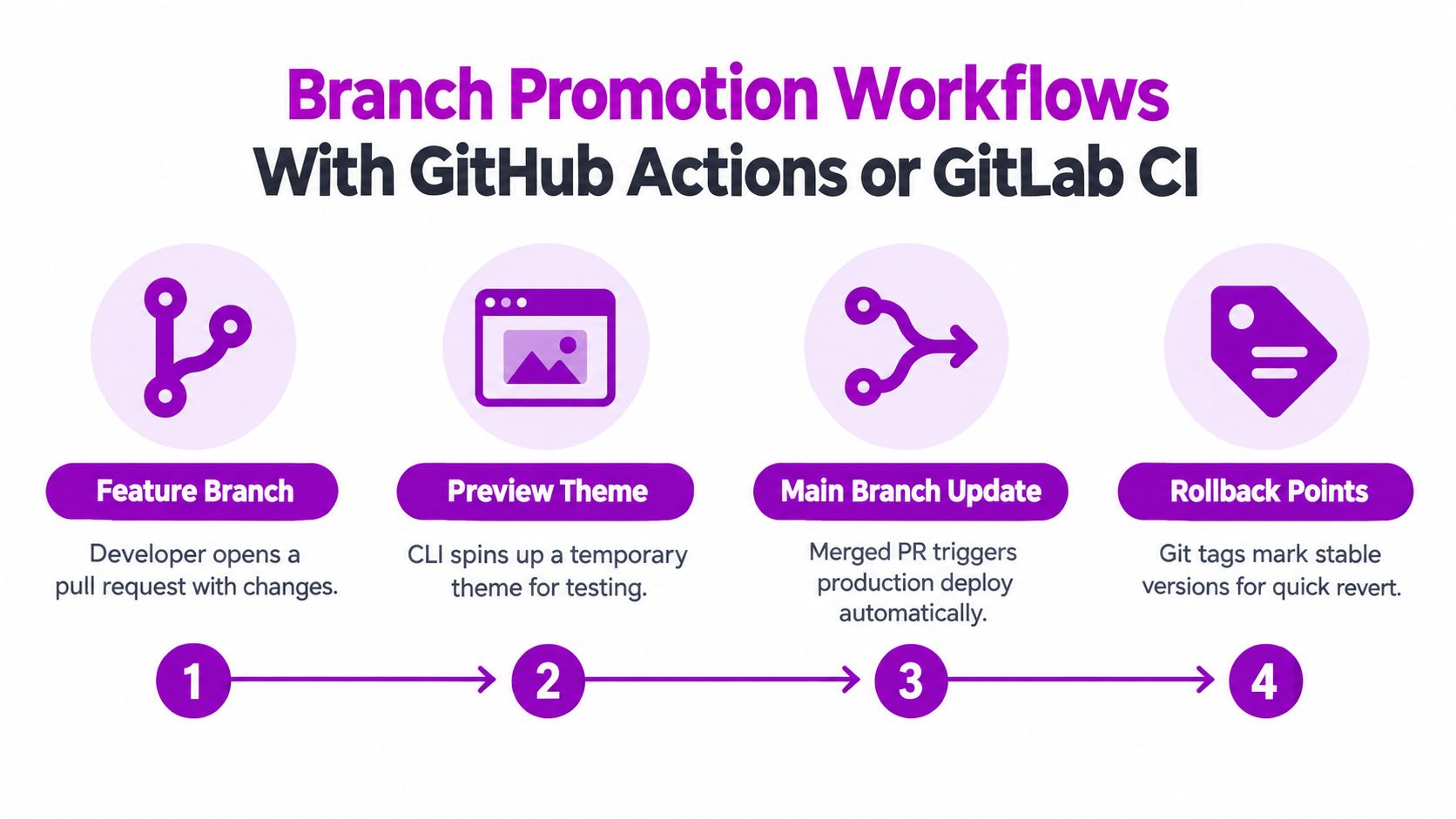
A working promotion flow has four beats. A feature branch opens a pull request, the pipeline spins up a preview theme through the CLI, reviewers check real storefront behaviour instead of screenshots, and merging to main triggers production. Tags mark the versions you can return to.
A Minimal GitHub Actions Shape
Keep the first version boring. One job runs Theme Check on every pull request. A second job, gated on the main branch, installs the CLI and pushes the theme using the store URL and Theme Access password from repository secrets. That's enough to get review and production promotion working today. Add preview theme creation once the basics are stable, naming each preview after the pull request so reviewers get a link automatically.
The Same Flow on GitLab CI
GitLab expresses this as stages instead of jobs, a check stage on merge requests and a deploy stage restricted to the default branch. Store the same credentials as masked CI variables, protected so only the production branch can read them. The commands inside each stage are identical to the GitHub version, because the CLI doesn't care which runner invokes it. That portability is the main argument for CLI based pipelines over provider specific tricks.
Tags Are Your Rollback Plan
Tag every production deploy with the date and a short release note. When a merchant reports a broken checkout banner an hour after launch, rollback means redeploying the previous tag, not hunting through commit history under pressure. Pair tags with branch protection on main, required reviews, required checks, and your promotion path enforces itself. Faster review, safer promotion, faster rollback, that's the entire business case in one workflow.
Troubleshooting and Mistakes to Avoid
Most Shopify Git integration failures are self inflicted and repeatable. These are the ones worth checking first.
- Leaked Theme Access password: Detection, a secret scanner flags it or the token appears in a committed config file. Fix, revoke it immediately, issue a new one, and move it into CI secrets.
- Wrong branch connected: Detection, the live theme shows uncompiled source or missing styles. Fix, connect the deployment branch that holds transformed output, not your source branch.
- Repo structure mismatch: Detection, the GitHub connection fails or the theme appears empty. Fix, match Shopify's default theme folder structure at the branch root.
- Attempted partial app deploy: Detection, an unreleased extension ships alongside the one you wanted. Fix, split projects by release cadence, since configuration and extensions deploy together.
- No rollback drill: Detection, nobody knows the previous tag during an incident. Fix, tag every production release and rehearse a redeploy once.
Field note: Every incident above costs minutes to prevent and hours to clean up. Run the checklist before launch week, not during it.
Pick the right path per surface, guard each token, and tag every release. That's the whole discipline, and it scales from a solo theme to a multi-store operation.
If your team is untangling theme sync, app deployments, and Hydrogen pipelines across one store or several, ECORN's Shopify developers can design and ship a Git workflow with separate credentials, preview themes, and tested rollback paths for each surface. Tell us where your current process breaks down and we'll map the setup that fits your release cadence. Start the conversation at ECORN.


Headless Ecommerce Development Services Explained

How to Build a Shopify Clothing Website That Converts

How to Launch a Box Subscription Business in 2026

Luxury Skincare Branding Playbook That Converters

10 Best Podcast Ecommerce Shows for Store Growth in 2026

Shopify Developer Hourly Rate: What to Pay in 2026
Critical Shopify Setup Errors That Are Secretly Sabotaging Your Store

Ecommerce Conversion Tracking: The Complete How-To Guide

Shopify Design Agency: How to Pick the Right Partner
Mastering Multi Store Management on Shopify

Scale Shopify Store

10 Shopify App Ideas Worth Building in 2026

Conversion Rate Optimization for Landing Pages: The Playbook
Shopify Plus Automation: A Guide for 2026
10 Social Selling Platforms for Shopify Merchants

Shopify Website Design Examples: 7 Stores Worth Studying

7 Ecommerce Newsletter Examples for Shopify Brands

One Product Shopify Store: Build and Scale

Mobile Pop Up Strategy for Shopify Stores That Converts

Sitemap for Shopify: How to Find, Optimize, and Submit It

7 Single Product Websites Worth Emulating

Product Variants Shopify: The Complete 2026 Guide

Ecommerce Analytics Consulting for Growth

What Is AI Integration for eCommerce

How to Choose the Right eCommerce Website Development Firm

E Business Strategy Implementation
Conversion Tracking Setup for Shopify Stores

BigCommerce vs Shopify Plus Which Enterprise Wins in 2026
Shopify Theme Kit: Setup, Commands, and Migration Guide

Shopify Extension Development: A Practical 2026 Guide

Shopify Speed Score Explained and How to Improve It
Shopify Mobile Optimization: The 2026 Playbook

How to Add Subcategory in Shopify for Better UX
How to Implement Structured Data for Ecommerce in 2026

SEO App Mobile: Shopify Store Optimization Guide

Shopify Plus Support: What It Includes and How to Choose

Google Ads for Shopify: The Complete 2026 Playbook

Shopify New York: How to Find and Hire the Right Agency

Google Search Console for Shopify: The Complete Setup

First Party Data Collection for eCommerce Growth

FAQ Online Store Guide: Build and Measure It Right

Do FB Ads Work for eCommerce in 2026?

One Page Checkout for Shopify: Design and Implementation
Shopify GraphQL vs REST: The 2026 Developer Decision

Shopify Ecommerce Consulting: Strategy, Pricing &

Are Reddit Ads Worth It for eCommerce Brands

Shopify Title and Meta Description: A Practical 2026 Guide

Product Video Best Practices for Shopify Brands

Real-Time Inventory Management: A 2026 Guide

AI Chatbot Integration for Shopify Stores

Affiliate Program Management: A Shopify Guide
10 Best Performance Monitoring Tools for Shopify in 2026

Digital Asset Management for eCommerce Brands in 2026

Every Type of Facebook Ads Explained for eCommerce Growth
Product Information Management Explained for Shopify Brands

Support Ticket System: A Guide for Shopify Stores

10 Best Customer Service Tools for Shopify in 2026

Can I Start a Business with No Money? a 2026 Blueprint

What Sells Good on Etsy: Best Niches for 2026

Shopify Add to Cart Button: A Practical 2026 Guide

Customer Feedback Automation: A Practical eCommerce Guide

Critical Rendering Path: A Guide for Shopify Stores

How to Promote on TikTok for eCommerce in 2026

B2B eCommerce Consulting That Drives Real Revenue

10 Best Practices for Site Navigation in 2026
Return vs Refund for Shopify Stores: A Practical Guide

What Is Customer Lifetime Value and Why It Matters

What Is Voice of Customer Research for eCommerce

SMS Marketing for Ecommerce That Actually Converts

Master How to Improve Email Deliverability in 2026

Top 8 eCommerce Partners NYC for Shopify Brands in 2026

Machine Learning for Ecommerce: Boost Your Shopify Store

Beauty Market Research: Your 2026 Growth Guide

Shopify International Expansion: A 2026 Roadmap

What Does CRO Stand for in Business: Understanding CRO

Shopify Visual Merchandising: A Playbook for Higher Sales

Shopify Landing Page Design: Master Conversion in 2026

10 Best AI SEO Optimization Tools for Shopify in 2026

Agentic AI for Ecommerce: Boost Your Sales in 2026
Mastering Email Marketing Data for eCommerce Growth

Conversion Rate Optimisation Australia: Boost Your Sales

Conversion Rate Optimization AI: Your Shopify Store Guide

10 Product Bundling Strategies for Shopify in 2026

How to Increase Customer Lifetime Value: A Shopify Playbook
AI Customer Service Automation: Shopify Guide 2026

Clean Website Design: A Shopify Conversion Playbook

Omnichannel Retail Strategy: A Shopify Playbook

Product Data Enrichment: A Guide for Shopify Brands

Instagram Shopping Features a Guide for Shopify Stores

What Is Revenue Optimization: A Holistic RevOps Guide

Benefits of Conversion Rate Optimization: Boost Your

WordPress to Shopify Migration: Your 2026 Seamless Switch

Boost Sales: Ecommerce Payment Processing Guide 2026

Unified Commerce Platform: Benefits, KPIs & Shopify Guide

How to Reduce Bounce Rate eCommerce: Your 2026 Guide
Shopify API Integration: A Practical End-to-End Guide

How to Implement Data Governance: A 2026 Guide

Shopify Store Development Cost: A 2026 Breakdown
What Is Server Side Tracking: The Shopify Guide 2026
Marketing Automation Workflows: A Shopify Guide for 2026


newsletter in your inbox