

Most Shopify guides still begin with the same advice: Shopify doesn't support subcategories, so create separate collections and fake the hierarchy with nested menus. That advice is now incomplete. Shopify's newer collections model allows one collection to use other collections as sources, creating a practical parent-child relationship while keeping storefront collection URLs flat under /collections/handle (Shopify's developer documentation).
That distinction matters. A dropdown label alone helps shoppers find their way, but it doesn't create a meaningful merchandising structure in the admin. A properly designed collection hierarchy can support automated product rollups, collection landing pages, clearer internal linking, and a more maintainable catalog. Shopify still doesn't offer traditional unlimited category nesting, so the right approach is to combine native collection sourcing, navigation, templates, and Shopify's product taxonomy instead of forcing one feature to do everything.
Rethinking Shopify Subcategories for Modern Stores
Shopify subcategory is not a single Shopify object. The term can refer to a product category from Shopify's taxonomy, a customer-facing collection such as “Men's Running Shoes,” or a nested menu item beneath “Shoes.” Each serves a different job. Treating them as interchangeable produces unclear merchandising rules and brittle storefronts.
Shopify's product taxonomy classifies product data with parent and child categories. It does not automatically create the collection pages customers browse. Collections are the merchandising layer, where products and collection sources become shopping destinations. Navigation controls how customers discover those destinations, so a menu hierarchy alone does not define the catalog structure.
That distinction changes how subcategories should be planned. A nested menu can make a small catalog easier to browse, but its relationship exists only in navigation. Remove the menu item and the supposed subcategory has no corresponding parent-child relationship in the collection setup. Theme code then takes on more work for collection cards, grouped headings, breadcrumbs, and reusable category hubs.
What changed in the collections model
Shopify's current collections model supports a native parent-child sourcing pattern, with a shallow relationship rather than unlimited category nesting. A parent collection can gather child collections, while each child remains a standard collection with its own products and flat collection URL. The parent therefore acts as a merchandising hub without changing the URL structure customers and search engines receive.
That model differs from a traditional category tree. Shopify still separates classification, merchandising, and discovery instead of combining them into one hierarchy. A “Shoes” collection can present “Men's Shoes,” “Women's Shoes,” and “Running Shoes” as sourced child destinations, while navigation determines how those choices appear in headers, menus, or collection templates.
Practical rule: Use product taxonomy for classification, collections for merchandising pages, and navigation for discovery. Keep each layer responsible for one job.
The payoff is architectural, not just visual. Merchants can add a child collection, associate it with the appropriate parent, and expose it in the storefront without rebuilding the entire information architecture. Flat URLs remain available for SEO, while the admin gains a clearer relationship than a menu-only workaround provides. Keep the structure shallow and intentional, because deeper category logic still requires careful collection design, templates, or custom implementation.
Building Native Parent and Child Collections
Start by deciding what belongs in the parent and what deserves its own child collection. A parent such as “Skincare” should represent a broad shopping destination. Child collections such as “Cleansers,” “Moisturizers,” or “Serums” should each have a distinct product set and a clear reason to exist.
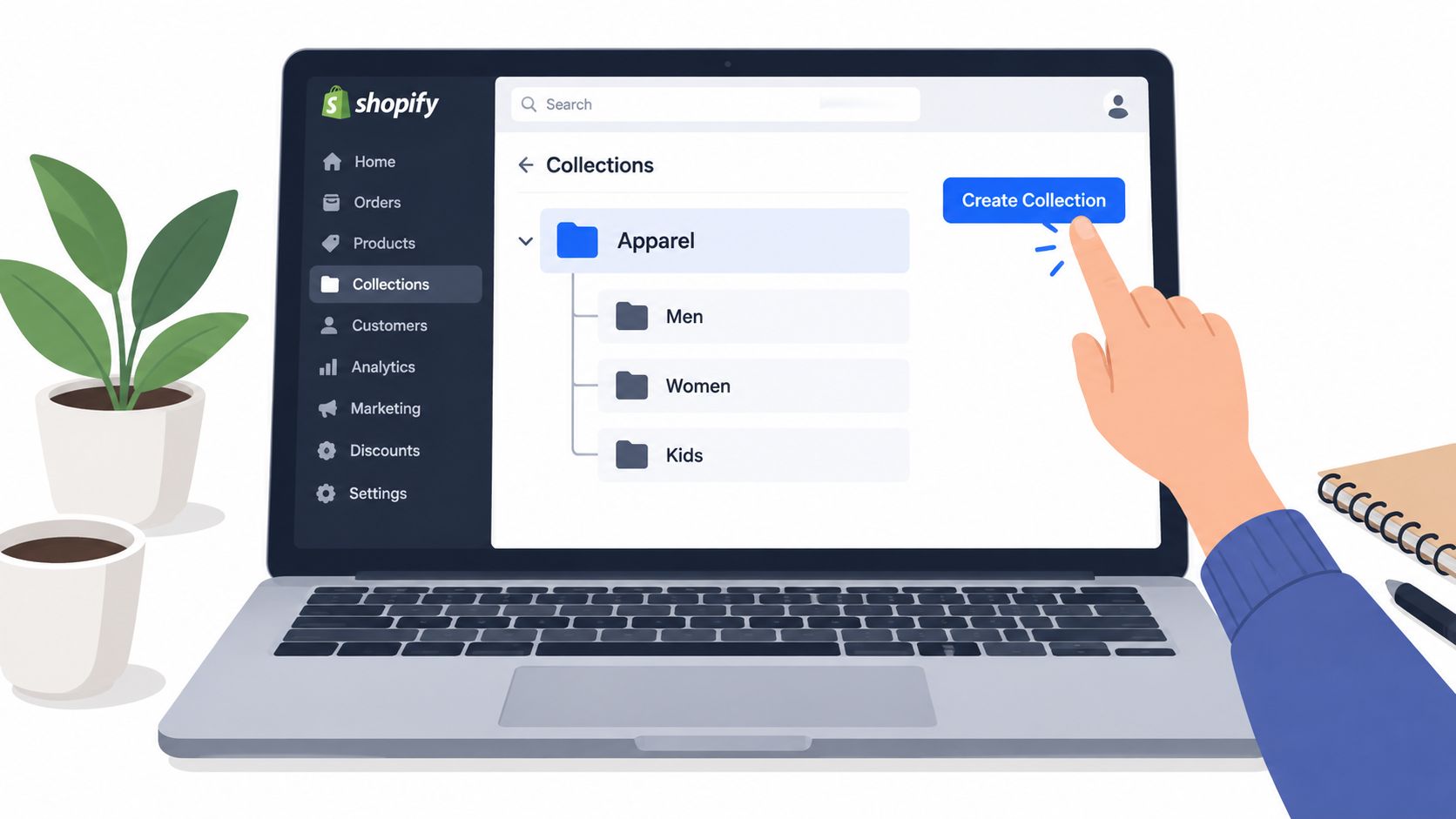
Create the collections
Open Collections: In Shopify admin, go to Products, then Collections, and choose Create collection. Shopify documents collection creation and editing from the Collections page in admin and through its mobile app (Shopify Help Center collections guide).
Create the child first: Give the subcategory a precise title, such as “Men's Trail Shoes.” Choose a manual collection for a tightly curated range, or use an automated collection when products should enter based on consistent conditions.
Configure the conditions: Automated collections can use the attributes available in your store's collection rules. Use a stable merchandising field rather than inconsistent free-text values. If product data changes frequently, automation prevents staff from repeatedly adding and removing products.
Add the collection details: Write a useful description, assign an image where the theme uses collection imagery, and review the search engine listing. The page should explain what shoppers will find, not repeat a generic brand statement.
Create the parent collection: Build the broader collection, such as “Men's Shoes.” In the newer collections model, configure the parent to use the relevant child collections as sources. Keep the relationship one level deep, because Shopify doesn't support a child collection sourcing further nested collections in this model.
Verify the rollup: Open the parent collection in the admin and confirm that products from its source collections appear as expected. Then test the storefront view, sorting, filters, collection cards, and pagination.
The exact labels can vary as Shopify continues evolving its admin, so verify that you're working in the newer collection configuration rather than assuming a legacy manual collection workflow. Shopify's published limits also distinguish between collection types and relationships, which makes planning important for stores with large catalogs.
Use the following walkthrough as a visual reference before testing the structure in a duplicate theme or a low-risk collection area:
A clean backend won't automatically produce a good storefront experience. You still need to decide how customers will reach the parent and child pages, and whether the parent should show products immediately, collection cards first, or both.
Surfacing Subcategories in Storefront Navigation
A parent-child relationship in the admin is useful only when shoppers can discover it. Shopify's navigation system remains a separate layer from collection organization, so add the relevant parent and child links deliberately rather than assuming the collection relationship will appear in the main menu automatically.
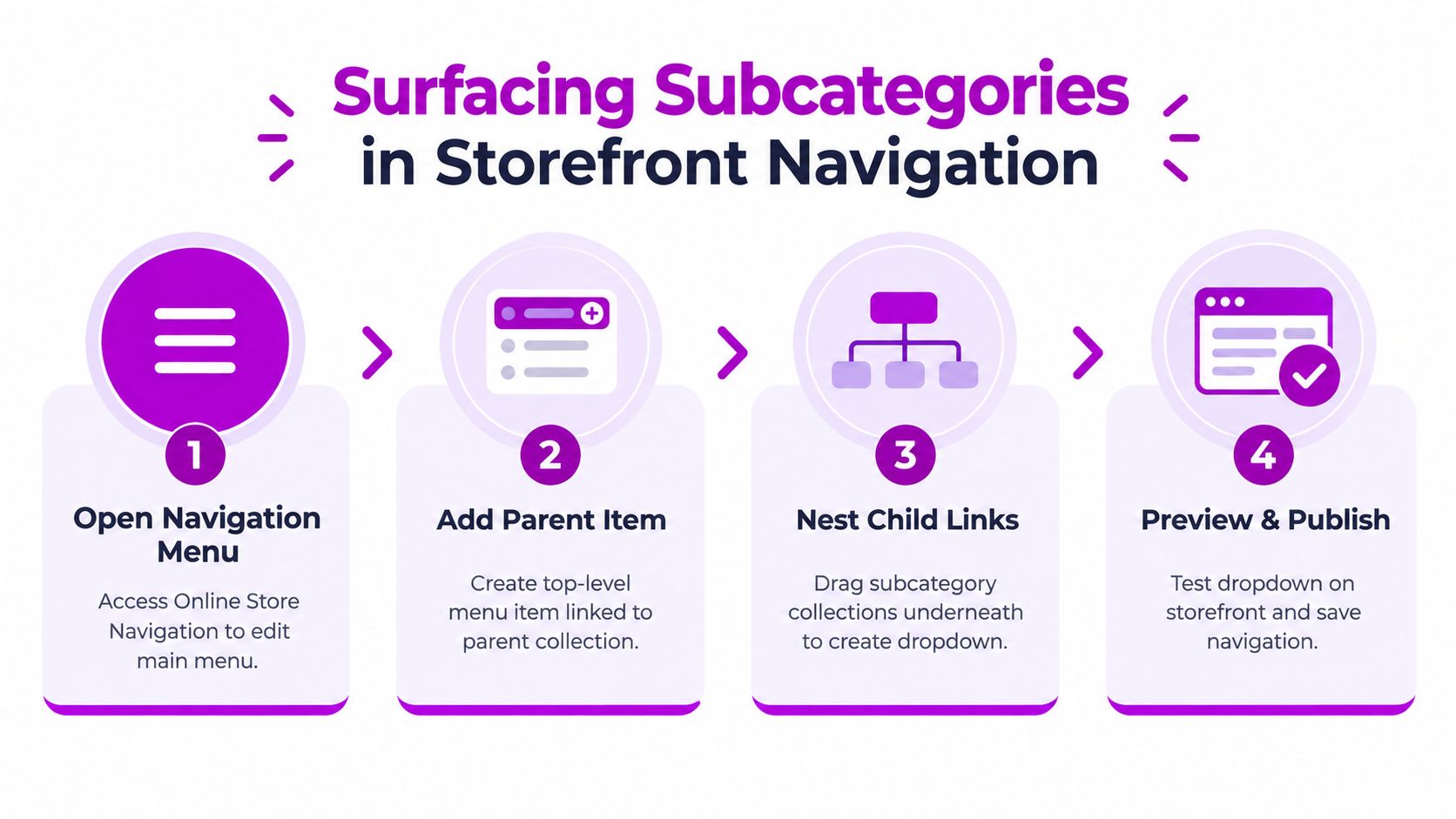
Build the menu path
Open the navigation area in Shopify admin and edit the menu used by your storefront. Add a top-level item linked to the parent collection, then add child items linked to the individual subcategory collections. Drag each child beneath its parent and save the menu.
Use descriptive labels rather than internal collection names if the customer-facing language differs. “Trail Running” may be clearer in a menu than a backend title that includes product attributes or operational terminology. Keep each link destination accurate. A menu item labeled “Women's Jackets” shouldn't point to a broad “Jackets” collection because the URL already exists.
Choose between dropdowns and collection hubs
Deep dropdowns can expose many destinations quickly, but they become difficult to scan on mobile and can force shoppers to process too many choices at once. A collection hub is often more effective for a broad parent. Add a collection-list section to the parent collection template, then display child collections as visual cards with concise titles and useful imagery.
That layout lets the parent page perform two jobs. It can introduce the broader category and guide shoppers into focused collections, while the product grid below still serves customers who want to browse the full range. Theme support varies, so check whether your theme allows a collection-list section on the relevant collection template. If it doesn't, a theme adjustment may be required.
A menu should answer “where can I go?” A collection hub should answer “which path fits what I need?”
Avoid creating duplicate navigation routes for every possible relationship. If a child collection is already prominent in the main menu and on the parent page, adding it again in several promotional menus can make governance harder and dilute the intended shopping path. Test the menu on desktop and mobile, then check keyboard access, visible focus states, and whether expanded items remain usable without a mouse.
The storefront should make the hierarchy obvious without making shoppers descend through multiple layers before seeing products. Use the parent as a useful landing page, not as an empty holding page that exists only to contain links.
Managing SEO and Flat URL Structures
Shopify collection URLs remain flat even when the storefront presents a visual hierarchy. A child collection can sit beneath a parent in the menu and appear on the parent page, while its canonical path continues to use a collection handle such as /collections/mens-trail-shoes, rather than a nested category path. Shopify's newer collections model preserves this URL structure while allowing collections to source from other collections, as explained in this analysis of Shopify's rebuilt collections model and SEO implications.
Flat URLs do not prevent search engines from understanding relationships. Internal links, page titles, headings, breadcrumbs, descriptive copy, and consistent anchor text communicate how each page fits into the catalogue. A stable handle also reduces redirect work when the visual parent changes. If a collection moves from “Men's Shoes” to “Footwear,” its handle can remain unchanged while the navigation is updated.
Give each collection a distinct purpose
Separate the customer-facing title, URL handle, and internal merchandising logic in your naming convention. Keep handles readable and stable. Changing a working handle to match a new menu label creates redirect work and requires a review of existing internal and external links.
Every indexable child collection should serve a distinct shopping intent. “Running Shoes” and “Trail Running Shoes” can both earn a place in the catalogue when their products, copy, and use cases differ. Creating near-identical pages solely to fill separate menu positions creates overlap rather than useful architecture.
Collection descriptions should help shoppers choose. Explain the product range, relevant attributes, and the difference from the parent collection. For practical guidance on the copy, see this resource on Shopify collection descriptions.
Connect the hierarchy with links
Link from the parent collection to child collections through descriptive text or collection cards. Add a return link from the child when it helps orientation, and use breadcrumbs if the theme supports them. Breadcrumbs should represent the actual shopping path supported by the admin structure and navigation.
Assign products to the appropriate Shopify product category as well. Shopify's taxonomy provides parent-child classification that can support collection merchandising, but it does not replace customer-facing collections. Keep assignments accurate when products are sent to other sales channels.
When retiring or renaming a collection, audit internal links, menu entries, sitemap visibility, and external references. Create a redirect when the handle changes. Avoid publishing a separate child page for every filter combination, since overlapping or thin landing pages add maintenance without adding a distinct search purpose.
Comparing Native Sourcing with Tag Filtering
Native collection sourcing and tag-based filtering solve different problems. Native sourcing creates a clear collection relationship in Shopify's newer architecture. Tags and metafields remain useful for product logic, but they're a weaker foundation when the merchant wants a durable, customer-facing category page with its own content and navigation role.
| Method | Best Use Case | SEO Impact | Maintenance Level |
|---|---|---|---|
| Native collection sourcing | Parent pages that need to roll up focused child collections | Supports distinct collection pages and explicit internal linking, while keeping collection URLs flat | Lower once the collection relationships and product rules are governed |
| Automated child collections | Catalogs where products share stable conditions | Creates indexable landing pages when each collection has unique purpose and content | Moderate, because product data must remain consistent |
| Tag-based filtering | Narrowing a parent collection during browsing | Useful for on-page refinement, but filtered views need careful canonical and indexing controls | Moderate to high when staff apply tags manually |
| Metafield-driven theme grouping | Custom merchandising logic that standard collection rules can't express | Depends heavily on theme implementation and whether grouped views create crawlable pages | High, because theme code and data definitions must stay aligned |
| Menu-only nesting | Small stores that need a simple dropdown | Creates navigation signals but doesn't establish a native collection relationship | Low at first, then harder to govern as links multiply |
Shopify Community guidance commonly points merchants toward menu links or theme customization for submenu behavior because navigation and collections are separate systems (Shopify Community discussion on subcategories). That workaround still has a place, but it shouldn't be the default architecture for every catalog.
Use tags as attributes, not as your whole information architecture
Tags work well when they describe a product property that shoppers may use as a filter, such as material, fit, or finish. They become risky when staff use them as an improvised category tree. Spelling variations, renamed values, and tags that combine several meanings can break automated collection rules.
A filtered view also isn't automatically a strong standalone landing page. Before exposing a tag-driven URL in navigation, check whether it has a stable product set, a useful title, unique copy, and a controlled indexing strategy. For the storefront behavior and implementation considerations, see this guide to Shopify filters.
Choose native sourcing when the subcategory deserves a permanent destination. Choose filtering when the shopper needs a refinement inside a broader collection and a separate SEO landing page would add little value.
Scaling Subcategories Within Platform Limits
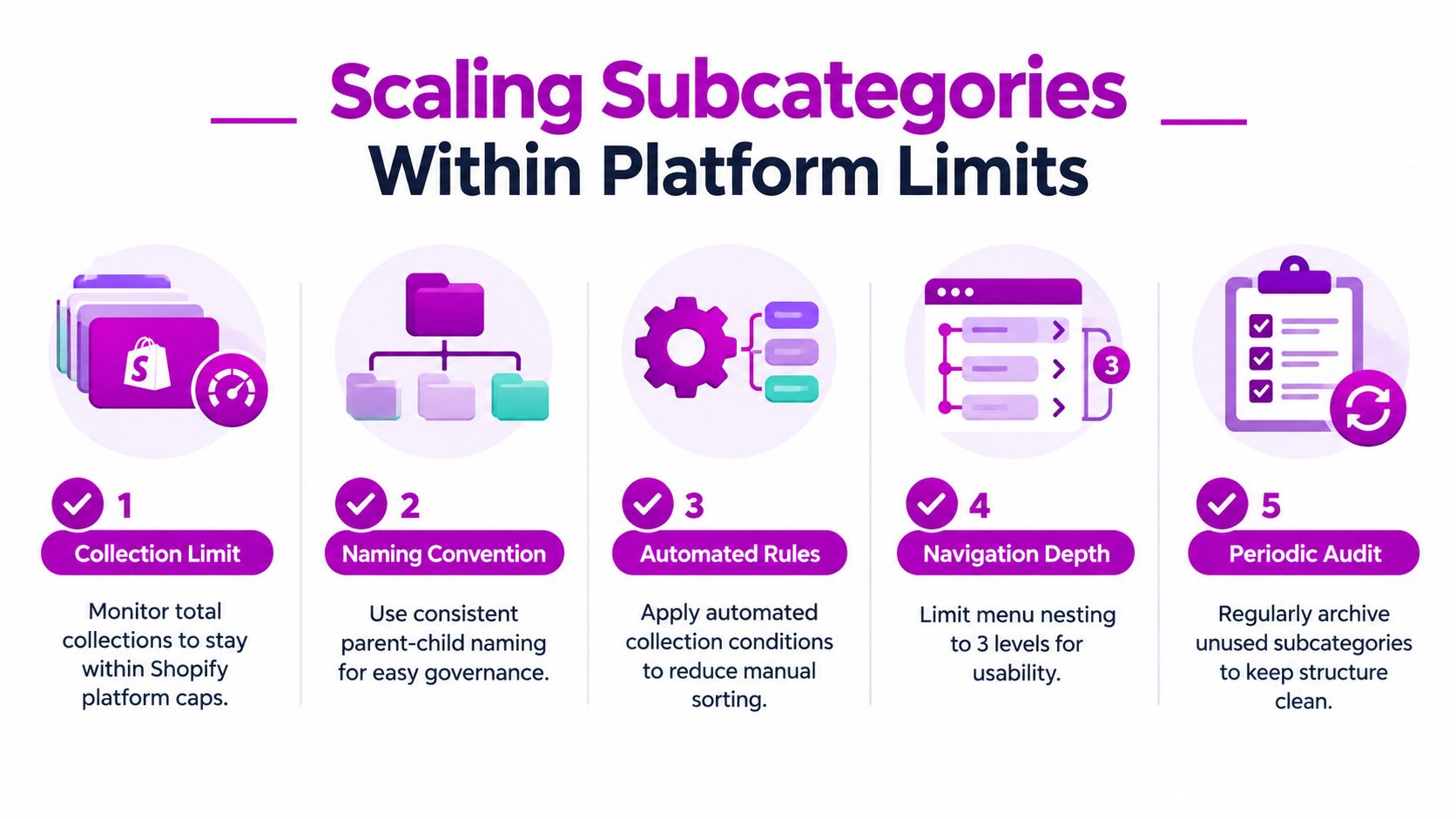
Shopify supports a large collection catalog, yet its newer sourcing model still imposes relationship limits. The published limits include 100,000 total collections, 5,000 conditions-based collections, 100 variant-level collections, 50 collections that contain another collection, and 5 collections that exclude another collection, as documented in Shopify's published collection limits.
Those limits should shape the architecture, not encourage a race to create more subcategories. A collection tree can become difficult to audit before Shopify rejects another object. Give each collection a clear owner, product logic, page purpose, and role in navigation or internal linking.
Use a governance checklist
- Name consistently: Apply a predictable parent-child naming pattern so staff can identify related collections in the admin.
- Separate logic from labels: Store stable product attributes in fields or rules that drive automation instead of depending on improvised tags.
- Review relationships: Check that every child belongs to the intended parent and that related collections do not create confusing product duplication.
- Audit empty pages: Archive or remove subcategories that no longer represent a meaningful product range, after checking links and redirects.
- Test mobile navigation: Keep the visible path shallow enough for shoppers to understand without repeated expansion and backtracking.
Native collection sourcing supports only one relationship level. Deeper chains create a model the platform is not designed to maintain. Use Shopify's product taxonomy, filters, or purpose-built landing pages for deeper classification rather than forcing extra collection layers into the parent-child structure.
Review the structure after changes to the product range, naming conventions, or theme. Check collection rules, menu links, templates, breadcrumbs, and redirects together, because a small catalog change can affect several storefront paths. ECORN provides Shopify development, theme adjustments, navigation work, and eCommerce consulting for collection structures and conversion-focused storefront improvements. Visit ECORN to discuss the subcategory architecture and select a practical implementation path.


Shopify Plus Integration Services Guide
Shopify Customer Experience: A 2026 Guide

Shopify Plus Expansion Stores: Limits and Setup
Shopify Theme Update: Safe Steps, Backups and Rollback
Shopify Website Design Packages: What You Actually Get

How to Choose a Shopify Plus Web Design Agency in 2026
Shopify Plus Ecommerce Agency: How to Pick the Right One
Shopify Themes Retina: How to Serve 2x Images

How to Cross Sell on Shopify Without Friction
Best Shopify Theme for Custom Products Compared
Multi Store Inventory Management: A Practical Guide

SEO Consulting for Ecommerce: A Practical Guide
Shopify Theme Updater App: A Safe Update Playbook
Shopify Git Integration: A Developer's Guide to 2026
Headless Ecommerce Development Services Explained

How to Build a Shopify Clothing Website That Converts

How to Launch a Box Subscription Business in 2026

Luxury Skincare Branding Playbook That Converters
10 Best Podcast Ecommerce Shows for Store Growth in 2026

Shopify Developer Hourly Rate: What to Pay in 2026
Critical Shopify Setup Errors That Are Secretly Sabotaging Your Store
Ecommerce Conversion Tracking: The Complete How-To Guide

Shopify Design Agency: How to Pick the Right Partner
Mastering Multi Store Management on Shopify
Scale Shopify Store
10 Shopify App Ideas Worth Building in 2026
Conversion Rate Optimization for Landing Pages: The Playbook
Shopify Plus Automation: A Guide for 2026
10 Social Selling Platforms for Shopify Merchants

Shopify Website Design Examples: 7 Stores Worth Studying
7 Ecommerce Newsletter Examples for Shopify Brands
One Product Shopify Store: Build and Scale
Mobile Pop Up Strategy for Shopify Stores That Converts
Sitemap for Shopify: How to Find, Optimize, and Submit It
7 Single Product Websites Worth Emulating
Product Variants Shopify: The Complete 2026 Guide
Ecommerce Analytics Consulting for Growth
What Is AI Integration for eCommerce
How to Choose the Right eCommerce Website Development Firm

E Business Strategy Implementation
Conversion Tracking Setup for Shopify Stores
BigCommerce vs Shopify Plus Which Enterprise Wins in 2026
Shopify Theme Kit: Setup, Commands, and Migration Guide

Shopify Extension Development: A Practical 2026 Guide
Shopify Speed Score Explained and How to Improve It
Shopify Mobile Optimization: The 2026 Playbook
How to Implement Structured Data for Ecommerce in 2026
SEO App Mobile: Shopify Store Optimization Guide
Shopify Plus Support: What It Includes and How to Choose

Google Ads for Shopify: The Complete 2026 Playbook

Shopify New York: How to Find and Hire the Right Agency
Google Search Console for Shopify: The Complete Setup
First Party Data Collection for eCommerce Growth
FAQ Online Store Guide: Build and Measure It Right
Do FB Ads Work for eCommerce in 2026?
One Page Checkout for Shopify: Design and Implementation
Shopify GraphQL vs REST: The 2026 Developer Decision
Shopify Ecommerce Consulting: Strategy, Pricing &

Are Reddit Ads Worth It for eCommerce Brands
Shopify Title and Meta Description: A Practical 2026 Guide

Product Video Best Practices for Shopify Brands
Real-Time Inventory Management: A 2026 Guide

AI Chatbot Integration for Shopify Stores
Affiliate Program Management: A Shopify Guide
10 Best Performance Monitoring Tools for Shopify in 2026
Digital Asset Management for eCommerce Brands in 2026
Every Type of Facebook Ads Explained for eCommerce Growth
Product Information Management Explained for Shopify Brands
Support Ticket System: A Guide for Shopify Stores

10 Best Customer Service Tools for Shopify in 2026

Can I Start a Business with No Money? a 2026 Blueprint

What Sells Good on Etsy: Best Niches for 2026

Shopify Add to Cart Button: A Practical 2026 Guide

Customer Feedback Automation: A Practical eCommerce Guide
Critical Rendering Path: A Guide for Shopify Stores

How to Promote on TikTok for eCommerce in 2026

B2B eCommerce Consulting That Drives Real Revenue
10 Best Practices for Site Navigation in 2026
Return vs Refund for Shopify Stores: A Practical Guide
What Is Customer Lifetime Value and Why It Matters
What Is Voice of Customer Research for eCommerce

SMS Marketing for Ecommerce That Actually Converts

Master How to Improve Email Deliverability in 2026

Top 8 eCommerce Partners NYC for Shopify Brands in 2026
Machine Learning for Ecommerce: Boost Your Shopify Store

Beauty Market Research: Your 2026 Growth Guide

Shopify International Expansion: A 2026 Roadmap

What Does CRO Stand for in Business: Understanding CRO

Shopify Visual Merchandising: A Playbook for Higher Sales

Shopify Landing Page Design: Master Conversion in 2026
10 Best AI SEO Optimization Tools for Shopify in 2026

Agentic AI for Ecommerce: Boost Your Sales in 2026
Mastering Email Marketing Data for eCommerce Growth

Conversion Rate Optimisation Australia: Boost Your Sales
Conversion Rate Optimization AI: Your Shopify Store Guide

10 Product Bundling Strategies for Shopify in 2026
How to Increase Customer Lifetime Value: A Shopify Playbook
AI Customer Service Automation: Shopify Guide 2026

Clean Website Design: A Shopify Conversion Playbook

Omnichannel Retail Strategy: A Shopify Playbook


newsletter in your inbox