

Shopify Theme Kit is deprecated, and the last release history visible in the repository includes version 1.3.2 on March 18, 2024. That means you shouldn't choose it for new Shopify theme work, but it can still be a workable tool if you're maintaining an older store that already depends on it.
A lot of Theme Kit advice online is stuck in the past. It treats installation as the main decision, when the question is whether Shopify Theme Kit still belongs in your workflow at all. Shopify now classifies it as a legacy tool and directs developers to Shopify CLI, while the Theme Kit repository itself warns that it's deprecated and that unsupported parts may stop working soon (Shopify Theme Kit repository).
That doesn't make every existing Theme Kit setup instantly unusable. It does change the standard recommendation. If you're inheriting a liquid-heavy legacy store, need a light command-line sync workflow, and aren't touching modern Online Store 2.0 features, this guide applies. If you're starting fresh, this guide is mostly here to help you avoid choosing a dead end.
Is Shopify Theme Kit Still Worth Using in 2026
For new theme work in 2026, the answer is usually no.
Theme Kit still has one thing going for it. It is familiar to teams that have used it for years, and on older Liquid themes it can still handle simple file sync without forcing a workflow rewrite in the middle of active maintenance. That said, Shopify now treats it as a legacy tool, and that changes the decision from "can it run?" to "is it worth carrying the risk?"
What deprecation means in practice
Deprecation does not mean Theme Kit stops working overnight. It means you should expect shrinking support, more edge cases, and fewer reasons to invest in the workflow.
The release history shows that the project remained active into 2024, including version 1.3.2 and a later note about a Go runtime update in the Theme Kit releases. That matters for one reason. Teams maintaining older stores are not dealing with abandonware in the strict sense. They are dealing with a tool that still runs, but no longer sits on Shopify's preferred path.
That distinction matters during planning. A deprecated tool can be acceptable for short-term maintenance and still be a poor foundation for the next rebuild.
The hard limit is feature fit. Theme Kit is fine for straightforward edits to Liquid, CSS, JavaScript, and theme assets on legacy setups. It is a weak choice for stores that depend on modern theme development patterns, especially where JSON templates, app blocks, or theme app extensions are part of normal work. In those cases, teams spend time working around the tool instead of shipping.
When keeping Theme Kit still makes sense
I still see valid Theme Kit usage in a narrow set of cases, usually on inherited storefronts where stability matters more than modernization for the next few weeks or months.
Keep it, for now, if your situation looks like this:
- The store already depends on it: Replacing tooling mid-project adds risk with no immediate customer-facing benefit.
- The work is small and predictable: Asset edits, Liquid fixes, and template patches are usually manageable.
- A migration is already planned: Theme Kit can hold the line while the team prepares a move to Shopify CLI.
- The theme is older and tightly customized: Legacy themes often carry enough one-off logic that teams want to avoid changing both code and tooling at the same time.
Skip Theme Kit if you are starting a new build, adopting current Shopify theme features, or trying to standardize a team workflow for the next year. In those cases, keeping Theme Kit usually creates extra cleanup later.
How to Install Shopify Theme Kit on Your System
If you've decided Theme Kit still fits your current store, keep the setup simple. Install the tool, confirm it works, then prepare the store credentials before you touch a theme.
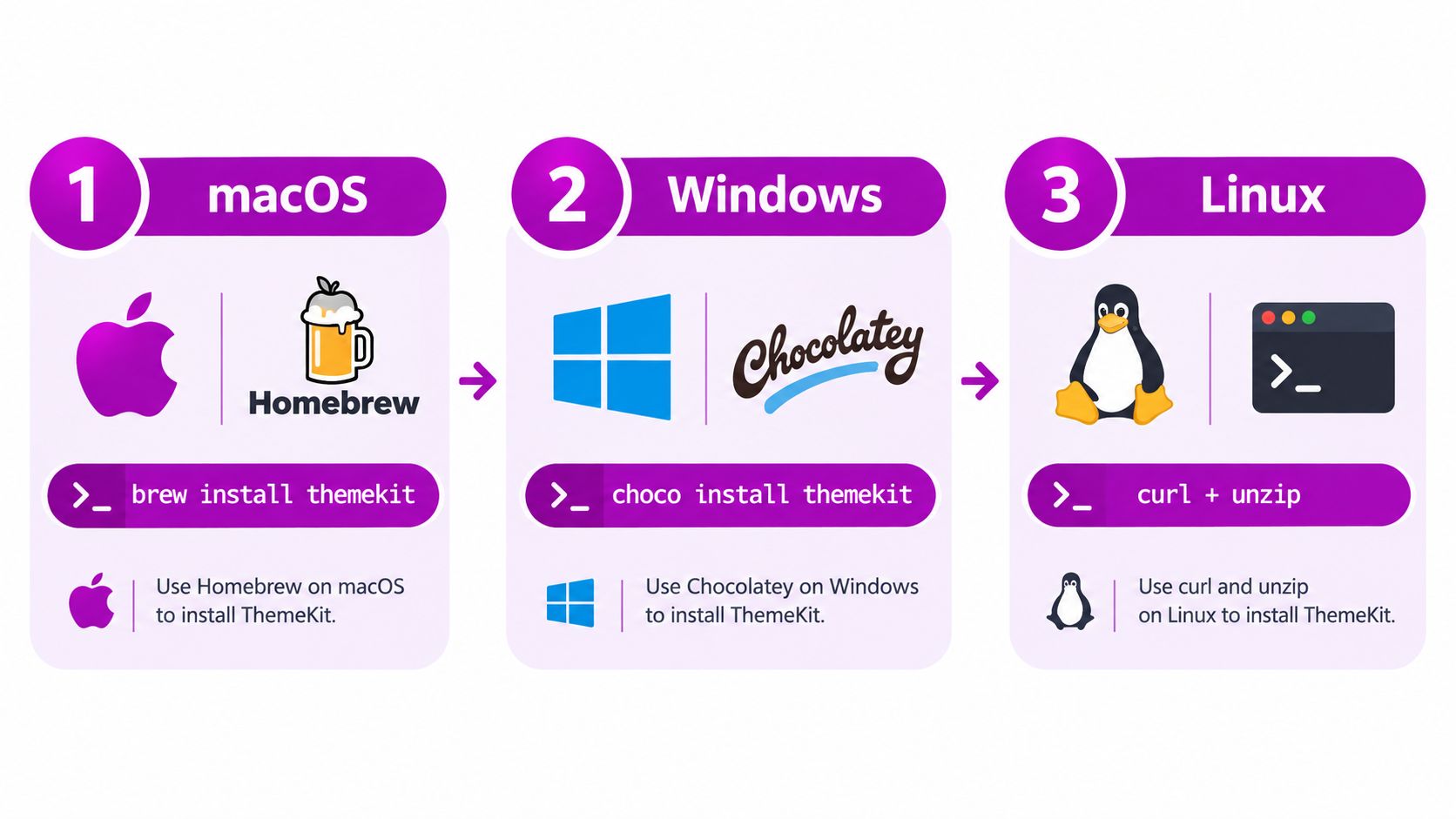
Install commands by operating system
For macOS:
brew tap shopify/shopifybrew install themekitFor Windows with Chocolatey:
choco install themekitFor Windows with Scoop:
scoop bucket add shopify https://github.com/Shopify/scoop-shopify.gitscoop install themekitFor Linux with the install script:
curl -s https://shopify.github.io/themekit/scripts/install.py | sudo pythonFor Linux with a downloaded binary, use the release asset that matches your system, extract it, and place the executable somewhere in your PATH.
Confirm the installation
Use one command to verify the binary is available:
theme versionIf Theme Kit is installed correctly, you'll get the installed version number back. That's enough to confirm the CLI is reachable from your shell.
After that, create a working folder for the project and make sure you have access to the target store. If you need a safe place to test before touching a production storefront, use a Shopify development store guide rather than experimenting on a live client theme.
The setup issue that blocks most installs
The install itself usually isn't the hard part. The first real failure point is credentials and permissions.
Theme Kit setup examples require a store admin or private-app style credential with Themes read/write access, and contributor guidance around the project also reflects that permission model (Theme Kit contributing guidance). In practice, teams stall. The developer has the binary installed, but the store credential isn't valid for theme operations.
The machine is rarely the problem. The store permission model usually is.
Before moving on, confirm three things:
- You have the right store access: Theme editing permissions need to be explicit.
- The credential maps to theme read/write access: Read-only access won't be enough.
- The store owner involvement is available if needed: Legacy private-app style setups often hit owner-only restrictions.
Once those pieces are in place, Theme Kit becomes predictable again.
Essential Shopify Theme Kit Commands Every Developer Needs
Theme Kit is small enough that most developers only use a handful of commands repeatedly. The value isn't in memorizing the full command list. It's in knowing which commands belong in a daily loop and which ones you should use sparingly on live themes.
Start with configuration
Everything begins with a store connection. The standard pattern is to create a config.yml in your project and point it at a store and theme.
A typical structure looks like this:
development:password: your_passwordtheme_id: "123456789"store: example-store.myshopify.comYou can also generate or update config from the command line. A practical example:
theme configure --password=your_password --store=example-store.myshopify.com --themeid=123456789That gives Theme Kit a target. Without it, every other command is guesswork.
Core commands that matter
| Command | Syntax | Purpose |
|---|---|---|
| configure | theme configure --password=... --store=... --themeid=... | Connect a local project to a specific Shopify theme |
| get | theme get --store=... --password=... --themeid=... | Download a theme from Shopify to local files |
| watch | theme watch | Sync local file changes to the connected theme |
| upload | theme upload path/to/file | Push a specific file manually |
| deploy | theme deploy | Push the project to the configured theme |
| ignore | theme ignore templates/*.json | Exclude files or patterns from sync |
The commands I rely on most
theme watch is the command most associate with Shopify Theme Kit because it keeps local changes moving to the store while you edit.
theme watchIf you're working against a live theme, be careful. Real-time sync is convenient, but it also makes it easy to push unfinished work.
For one-off file updates, theme upload is safer:
theme upload sections/header.liquidFor cloning down the current theme before you start, use theme get:
theme get --store=example-store.myshopify.com --password=your_password --themeid=123456789And if your project contains files you never want sent upstream, add an ignore rule:
theme ignore config/settings_data.jsonUse
watchfor active development,uploadfor surgical changes, andgetbefore you trust your local copy.
Building a Theme Kit Development Workflow
Individual commands don't save projects. A clean sequence does. The strongest Theme Kit setups are boring on purpose. They reduce surprises, keep local and remote state aligned, and avoid editing the same theme from too many places at once.
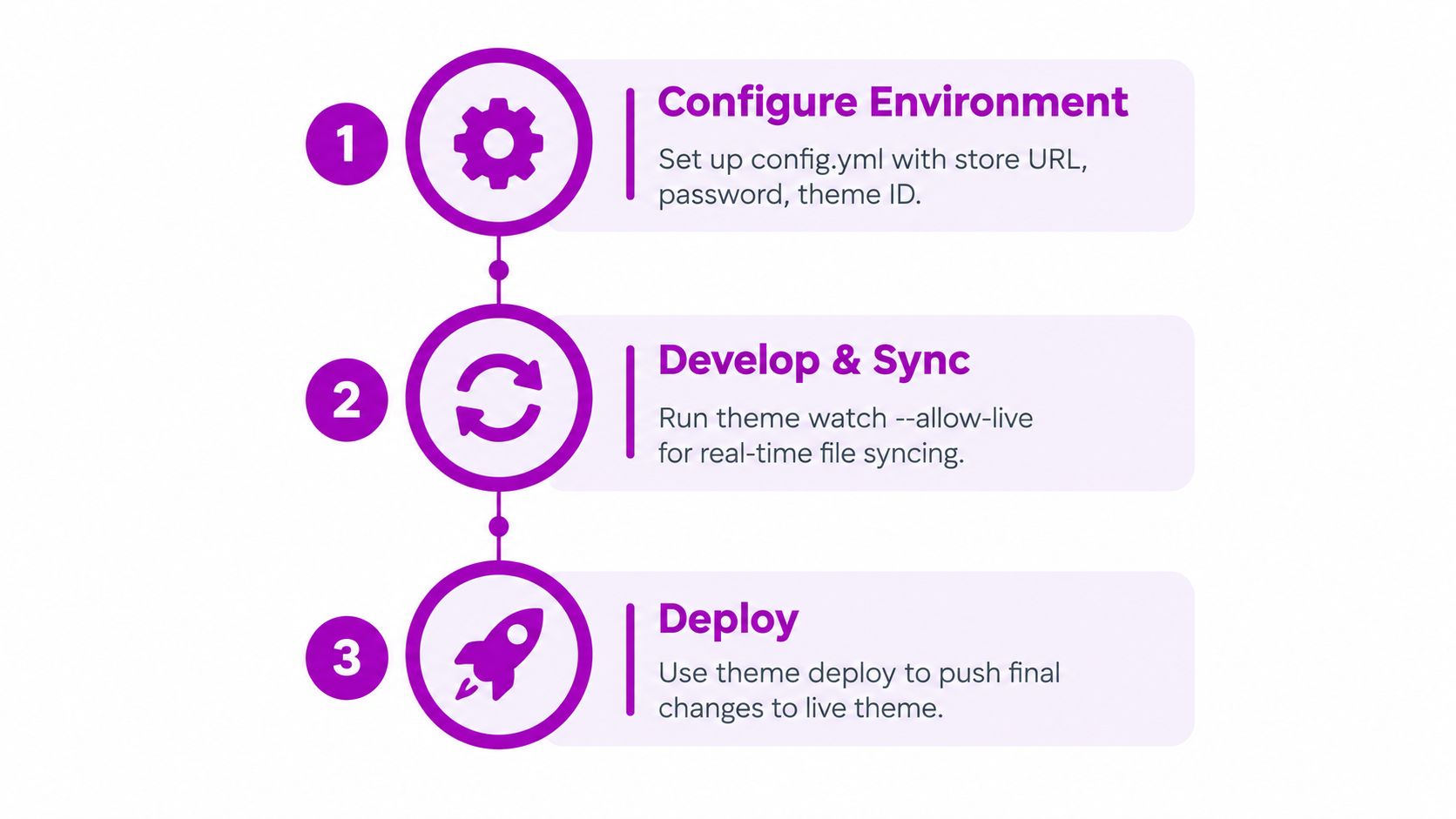
A workflow that holds up under client work
A practical loop looks like this:
- Configure the environment with the correct store, password, and theme ID.
- Pull the current theme so your local files match reality before edits start.
- Run watch during active development if you're working in a non-critical theme.
- Use targeted uploads for isolated changes when broad syncing feels risky.
- Deploy deliberately after you've checked what changed.
- Keep ignore rules tight so local junk doesn't get pushed.
That sounds basic because it is. Theme Kit gets messy when developers skip step two, trust stale local files, and start syncing immediately.
Real example with a header change
Say a client wants a header update. The request is small: adjust navigation markup, tweak the announcement bar text handling, and refine styles in the header asset.
The disciplined path is straightforward:
- Pull the current theme first.
- Open the relevant section and asset files locally.
- Run
theme watchonly if you're on a safe unpublished theme. - If the store is sensitive, upload just the header-related files manually.
- Verify the rendered result in the storefront before pushing anything broader.
The mistake I see most often is editing the same header in Shopify's code editor while Theme Kit is also watching locally. That's how teams create silent conflicts.
What works and what doesn't
What works well
- Single developer ownership: One person controls a theme session at a time.
- Short-lived watch sessions: Turn sync on for active work, then stop it.
- Local baseline refreshes: Pull before editing if you haven't worked in that theme recently.
What breaks fast
- Parallel editing: Local files and admin edits diverge quickly.
- Live-theme watch habits: Convenience can turn into accidental production changes.
- Loose project folders: Untracked build output and temporary files creep into deploys.
On legacy Shopify projects, process discipline matters more than tool sophistication.
Troubleshooting the Most Common Shopify Theme Kit Errors
Most Theme Kit failures aren't mysterious. They usually fall into two buckets: access problems and sync conflicts. If you know which one you're dealing with, the fix gets much faster.
Authentication and permission failures
The common symptom is simple. Theme Kit installs fine, but commands fail when connecting to the store or touching theme files.
The root cause is usually one of these:
- Wrong credential type: The token or password doesn't match the legacy workflow Theme Kit expects.
- Missing theme permissions: The account can log in, but can't read or write themes.
- Owner-only setup limitation: Some legacy private-app style setup steps can only be enabled by the store owner.
Start by re-checking the credential source and access scope. If a teammate sent you a value copied from an older setup document, verify it still works and still maps to the intended store. Theme Kit is unforgiving here. A nearly correct setup behaves like a broken one.
File conflict and synchronization issues
The second class of problems is more dangerous because it can look harmless at first. A developer edits a file locally, someone else changes that same file in the store, and now the local project no longer reflects the live theme.
Shopify's GitHub integration documentation describes warnings when a file is edited in two places and includes recovery options through logs and reset-to-commit. That tells you something important: version conflicts are expected in Shopify theme work, not a rare edge case.
A practical recovery pattern is:
- Stop syncing immediately: Don't keep pushing into a conflict.
- Inspect recent changes: Compare the local file against the current theme state.
- Decide which source is authoritative: Local, live theme, or repository.
- Reset deliberately: Use the relevant recovery path rather than trying to patch over drift.
Fast triage checklist
When Theme Kit starts behaving strangely, run through this in order:
- Check who changed the theme last: Human process is often the answer.
- Confirm the target theme ID: A wrong theme target causes a lot of false assumptions.
- Review ignored files: Missing uploads can come from your own ignore rules.
- Re-pull if local state is suspect: It is often faster than guessing.
- Avoid mixed editing modes: Don't switch back and forth between local sync and browser editor edits mid-task.
If the problem feels random, assume state drift before assuming a broken command.
When to Keep Theme Kit and When to Migrate to Shopify CLI
If you're starting a new Shopify theme project in 2026 and still choosing Theme Kit by default, you're choosing a legacy workflow on purpose. Sometimes that is reasonable. Usually it is not.
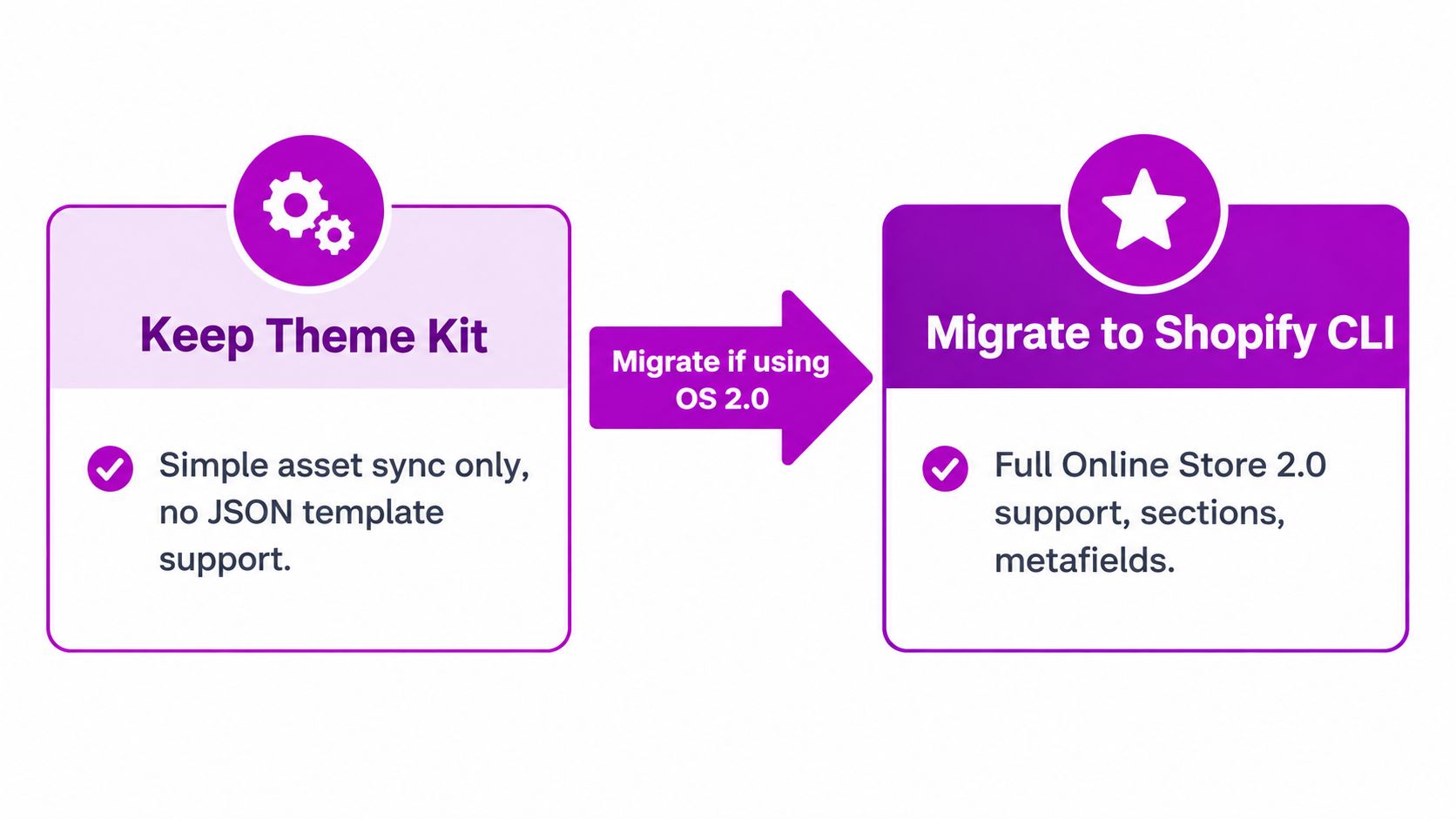
The practical rule is straightforward. Keep Theme Kit for contained maintenance on older themes. Use Shopify CLI for new development, structural theme work, and any store that depends on modern theme features.
Cases where keeping Theme Kit is still reasonable
I still see valid Theme Kit setups in production. They tend to have the same traits. The theme is older, the team is making narrow Liquid or asset changes, and nobody is trying to modernize the architecture mid-sprint.
Keep it in place if your situation looks like this:
- The store runs a legacy theme with stable patterns: You are editing sections, snippets, templates, and assets that already fit the old workflow.
- The work is maintenance, not a rebuild: Bug fixes, content tweaks, CSS updates, and low-risk template edits do not always justify a tooling change first.
- The delivery process is brittle: If multiple stakeholders rely on a known release routine, changing tools can create more risk than the code change itself.
- The team already knows the failure modes: A legacy tool is easier to tolerate when the team understands its limits and has rollback habits in place.
That is a short-term decision, not a strategy.
Cases where migration should happen now
Shopify CLI is the better choice as soon as the theme work stops being simple maintenance. That includes stores using JSON templates, app blocks, theme app extensions, and other Online Store 2.0 patterns that Theme Kit does not handle well.
I would also migrate if any of these are true:
- You are rebuilding templates or sections at scale
- You need a cleaner local development loop
- You are onboarding new developers and want one current workflow
- You expect the theme to keep evolving instead of just being patched
For teams rebuilding rather than patching, a more current implementation path is usually a custom Shopify theme development guide.
If your migration also affects traffic, metadata, or app-driven content, treat SEO as part of the same project. A Shopify SEO integration can help connect storefront changes with search workflows so the theme move does not create avoidable ranking problems.
Here is a walkthrough worth reviewing before you switch processes:
A safe migration path
The teams that struggle with this move usually try to run both tools casually against the same theme. That is where confusion starts. File state gets muddy, previews stop reflecting local intent, and nobody is sure which workflow is authoritative.
A safer migration looks like this:
- Back up the full Theme Kit project: Keep
config.yml, ignored files, and any store-specific notes. - Record the exact theme IDs in use: This matters more than people expect when several unpublished themes exist.
- Install Shopify CLI and connect it to the same store: Confirm authentication and target selection before touching templates.
- Pull the theme into the CLI workflow and compare outputs: Check templates, sections, assets, and settings files, not just the homepage.
- Test the features that prompted the migration: Preview JSON templates, app blocks, and any extension-related behavior in the new toolchain.
- Freeze Theme Kit once the CLI workflow is verified: One theme, one primary workflow.
What works poorly is a split setup where one developer uses CLI while another keeps syncing through Theme Kit to the same active theme. That arrangement creates process problems before it creates technical ones.
Frequently Asked Questions About Shopify Theme Kit
Does Shopify Theme Kit still work on Shopify Plus
Usually, yes. Shopify Plus doesn't make Theme Kit modern again, but it also doesn't automatically block it. If a Plus store is running a legacy theme workflow and the theme itself fits that pattern, Theme Kit can still operate as a maintenance tool.
The issue on Plus isn't plan level. It's complexity. Plus teams often manage multiple storefronts, custom app behavior, and newer theme capabilities. That's where Theme Kit stops being practical.
What happens to existing Theme Kit projects after deprecation
Deprecation doesn't mean your project disappears overnight. It means you're now depending on a legacy tool with unsupported parts that may stop working soon, as the repository warning states earlier in this article.
For an existing project, that changes how you manage risk:
- Keep backups current: Preserve the full local project and config.
- Avoid expanding the workflow: Don't build new team processes around a deprecated tool.
- Plan replacement before a failure forces it: Emergency migrations are harder.
Can Shopify CLI manage the same themes Theme Kit managed
In most real-world cases, yes. If Theme Kit was used to maintain a Shopify theme, Shopify CLI is the current path for working with Shopify themes going forward.
The important part is validation. Don't assume that because the theme opens under a new tool, your full workflow is ready. Check how your team handles local edits, previewing, app-related theme changes, and release discipline.
How soon will Theme Kit be fully removed
There isn't a verified public cutoff date in the material cited here, so nobody should pretend there's a known deadline. What is clear is the lifecycle direction: Shopify identifies Theme Kit as legacy, and the repository labels it deprecated.
Treat that as enough signal to stop betting future work on it.
Should I install Theme Kit for a new project
No. For a new project, installing Theme Kit only makes sense if you're reproducing an existing legacy environment for short-term compatibility. If you're starting from zero, use Shopify CLI.
What's the biggest operational risk with Theme Kit
The biggest day-to-day risk isn't installation. It's workflow drift. One person edits locally, another edits in Shopify, and now nobody fully trusts the theme state.
That risk gets worse when teams use Theme Kit casually because it feels lightweight. Lightweight tools still need strict ownership.
What's the practical decision
If you maintain an older storefront and need a short bridge, Theme Kit can still serve that purpose. If you're building, redesigning, or modernizing, skip the nostalgia and move to the current Shopify toolchain.
If you're dealing with a legacy Theme Kit setup, a theme migration, or a rebuild that needs a cleaner Shopify workflow, ECORN handles the practical side of that work. The team supports theme development, custom builds, and modernization projects that move stores off brittle legacy processes without unnecessary disruption. Visit ECORN if you want help evaluating whether to stabilize your current theme or migrate it properly.


Shopify Volume Pricing: How to Set Up Tiered Discounts

How Does Shopify Work for Sellers? a Practical Guide

Shopify Theme ZIP: How to Upload and Install It
Shopify Plus Organization Admin: Roles and Access Guide
How to Build a Drop Down Menu in Shopify: Steps and Fixes
Shopify Plus Integration Services Guide

Shopify Customer Experience: A 2026 Guide

Shopify Plus Expansion Stores: Limits and Setup
Shopify Theme Update: Safe Steps, Backups and Rollback

Shopify Website Design Packages: What You Actually Get

How to Choose a Shopify Plus Web Design Agency in 2026

Shopify Plus Ecommerce Agency: How to Pick the Right One

Shopify Themes Retina: How to Serve 2x Images

How to Cross Sell on Shopify Without Friction

Best Shopify Theme for Custom Products Compared
Multi Store Inventory Management: A Practical Guide

SEO Consulting for Ecommerce: A Practical Guide
Shopify Theme Updater App: A Safe Update Playbook
Shopify Git Integration: A Developer's Guide to 2026
Headless Ecommerce Development Services Explained

How to Build a Shopify Clothing Website That Converts

How to Launch a Box Subscription Business in 2026

Luxury Skincare Branding Playbook That Converters

10 Best Podcast Ecommerce Shows for Store Growth in 2026

Shopify Developer Hourly Rate: What to Pay in 2026
Critical Shopify Setup Errors That Are Secretly Sabotaging Your Store
Ecommerce Conversion Tracking: The Complete How-To Guide

Shopify Design Agency: How to Pick the Right Partner
Mastering Multi Store Management on Shopify
Scale Shopify Store

10 Shopify App Ideas Worth Building in 2026
Conversion Rate Optimization for Landing Pages: The Playbook
Shopify Plus Automation: A Guide for 2026
10 Social Selling Platforms for Shopify Merchants

Shopify Website Design Examples: 7 Stores Worth Studying

7 Ecommerce Newsletter Examples for Shopify Brands
One Product Shopify Store: Build and Scale

Mobile Pop Up Strategy for Shopify Stores That Converts

Sitemap for Shopify: How to Find, Optimize, and Submit It

7 Single Product Websites Worth Emulating

Product Variants Shopify: The Complete 2026 Guide

Ecommerce Analytics Consulting for Growth

What Is AI Integration for eCommerce

How to Choose the Right eCommerce Website Development Firm

E Business Strategy Implementation
Conversion Tracking Setup for Shopify Stores

BigCommerce vs Shopify Plus Which Enterprise Wins in 2026

Shopify Extension Development: A Practical 2026 Guide

Shopify Speed Score Explained and How to Improve It
Shopify Mobile Optimization: The 2026 Playbook

How to Add Subcategory in Shopify for Better UX
How to Implement Structured Data for Ecommerce in 2026

SEO App Mobile: Shopify Store Optimization Guide

Shopify Plus Support: What It Includes and How to Choose

Google Ads for Shopify: The Complete 2026 Playbook

Shopify New York: How to Find and Hire the Right Agency

Google Search Console for Shopify: The Complete Setup

First Party Data Collection for eCommerce Growth

FAQ Online Store Guide: Build and Measure It Right

Do FB Ads Work for eCommerce in 2026?
One Page Checkout for Shopify: Design and Implementation
Shopify GraphQL vs REST: The 2026 Developer Decision
Shopify Ecommerce Consulting: Strategy, Pricing &

Are Reddit Ads Worth It for eCommerce Brands
Shopify Title and Meta Description: A Practical 2026 Guide

Product Video Best Practices for Shopify Brands
Real-Time Inventory Management: A 2026 Guide

AI Chatbot Integration for Shopify Stores

Affiliate Program Management: A Shopify Guide
10 Best Performance Monitoring Tools for Shopify in 2026

Digital Asset Management for eCommerce Brands in 2026

Every Type of Facebook Ads Explained for eCommerce Growth
Product Information Management Explained for Shopify Brands
Support Ticket System: A Guide for Shopify Stores

10 Best Customer Service Tools for Shopify in 2026

Can I Start a Business with No Money? a 2026 Blueprint

What Sells Good on Etsy: Best Niches for 2026

Shopify Add to Cart Button: A Practical 2026 Guide

Customer Feedback Automation: A Practical eCommerce Guide
Critical Rendering Path: A Guide for Shopify Stores

How to Promote on TikTok for eCommerce in 2026

B2B eCommerce Consulting That Drives Real Revenue

10 Best Practices for Site Navigation in 2026
Return vs Refund for Shopify Stores: A Practical Guide

What Is Customer Lifetime Value and Why It Matters

What Is Voice of Customer Research for eCommerce

SMS Marketing for Ecommerce That Actually Converts

Master How to Improve Email Deliverability in 2026

Top 8 eCommerce Partners NYC for Shopify Brands in 2026

Machine Learning for Ecommerce: Boost Your Shopify Store

Beauty Market Research: Your 2026 Growth Guide

Shopify International Expansion: A 2026 Roadmap

What Does CRO Stand for in Business: Understanding CRO

Shopify Visual Merchandising: A Playbook for Higher Sales

Shopify Landing Page Design: Master Conversion in 2026

10 Best AI SEO Optimization Tools for Shopify in 2026

Agentic AI for Ecommerce: Boost Your Sales in 2026
Mastering Email Marketing Data for eCommerce Growth

Conversion Rate Optimisation Australia: Boost Your Sales

Conversion Rate Optimization AI: Your Shopify Store Guide


newsletter in your inbox