

Most advice about Shopify themes Retina says the same thing: export a bigger photo and the store will look sharp. That advice fails the moment a phone has to download a desktop file just to paint a small product card. Sharpness is a display problem and a theme problem at once. You only keep the commercial benefit after a repeatable speed and accessibility check, not after a feature tour of a demo.
What Retina Means on Shopify Themes
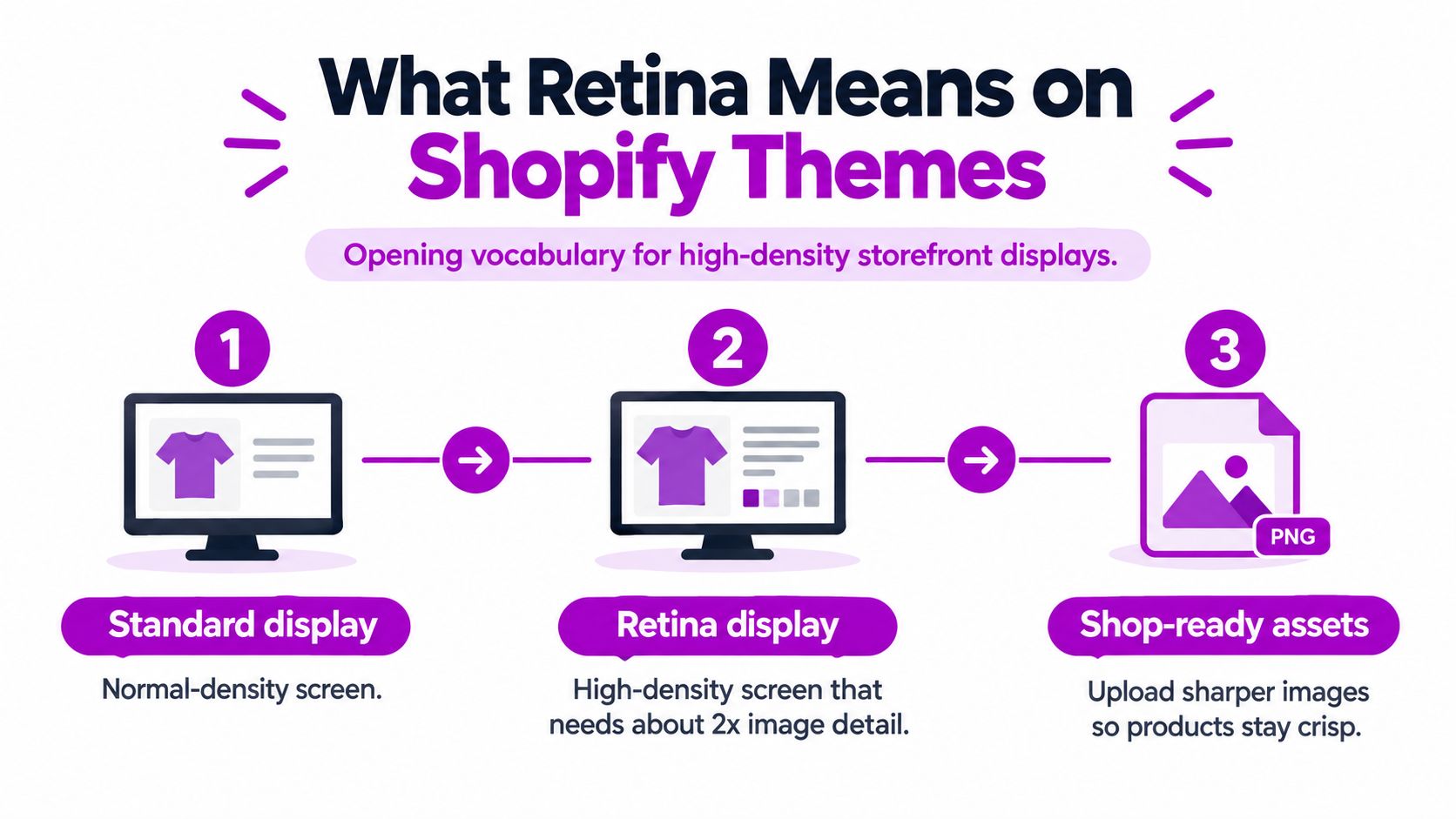
A screen's pixel density determines how much detail it can show. On a high-density display, a logo or product photo needs about twice the pixel detail of a standard display to look crisp at the same physical size. A file that looks clear on an older monitor can appear soft on a modern phone because the browser has too few pixels to work with.
That display requirement and Out of the Sandbox's paid Retina theme are related, but they are not the same thing. The first is a challenge any Shopify theme must handle. The second is a particular theme with its own editor, sections, and release history. Dawn or Craft can serve sharp 2x assets, while a Retina store can still show blurry logos if its files or markup are wrong. The theme name alone does not guarantee sharp images.
A theme that kept pace with the platform
Retina's release notes date version 1.0 to September 12, 2013. Later releases show how the theme changed alongside Shopify:
- January 14, 2017: version 4.0.0 added Shopify Sections, letting merchants add, remove, and reorder homepage content in a visual editor.
- February 13, 2020: version 4.7.0 added product video, augmented reality, and 3D models, along with multi-currency.
- April 15, 2020: version 4.7.1 added Shopify's native currency selector.
- October 5, 2020: version 4.7.4 added predictive search through Shopify's predictive-search API.
- October 1, 2021: version 6.0.0 added Online Store 2.0 compatibility, including app blocks, flexible product-page sections, custom Liquid sections, and standardized faceted filtering.
These release notes document about eight years of adaptation, from the 2013 launch through the Online Store 2.0 transition in 2021. They show a merchandising theme gaining support for Sections, richer product media, and app blocks as Shopify evolved. For store owners, the distinction matters: a theme's features and an image's pixel dimensions are separate parts of the job.
A retina-ready label does not resize your assets. The display needs more pixels, and your Liquid markup must serve a file that stays sharp without sending an unnecessarily large image to every visitor. Test both the rendered image and the page's performance before launch.
Why the Retina Theme Wins and Where It Costs Speed
A polished product page can sell the material and color more clearly, but every sharp image and interactive feature has a speed cost. For image-led retailers, Out of the Sandbox's Retina theme brings merchandising tools together. Keeping that experience commercially viable takes more than choosing features: it requires a repeatable performance and accessibility audit.
Shopify's theme marketplace listing reports a 96% positive rating from 295 reviews: 284 positive, 4 neutral, and 7 negative. That feedback offers a useful signal about the theme's reputation, though it does not represent every store using it.
Shopify identifies Retina as a mobile-friendly theme for high-end retailers. Its tools cover product discovery and purchase decisions, including high-resolution images, galleries, zoom, rollover, product videos, tabs, size charts, color swatches, quick view, recommended products, filtering and sorting, enhanced search, promotional banners, countdown timers, back-in-stock alerts, and a slide-out cart.
Keep what sells, question what only decorates
Treat each feature like an item in a store display: keep it if it helps shoppers assess or choose a product, and check what it costs to load. A gallery may help someone judge a fabric swatch. A countdown timer and several app embeds may add little to a homepage that already has video.
| Feature | What it helps shoppers do | Speed question to ask |
|---|---|---|
| High-resolution images, zoom, rollover | Judge material and color before they commit | Is the file sized to the card, or is a desktop original loading on mobile? |
| Galleries and product videos | See the product in motion and from more angles | Do hidden slides and autoplay video download on first paint? |
| Tabs, size charts, swatches | Pick a variant without leaving the page | Does each swatch pull a new full-size image? |
| Quick view and recommended products | Sample another item without a full navigation | How many extra templates and scripts does the drawer load? |
| Filtering, sorting, enhanced search | Narrow a large catalog | Is faceted filtering native, or is a second app doing the same job? |
| Banners, countdown timers, back-in-stock alerts | Catch a promotion or a restock | Is this a section you need on every template, or only on a campaign page? |
| Slide-out cart | Review the bag without losing the page | Which apps also inject cart scripts on top of it? |
A feature that does not change what shoppers understand or buy on a template can stay disabled. In Liquid, check whether sections and app blocks load assets on templates where they are not used, and avoid loading the same script through both the theme and an app.
Before launch, repeat the audit on key templates. Check load performance alongside keyboard access, focus order, and image descriptions. A sharp product image helps only if the page remains usable and loads quickly enough for shoppers to reach it.
How to Serve Sharp 2x Images in Liquid
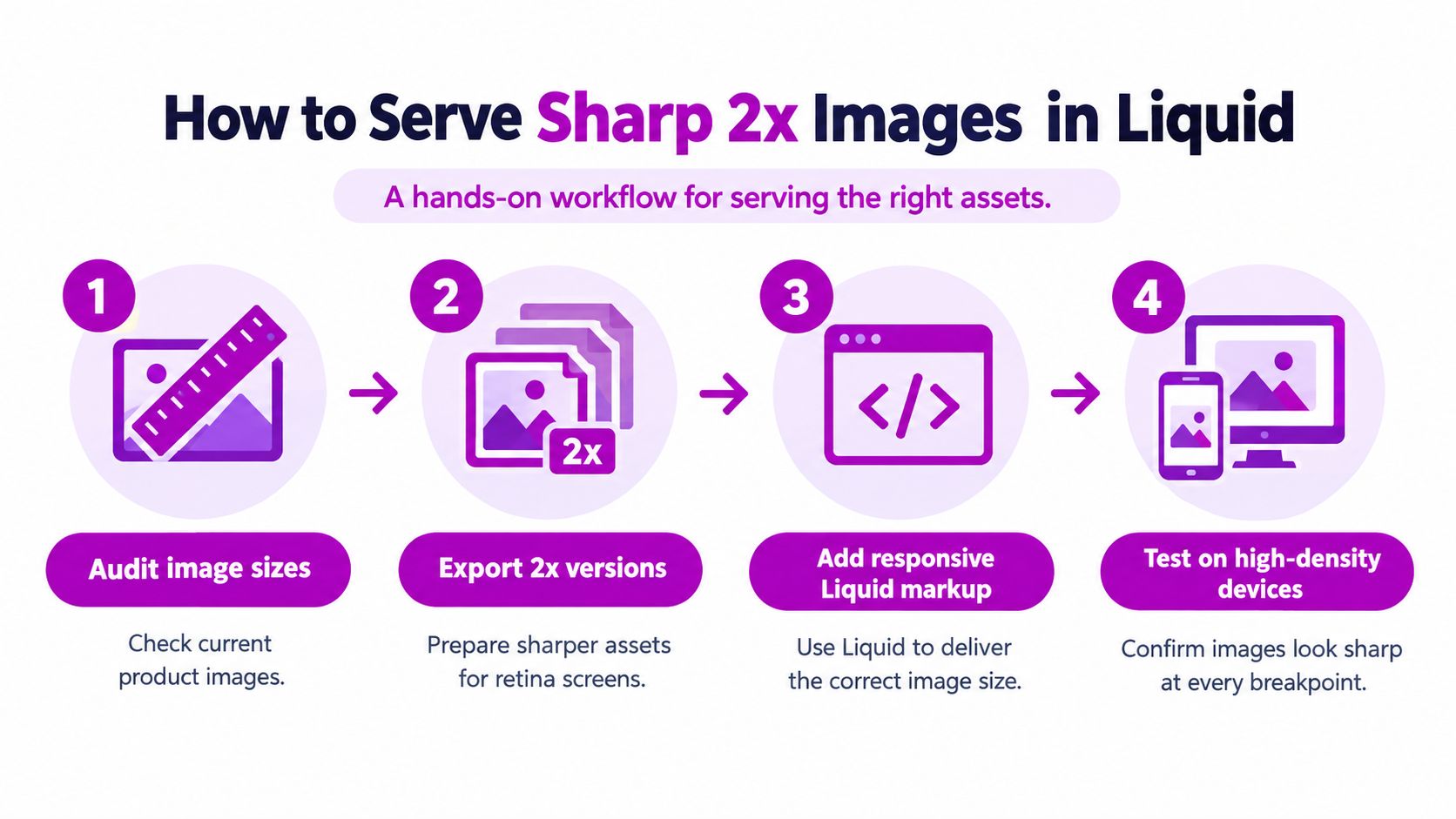
Stop uploading one huge file into every image setting. A sizing-first workflow picks the file after you know the slot. Replace hard-coded image URLs with Shopify's Liquid image_url filter and image_tag. Pass a srcset width list, and set sizes to the actual content width after padding and grid gaps.
Shopify's responsive-image guidance is the method to follow. The browser reads the layout width you declare, checks device pixel density, including 2x retina displays, and then selects the smallest suitable srcset candidate. You are not choosing the file in JavaScript. You are giving the browser an honest menu.
Measure the slot before you write sizes
Test representative widths of 375px, 768px, and 1440px. On each, measure the rendered image after padding and column gaps. A three-column card on a phone is not 100vw. A hero that sits inside a padded container is not 100vw either. A lazy 100vw tells the browser the image is full-bleed, so it downloads a file for a width the layout never uses.
image_tag can emit width and height, which reserves layout space and keeps CLS down. Shopify's CDN can resize the original and serve modern formats such as WebP or AVIF. You upload a sharp master. The CDN does the intermediate sizes. For a fuller pass on compression and format choice, use this Shopify image optimization guide beside the theme work, not instead of correct sizes.
When picture markup is worth it
Use <picture> and <source> only for real art direction, when the crop must change. A square crop on a collection card and a wide crop on a hero is that case. A phone that only needs fewer pixels of the same crop is not. Extra sources add maintenance, and each source still needs its own dimensions.
The misses that keep showing up on image-heavy themes:
- Missing sizes: the browser guesses, usually too large.
- Desktop widths on mobile cards: a 1200px candidate ships to a 160px thumbnail.
- Hidden carousel slides: off-screen frames still download.
- Picture sources without dimensions: the sharp crop arrives, then the layout jumps.
Check the network panel at those three widths. A visually sharp retina image still hurts LCP when the download is far larger than the box on screen.
Measure Retina Theme Performance Before You Launch
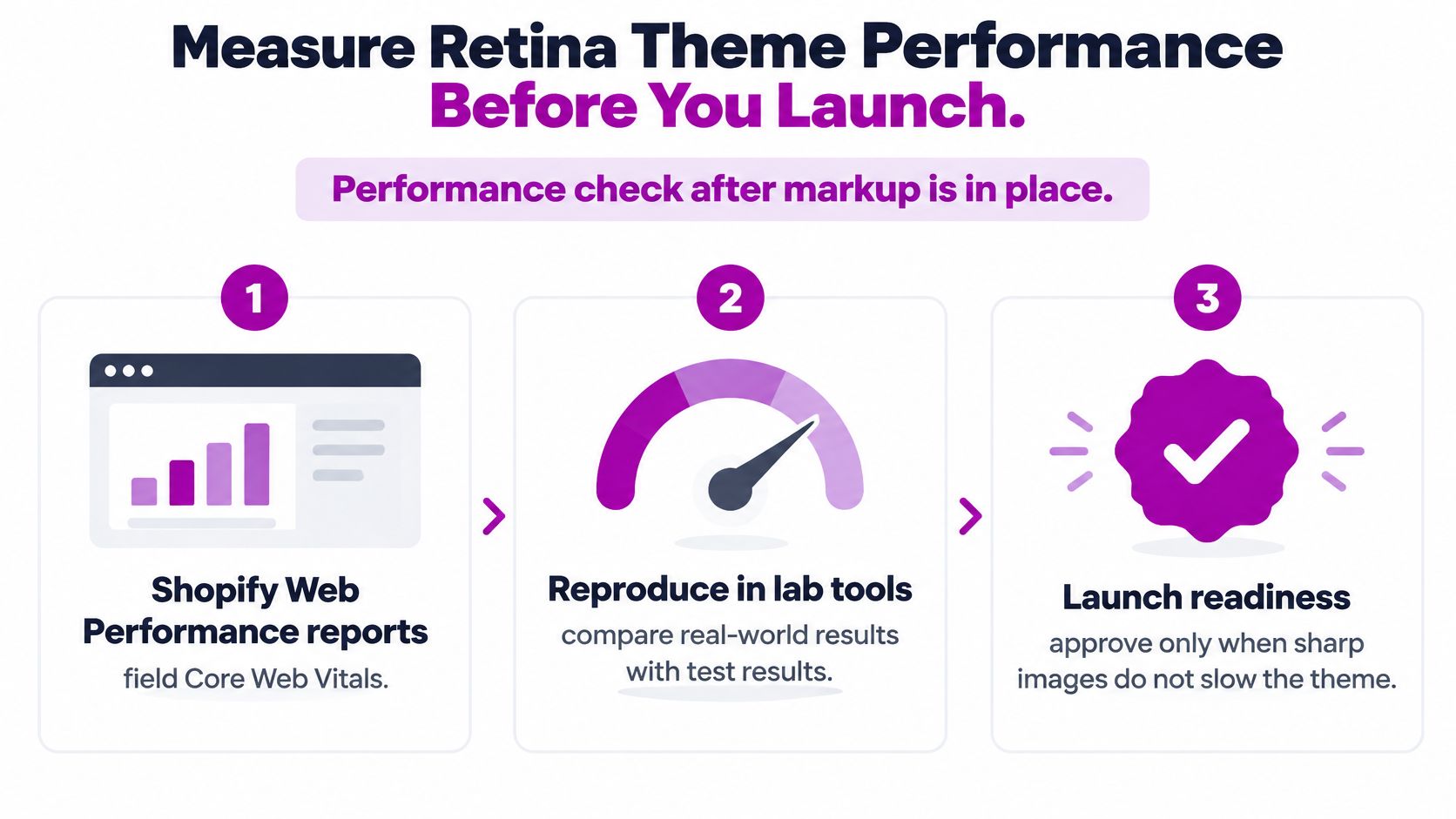
Markup is not the launch check. Start with field Core Web Vitals in Shopify's Web Performance reports, then reproduce the picture in a development store with Lighthouse on the home, product, and collection templates. Lab and field answer different questions. Lighthouse is a controlled run. The report is what real sessions did.
Shopify's theme performance docs set the Theme Store bar at a minimum average Lighthouse performance score of 60 across those three page types. LCP, CLS, and INP are the scored vitals. TTFB and FCP are diagnostic. A pretty FCP with a late LCP still means the main image arrived too slowly. If you need a refresher on why the first bytes and the first paint diverge, read how the critical rendering path orders that work.
One change, then compare
Duplicate the theme. That copy is the treatment. The untouched duplicate is the control and your rollback. Change one variable, then rerun Lighthouse and compare it with field data.
- Turn off a nonessential animation and retest the home template.
- Remove one app embed and retest the product template.
- Delete a below-the-fold section and retest the collection template.
Shopify's aggregated theme data shows why a single green metric misleads. Median passing rates are 97.3% for LCP, 96.3% for CLS, and 97.0% for INP, but only 89.9% of views pass all three at once. You can "fix" the hero and still fail the page because a gallery shifts or a quick-view script delays input.
A high lab score is a screenshot, not a launch decision. Approve the theme when mobile and desktop field data agree with the lab, and when you can roll back.
Split mobile from desktop in every run. Annotate theme publishes and app installs so a regression has a date. Limit sections and heavy app blocks. Shopify warns that high section counts reduce web performance, and an image-first homepage is where that warning shows up first.
Fix Blurry Images and Slow Templates
Retina is sold as polished and mobile-friendly. Merchant feedback does not always match that story. One Shopify review of Retina describes poor responsiveness, slow loading, and weaker Core Web Vitals, and says a switch to the free Craft theme improved those measures. That is one reviewer, not a verdict on every install. It is enough to stop treating the demo as your store.
Compare an untouched Retina install with the customized theme, on mobile and desktop separately. The Theme Store performance bar from the previous section is the floor for a submission, not proof that your branded version still clears it. Galleries, quick shop, app scripts, oversized images, and third-party tracking are the usual bottlenecks once real content is in place.
Match the symptom to the cause
Open the network panel on the live theme, then check the thing that looks wrong.
- Blurry logo or icon: a 1x file is sitting on a 2x screen, or srcset never offered a denser candidate.
- Sharp hero, slow LCP: the download is much larger than the displayed box. The image looks correct and still arrives late.
- Layout jump: width and height are missing, including on picture sources that swap crops.
- Slow collection: the theme file is rarely the only cost. Count gallery frames, quick-shop requests, app scripts, oversized cards, and tag managers.
Accessibility the demo will not show you
Lighthouse does not finish this audit. Tab through the header, announcement bar, variant picker, and slide-out cart. Focus has to stay visible. Check contrast on promo text over photography. Every merchandising image needs a useful alternative, not a filename. Variant choice has to work without a mouse, including swatches. Announcements should not trap focus or auto-scroll in a way that hides controls. Zoom and reflow should keep size charts and prices readable instead of clipping them.
If the untouched preset is fine and the customized store is not, Retina can still be viable. The work is removing what branding and apps added, not swapping themes because a demo felt fast.
Decide Who Should Finish the Retina Work
Three paths are enough. Pick from how much of the theme you already understand, not from how urgent the campaign feels.
You already edit the theme. Apply the image_url and image_tag pattern on the hero, the product card, and the gallery. Duplicate the live theme, change one variable at a time, and keep the original as rollback. That is a developer pass, and it is the right one when a single storefront and a short app list are the whole problem.
You live in the theme editor. Do not stack another homepage section to chase sharpness. Remove a countdown, a second banner, or a below-the-fold video before you add anything. Upload a sharp master and let the theme and CDN size it. If blur remains, the markup is the issue, and editor settings will not fix a missing sizes value.
Several storefronts, apps, and a rebrand are in motion together. That is specialist work. ECORN takes Shopify design, development, and conversion rate optimization, including Shopify Plus, on a monthly package or a single project. The team has supported over 100 brands, from emerging stores and growing brands to Shopify Plus merchants and founders who need consulting with the build. A practical engagement here is a Retina or custom-theme pass that fixes 2x delivery, trims the sections and apps hurting LCP, CLS, and INP, and leaves a rollback theme.
This week, duplicate the live theme and run Lighthouse on home, product, and collection, mobile and desktop. If the customized store fails where the preset looked fine, scope that gap before the next campaign rather than adding another app.
ECORN helps brands fix Shopify theme performance, including sharp 2x image delivery on Retina and custom storefronts, through design, development, and conversion work on a single project or a monthly package. If your customized theme is slower or less accessible than the demo, start with a scoped pass that keeps a rollback in place. Visit ECORN to line up that project.


How to Cross Sell on Shopify Without Friction

Best Shopify Theme for Custom Products Compared
Multi Store Inventory Management: A Practical Guide

SEO Consulting for Ecommerce: A Practical Guide

Shopify Theme Updater App: A Safe Update Playbook

Shopify Git Integration: A Developer's Guide to 2026
Headless Ecommerce Development Services Explained

How to Build a Shopify Clothing Website That Converts

How to Launch a Box Subscription Business in 2026

Luxury Skincare Branding Playbook That Converters

10 Best Podcast Ecommerce Shows for Store Growth in 2026
Shopify Developer Hourly Rate: What to Pay in 2026

Critical Shopify Setup Errors That Are Secretly Sabotaging Your Store
Ecommerce Conversion Tracking: The Complete How-To Guide

Shopify Design Agency: How to Pick the Right Partner
Mastering Multi Store Management on Shopify
Scale Shopify Store
10 Shopify App Ideas Worth Building in 2026
Conversion Rate Optimization for Landing Pages: The Playbook
Shopify Plus Automation: A Guide for 2026
10 Social Selling Platforms for Shopify Merchants

Shopify Website Design Examples: 7 Stores Worth Studying

7 Ecommerce Newsletter Examples for Shopify Brands
One Product Shopify Store: Build and Scale

Mobile Pop Up Strategy for Shopify Stores That Converts

Sitemap for Shopify: How to Find, Optimize, and Submit It

7 Single Product Websites Worth Emulating
Product Variants Shopify: The Complete 2026 Guide

Ecommerce Analytics Consulting for Growth

What Is AI Integration for eCommerce

How to Choose the Right eCommerce Website Development Firm

E Business Strategy Implementation
Conversion Tracking Setup for Shopify Stores
BigCommerce vs Shopify Plus Which Enterprise Wins in 2026
Shopify Theme Kit: Setup, Commands, and Migration Guide

Shopify Extension Development: A Practical 2026 Guide
Shopify Speed Score Explained and How to Improve It
Shopify Mobile Optimization: The 2026 Playbook

How to Add Subcategory in Shopify for Better UX
How to Implement Structured Data for Ecommerce in 2026

SEO App Mobile: Shopify Store Optimization Guide
Shopify Plus Support: What It Includes and How to Choose

Google Ads for Shopify: The Complete 2026 Playbook

Shopify New York: How to Find and Hire the Right Agency

Google Search Console for Shopify: The Complete Setup

First Party Data Collection for eCommerce Growth
FAQ Online Store Guide: Build and Measure It Right
Do FB Ads Work for eCommerce in 2026?

One Page Checkout for Shopify: Design and Implementation
Shopify GraphQL vs REST: The 2026 Developer Decision
Shopify Ecommerce Consulting: Strategy, Pricing &

Are Reddit Ads Worth It for eCommerce Brands
Shopify Title and Meta Description: A Practical 2026 Guide

Product Video Best Practices for Shopify Brands
Real-Time Inventory Management: A 2026 Guide

AI Chatbot Integration for Shopify Stores
Affiliate Program Management: A Shopify Guide
10 Best Performance Monitoring Tools for Shopify in 2026

Digital Asset Management for eCommerce Brands in 2026

Every Type of Facebook Ads Explained for eCommerce Growth
Product Information Management Explained for Shopify Brands

Support Ticket System: A Guide for Shopify Stores

10 Best Customer Service Tools for Shopify in 2026

Can I Start a Business with No Money? a 2026 Blueprint

What Sells Good on Etsy: Best Niches for 2026

Shopify Add to Cart Button: A Practical 2026 Guide

Customer Feedback Automation: A Practical eCommerce Guide
Critical Rendering Path: A Guide for Shopify Stores

How to Promote on TikTok for eCommerce in 2026

B2B eCommerce Consulting That Drives Real Revenue

10 Best Practices for Site Navigation in 2026
Return vs Refund for Shopify Stores: A Practical Guide
What Is Customer Lifetime Value and Why It Matters
What Is Voice of Customer Research for eCommerce

SMS Marketing for Ecommerce That Actually Converts

Master How to Improve Email Deliverability in 2026

Top 8 eCommerce Partners NYC for Shopify Brands in 2026

Machine Learning for Ecommerce: Boost Your Shopify Store

Beauty Market Research: Your 2026 Growth Guide

Shopify International Expansion: A 2026 Roadmap

What Does CRO Stand for in Business: Understanding CRO

Shopify Visual Merchandising: A Playbook for Higher Sales

Shopify Landing Page Design: Master Conversion in 2026

10 Best AI SEO Optimization Tools for Shopify in 2026

Agentic AI for Ecommerce: Boost Your Sales in 2026
Mastering Email Marketing Data for eCommerce Growth

Conversion Rate Optimisation Australia: Boost Your Sales
Conversion Rate Optimization AI: Your Shopify Store Guide

10 Product Bundling Strategies for Shopify in 2026
How to Increase Customer Lifetime Value: A Shopify Playbook

AI Customer Service Automation: Shopify Guide 2026

Clean Website Design: A Shopify Conversion Playbook

Omnichannel Retail Strategy: A Shopify Playbook
Product Data Enrichment: A Guide for Shopify Brands

Instagram Shopping Features a Guide for Shopify Stores

What Is Revenue Optimization: A Holistic RevOps Guide
Benefits of Conversion Rate Optimization: Boost Your
WordPress to Shopify Migration: Your 2026 Seamless Switch
Boost Sales: Ecommerce Payment Processing Guide 2026

Unified Commerce Platform: Benefits, KPIs & Shopify Guide


newsletter in your inbox