

You've added collections, arranged your products, and opened the storefront preview, but your header still shows a flat row of links. Or the drop down looks right on your laptop, then refuses to open properly on your phone. The missing piece might be simple admin nesting, but it might also be how your theme handles clicks, focus, and touch.
Building a drop down menu in Shopify involves separate jobs: defining the links in the admin and making the theme display them properly. Start with the built-in tools, then test the interaction before adding code or another app. A panel that opens on hover isn't finished if keyboard users can't reach its contents.
Pick the Right Drop Down Method for Your Theme
Drop down methods compared
| Method | Nesting levels | Code needed | Best for |
|---|---|---|---|
| Shopify admin nesting | Two drop-down levels beneath the top-level item in the standard setup | No | Stores with a standard category tree |
| Theme header settings | Limited to the levels supported by the header component | No | Changing how the menu looks and opens |
| Custom Liquid code | Up to three levels total in theme rendering | Yes | Layouts the theme cannot produce |
| Mega-menu app | Limited to the selected app's supported hierarchy | Usually no | Panels with images or promotions |
Check theme compatibility before changing your navigation. Older sectioned themes may need an update to display deeper nesting correctly. Don't install an app to work around an outdated header until you've checked whether the theme already supports the layout you need.
A drop down is a familiar ecommerce pattern. Baymard's drop-down navigation benchmark reports that hover-based drop downs are used as main navigation on 88% of the top US ecommerce sites, while warning about accidental closure, unclear grouping, and difficult pointer movement. Familiarity doesn't make a poorly implemented panel usable.
Choose by layout and maintenance needs
Sketch your category tree before selecting a method. If shoppers can reach the right collection through straightforward parent and child links, admin nesting is the cheapest starting point. Theme settings should handle presentation without requiring someone to maintain custom files.
Use these criteria to narrow the choice:
- Catalogue depth: Flatten overlapping categories before requesting deeper navigation.
- Panel content: Images and promotional tiles require a compatible theme layout or app.
- Editing ownership: Custom Liquid needs a developer who can maintain it through theme changes.
- Performance: Inspect additional scripts rather than assuming a visual builder is lightweight.
If you're replacing the theme anyway, use our guide to choosing a Shopify theme to assess navigation alongside the rest of the storefront. For a broader view of setup and ongoing expenses, the Shopify budgeting insights from Zee Palm provide useful context before you commit to another recurring tool.
Practical rule: Start with admin nesting. Use theme settings or code for a defined layout requirement, and choose an app only when the theme can't render the content your panel needs.
Build a Drop Down Menu in the Shopify Admin
Build the structure in Content > Menus, not in the theme's visual editor. The menu stores the labels, destinations, and parent-child relationships; the header decides how those relationships appear.
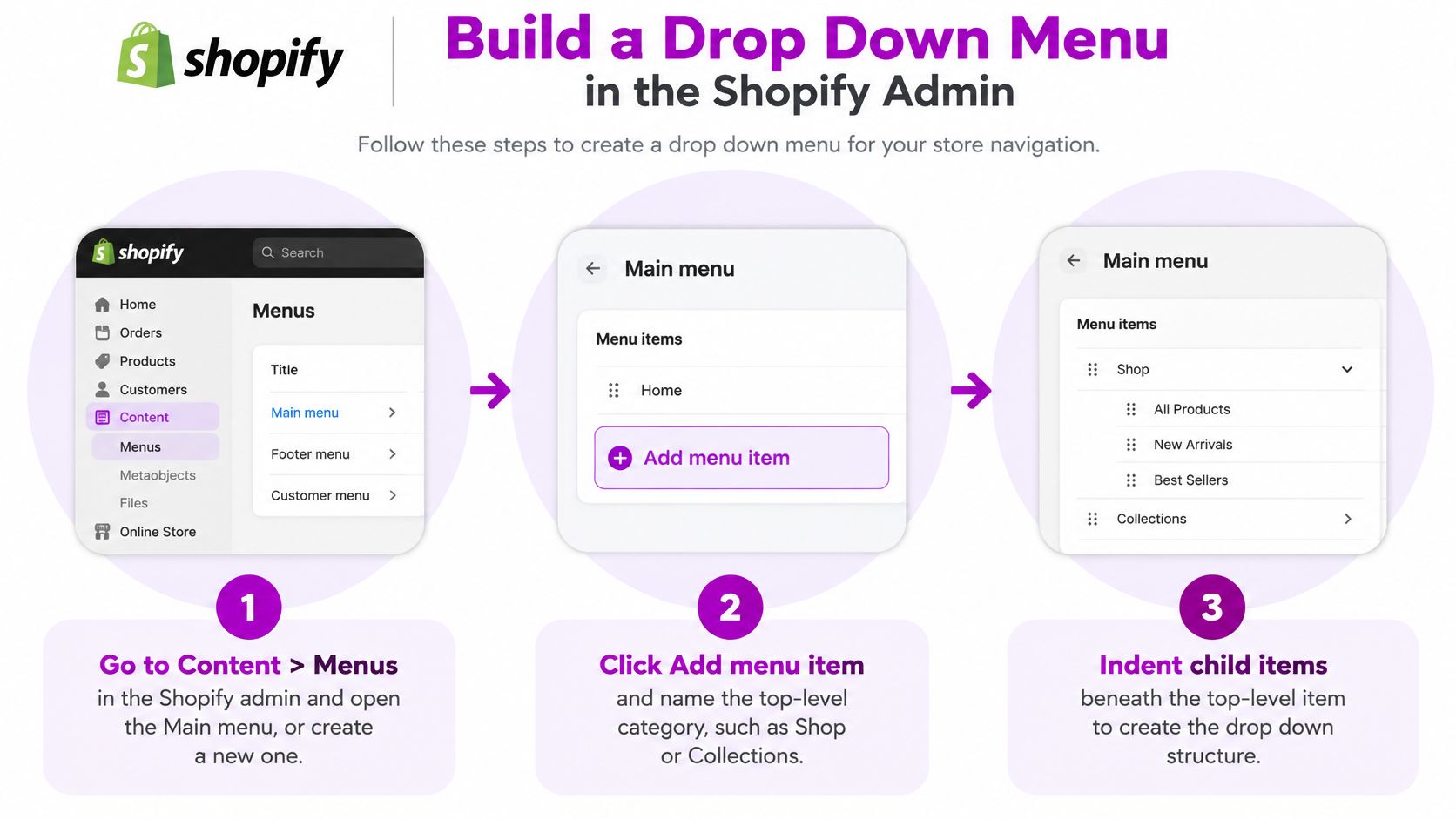
- Open the menu. In Shopify admin, go to Content > Menus and open Main menu, or create a menu if you need a separate navigation structure.
- Add the parent category. Click Add menu item and enter a clear label, such as Women.
- Choose its destination. Link the parent to a relevant collection, product, webpage, or blog post. Prefer an actual category destination when shoppers would reasonably expect to browse it.
- Create the child links. Add Dresses, Jackets, and Shoes as separate menu items, each pointing to its live collection.
- Nest the children. Drag each child beneath Women and indent it so Shopify shows the parent-child relationship.
- Save and preview. Save the menu, then open the storefront on desktop and a phone to check the displayed hierarchy and destinations.
The visual guide highlights the admin actions that create the structure.
Decide what the parent does
Shopify's drop-down menu guide permits two nested drop-down levels beneath a top-level item, equivalent to three levels total, and allows # as the destination for a non-clickable heading. Custom code does not create an additional hierarchy beyond that supported structure.
Use # only when the parent is intentionally a heading or disclosure control. Entering that value doesn't, by itself, create an accessible button or reliable opening behaviour. The theme still needs to implement that interaction.
For a clothing store, Women can remain a useful collection destination rather than becoming a dead end. A separate disclosure button beside the label can open its children while the category link remains available.
Check the indentation, not just the order
A child directly below its parent isn't necessarily nested. If Dresses has the same indentation as Women, it's another top-level link, even though the ordering looks logical in the admin.
Open every destination after saving. A neatly arranged menu won't help if a collection is unavailable on the storefront or a product has been removed.
If external systems manage your catalogue, keep navigation validation separate from integration work. Magnitude Marketing's Shopify integration roadmap is useful context for that wider project, but your immediate check is simple: every actionable menu item should open the intended live page.
You should finish with a saved parent-and-child menu whose storefront preview matches your category plan.
Style Drop Down Behavior in Theme Settings
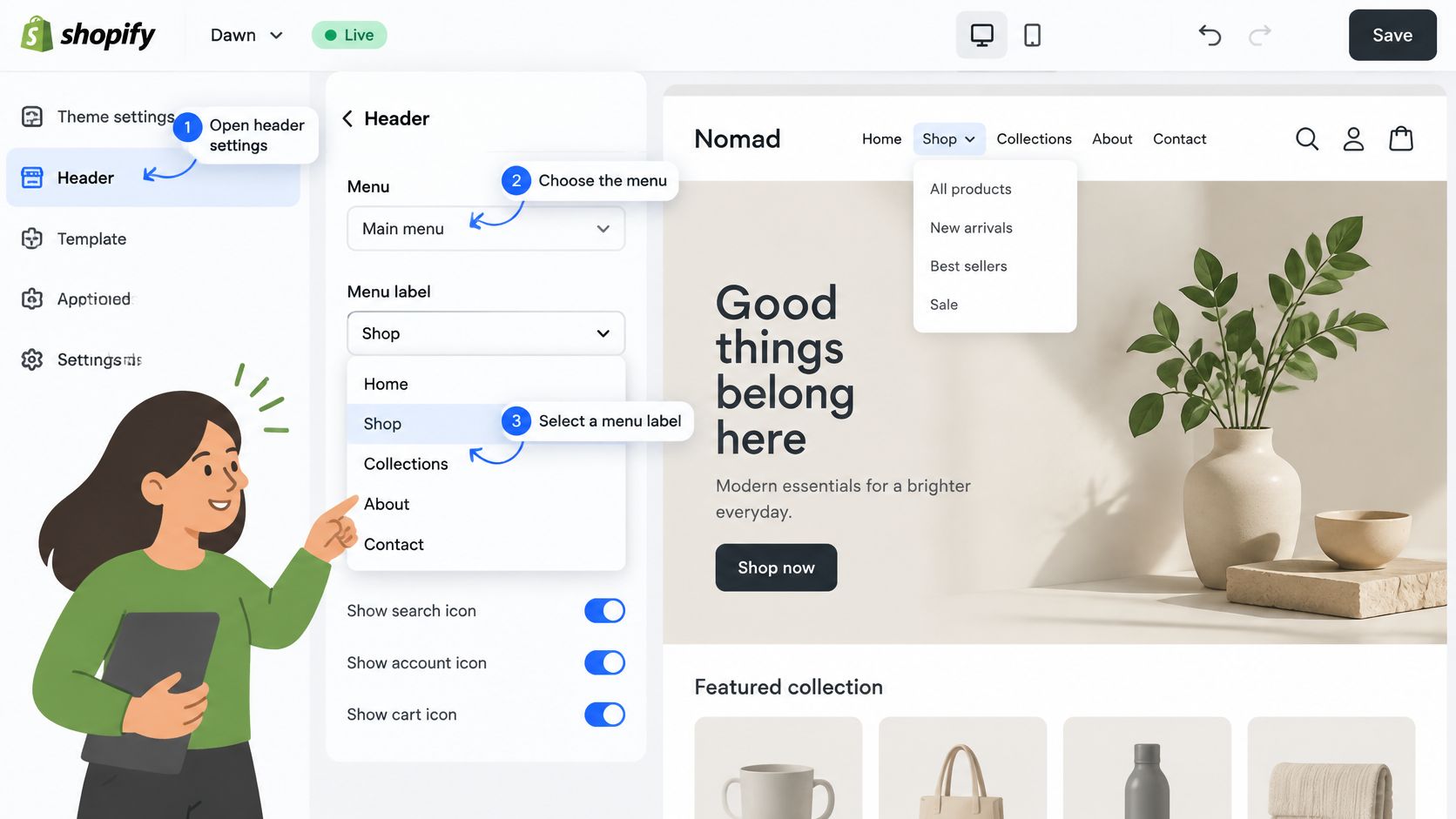
Open Online Store > Themes, launch the theme editor, and select the Header section. Setting names differ between themes, and some headers won't expose every control described below. Don't assume a missing option exists elsewhere in the admin.
Use the header controls to connect your menu and adjust its presentation.
Configure the header in order
Start with the menu selector and choose Main menu, or the menu you created. Confirm the preview changes before adjusting styling, otherwise you could spend time editing the wrong navigation.
Next, inspect the opening trigger. Hover can suit desktop pointer use, but touch users need a tap-operated control. If the theme offers hover behaviour, verify that it also provides a deliberate click or keyboard route rather than making hover the only way in.
Then adjust panel width, text size, and spacing. In a hypothetical furniture store, a Living Room category with eight children might benefit from a wider, two-column panel; a category with four short links probably doesn't. Make the panel only as wide as the content requires, and allow longer labels to wrap without overlapping adjacent links.
Finally, select the mobile presentation if your theme offers a choice. An accordion keeps the parent visible while expanding children underneath; a drawer with nested views can work too, provided shoppers have a clear route back.
This video provides an additional visual walkthrough of the setup.
Check the scrolled header
Open the menu after scrolling, not just at the top of the homepage. A fixed header, announcement bar, or clipped container can cover the panel and make its bottom links unreachable.
A panel isn't usable just because it's visible. Shoppers must be able to reach its final link without losing the open menu.
Tick off these settings in desktop and mobile previews:
- Trigger: Opening and closing are deliberate and predictable.
- Panel width: Content stays within the viewport.
- Spacing: Labels remain readable when text is enlarged.
- Sticky clearance: Scrolling doesn't hide or clip menu items.
- Mobile presentation: Expanded children remain reachable inside the drawer or accordion.
Add a Custom Drop Down with Theme Code
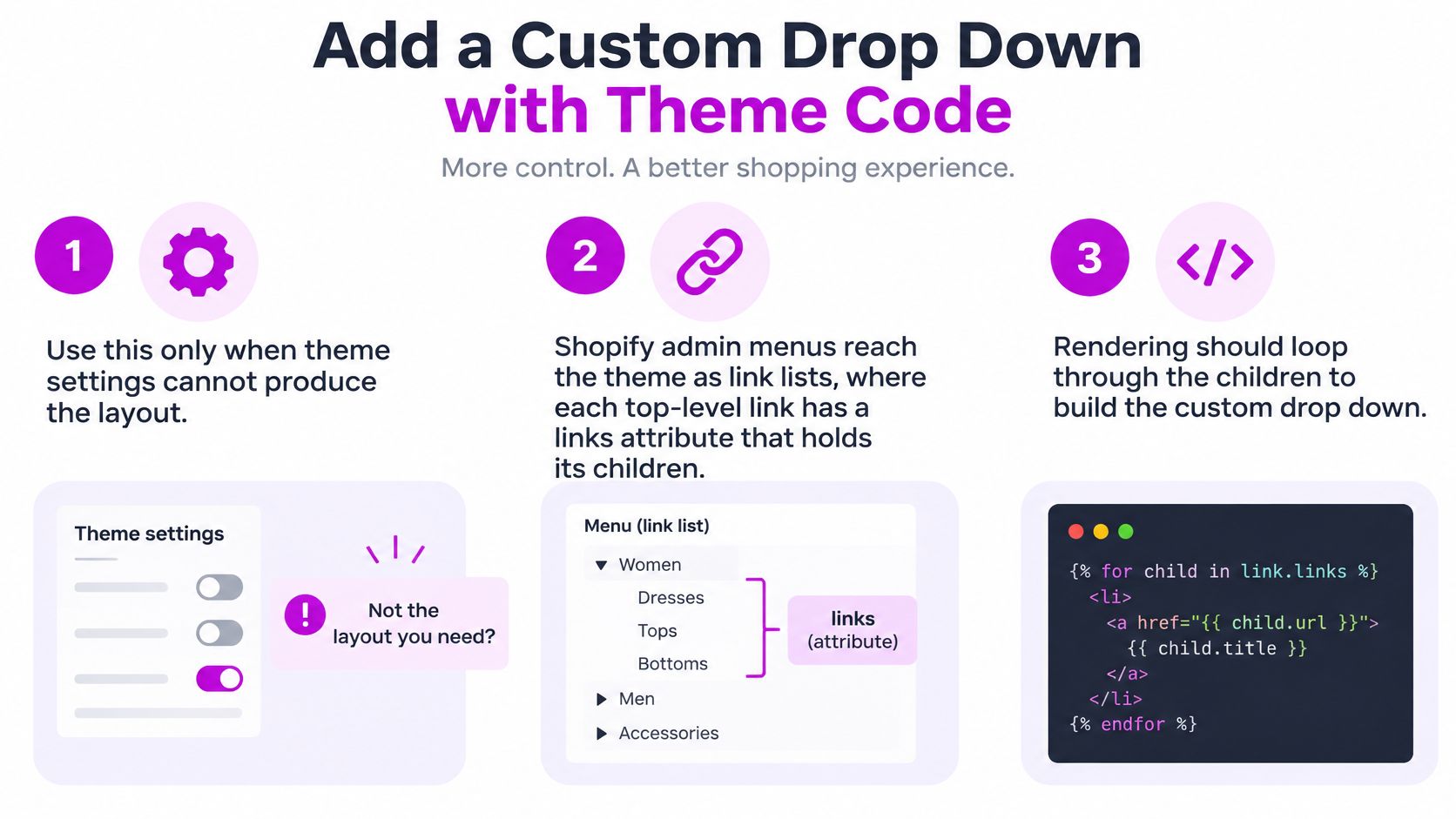
Use custom code when the theme's controls can't produce a specific layout, not because the menu needs different labels. Duplicate the theme before editing, and keep the published version available while you develop.
Shopify separates navigation content from presentation. Shopify's navigation documentation describes the admin-managed menu structure that a custom header should render, rather than replacing those links with hard-coded destinations.
Keep the menu merchant-editable
In Liquid, menus are available as linklist objects, and a link's links attribute contains its children. Think of this as reading a category tree: render a parent, inspect its children, then render the relevant nested list.
- Prepare the destinations. Create and publish the collections, products, or pages you intend to link. Select those resources in the admin rather than typing fragile destinations into template files.
- Validate the menu structure. Confirm that each child belongs beneath the correct parent before writing the rendering logic.
- Expose a menu setting. Add a
link_listsetting to the header section schema so the merchant can select the menu through the theme editor. - Render the hierarchy. Loop through the selected menu's top-level links, then through each parent's
link.linkscollection. Use nested lists to preserve the relationships. - Build the disclosure control. Give its button
aria-expandedand anaria-controlsvalue matching the panel's unique ID. Keep the expanded state synchronized whenever the panel opens or closes. - Test before publishing. Exercise the finished header with pointer, keyboard, and touch input, including the scrolled and mobile layouts.
The implementation checklist keeps the content structure separate from the custom layout.
Write interaction code, not just Liquid
Liquid outputs the initial HTML. It doesn't manage open state, respond to Escape, or return focus after a shopper closes a panel. Those behaviours need appropriate theme JavaScript and CSS.
When the parent is also a destination, keep the anchor and disclosure button separate. Give the button an accessible name that identifies the category it expands, rather than an unlabeled chevron. Avoid attaching competing navigation and opening actions to the same tap.
Keep ordinary storefront navigation semantic: links go to destinations, buttons disclose, and lists group related destinations. Don't add application-style menu roles merely because the component is called a menu.
The result should remain editable in Shopify admin, with presentation and interaction controlled by the theme. That's more maintainable than duplicating the catalogue structure inside Liquid.
Set Up a Mega-Menu App for Rich Panels
A mega-menu app makes sense when you need promotional images, featured content, or panel arrangements your theme can't produce. It's an unnecessary dependency for a straightforward list of collection links.
Check the ongoing cost before installing. Review the pricing plan, theme compatibility, permissions, and storefront scripts. Additional JavaScript can increase loading and execution work, so compare the storefront before and after activation rather than relying on the builder preview.
Install without duplicating navigation
- Choose the app carefully. Review recent merchant feedback and look for explicit support for your theme, mobile navigation, and keyboard interaction.
- Install and authorize it. Read the requested permissions and follow the app's activation instructions on an unpublished theme where possible.
- Connect the menu source. Select Main menu if the app supports importing or synchronizing Shopify navigation. Confirm whether later admin edits synchronize automatically or require another import.
- Assign panel layouts. Start with a grid of child links and a relevant promotional image. Keep category destinations prominent instead of filling the panel with competing campaigns.
- Activate the header integration. Add the app block, app embed, or theme integration the app requires. Disable the original navigation output only after confirming its replacement works.
- Test the actual storefront. Check desktop and phone layouts, then run keyboard and screen-reader checks before publishing.
Set a maintenance rule
Assign someone to update promotional content and remove expired offers. Test what happens when an image is missing, a linked product is unavailable, or the app is deactivated.
Keep the app only if its extra content justifies the recurring fee and maintenance. A plain nested menu shouldn't require a rich-panel builder.
Where supported, keep links managed in Shopify admin and layouts managed in the app. That arrangement reduces duplicate editing and makes a later switch less disruptive.
Fix Problems and Launch Test
If child links are missing, inspect indentation and saved changes first. Then confirm that the header renders the menu you edited. Don't change Liquid to repair an unsaved admin structure.
Drop down symptoms, causes and fixes
| Symptom | Likely cause | Fix |
|---|---|---|
| Child links missing from the drop down | Links not dragged beneath the header, or menu not saved | Drag each link under its header, save, and reload the storefront |
| Panel closes before the pointer reaches it | Hover area too narrow or no close delay | Add a short close delay and extend the panel's hover area |
| Third level does not show | Theme component doesn't render the supported deeper links | Flatten the hierarchy or update theme code to render the nested children |
| Menu cannot be opened by keyboard | Trigger lacks appropriate semantics or keyboard handling | Use a disclosure button with aria-expanded and aria-controls, plus opening and closing keyboard handlers |
| Parent link leads nowhere | Parent set to # without a disclosure role | Link it to a collection, or implement it only as a disclosure control |
| Taps miss items on phones | Touch targets are too small | Enlarge the clickable areas and consider an accordion on small screens |
Test what a visual preview misses
Shopify's accessibility guidance specifies keyboard-operable dropdown controls, communicated expanded state, and touch targets of at least 44 × 44 pixels. Small clickable areas make adjacent links easy to hit accidentally, even when the text itself looks readable.
Unplug the mouse and use the keyboard. Enter and Space should open the disclosure, Tab should reach the first child, and Escape should close the panel and return focus to its trigger. Confirm that focus remains visible throughout.
Repeat the route with a screen reader such as VoiceOver or NVDA. Listen for the control's name and expanded or collapsed state, including inside the mobile accordion. A panel can visibly expand while announcing nothing useful.
Apply a launch gate
Run the final checks in this order:
- Destinations: Open every child link and confirm the intended page is live.
- Structure: Compare admin nesting with the rendered storefront.
- Inputs: Test mouse, keyboard, and a touch device.
- Viewport: Check a narrow phone screen, enlarged text, and the scrolled header.
- Completeness: Reach every mobile child without clipped or inaccessible items.
For broader category and labeling decisions, use our site navigation best practices. If a check fails, verify the admin structure first; when that's correct, isolate the theme or app behaviour instead of repeatedly rearranging valid links.
If the fix requires custom Liquid, bring the failing steps, device details, and screenshots to a developer. We're an official Shopify Partner Agency, and a reproducible test gives us a clear starting point.
We offer Shopify theme adjustments and custom development to turn admin-managed navigation into a usable desktop and mobile header. Visit ECORN, select Shopify Development in the contact form, and share your menu structure alongside the keyboard or touch checks that failed.


Shopify Plus Integration Services Guide

Shopify Customer Experience: A 2026 Guide

Shopify Plus Expansion Stores: Limits and Setup
Shopify Theme Update: Safe Steps, Backups and Rollback

Shopify Website Design Packages: What You Actually Get

How to Choose a Shopify Plus Web Design Agency in 2026
Shopify Plus Ecommerce Agency: How to Pick the Right One

Shopify Themes Retina: How to Serve 2x Images

How to Cross Sell on Shopify Without Friction

Best Shopify Theme for Custom Products Compared
Multi Store Inventory Management: A Practical Guide

SEO Consulting for Ecommerce: A Practical Guide

Shopify Theme Updater App: A Safe Update Playbook

Shopify Git Integration: A Developer's Guide to 2026

Headless Ecommerce Development Services Explained

How to Build a Shopify Clothing Website That Converts

How to Launch a Box Subscription Business in 2026

Luxury Skincare Branding Playbook That Converters

10 Best Podcast Ecommerce Shows for Store Growth in 2026

Shopify Developer Hourly Rate: What to Pay in 2026

Critical Shopify Setup Errors That Are Secretly Sabotaging Your Store
Ecommerce Conversion Tracking: The Complete How-To Guide

Shopify Design Agency: How to Pick the Right Partner
Mastering Multi Store Management on Shopify

Scale Shopify Store

10 Shopify App Ideas Worth Building in 2026
Conversion Rate Optimization for Landing Pages: The Playbook
Shopify Plus Automation: A Guide for 2026

10 Social Selling Platforms for Shopify Merchants

Shopify Website Design Examples: 7 Stores Worth Studying

7 Ecommerce Newsletter Examples for Shopify Brands

One Product Shopify Store: Build and Scale

Mobile Pop Up Strategy for Shopify Stores That Converts

Sitemap for Shopify: How to Find, Optimize, and Submit It

7 Single Product Websites Worth Emulating
Product Variants Shopify: The Complete 2026 Guide

Ecommerce Analytics Consulting for Growth

What Is AI Integration for eCommerce

How to Choose the Right eCommerce Website Development Firm

E Business Strategy Implementation
Conversion Tracking Setup for Shopify Stores

BigCommerce vs Shopify Plus Which Enterprise Wins in 2026
Shopify Theme Kit: Setup, Commands, and Migration Guide

Shopify Extension Development: A Practical 2026 Guide

Shopify Speed Score Explained and How to Improve It

Shopify Mobile Optimization: The 2026 Playbook
How to Add Subcategory in Shopify for Better UX
How to Implement Structured Data for Ecommerce in 2026

SEO App Mobile: Shopify Store Optimization Guide

Shopify Plus Support: What It Includes and How to Choose

Google Ads for Shopify: The Complete 2026 Playbook

Shopify New York: How to Find and Hire the Right Agency

Google Search Console for Shopify: The Complete Setup

First Party Data Collection for eCommerce Growth
FAQ Online Store Guide: Build and Measure It Right

Do FB Ads Work for eCommerce in 2026?
One Page Checkout for Shopify: Design and Implementation

Shopify GraphQL vs REST: The 2026 Developer Decision
Shopify Ecommerce Consulting: Strategy, Pricing &

Are Reddit Ads Worth It for eCommerce Brands

Shopify Title and Meta Description: A Practical 2026 Guide

Product Video Best Practices for Shopify Brands
Real-Time Inventory Management: A 2026 Guide

AI Chatbot Integration for Shopify Stores

Affiliate Program Management: A Shopify Guide
10 Best Performance Monitoring Tools for Shopify in 2026

Digital Asset Management for eCommerce Brands in 2026

Every Type of Facebook Ads Explained for eCommerce Growth
Product Information Management Explained for Shopify Brands

Support Ticket System: A Guide for Shopify Stores

10 Best Customer Service Tools for Shopify in 2026

Can I Start a Business with No Money? a 2026 Blueprint

What Sells Good on Etsy: Best Niches for 2026

Shopify Add to Cart Button: A Practical 2026 Guide

Customer Feedback Automation: A Practical eCommerce Guide
Critical Rendering Path: A Guide for Shopify Stores

How to Promote on TikTok for eCommerce in 2026

B2B eCommerce Consulting That Drives Real Revenue

10 Best Practices for Site Navigation in 2026
Return vs Refund for Shopify Stores: A Practical Guide

What Is Customer Lifetime Value and Why It Matters

What Is Voice of Customer Research for eCommerce

SMS Marketing for Ecommerce That Actually Converts

Master How to Improve Email Deliverability in 2026

Top 8 eCommerce Partners NYC for Shopify Brands in 2026

Machine Learning for Ecommerce: Boost Your Shopify Store

Beauty Market Research: Your 2026 Growth Guide

Shopify International Expansion: A 2026 Roadmap

What Does CRO Stand for in Business: Understanding CRO

Shopify Visual Merchandising: A Playbook for Higher Sales

Shopify Landing Page Design: Master Conversion in 2026

10 Best AI SEO Optimization Tools for Shopify in 2026

Agentic AI for Ecommerce: Boost Your Sales in 2026
Mastering Email Marketing Data for eCommerce Growth

Conversion Rate Optimisation Australia: Boost Your Sales

Conversion Rate Optimization AI: Your Shopify Store Guide

10 Product Bundling Strategies for Shopify in 2026

How to Increase Customer Lifetime Value: A Shopify Playbook

AI Customer Service Automation: Shopify Guide 2026

Clean Website Design: A Shopify Conversion Playbook


newsletter in your inbox