

The theme library says an update is available. You want the fixes, but your store also has a custom product badge, a subscription widget, and CSS someone added before your last campaign. The preview looks familiar. That doesn't tell you whether variant selection, tracking, or the cart still works.
A Shopify theme update is a code release with potential checkout risk. Treat it that way: identify what will change, preserve a working version, and make the updated copy pass measurable checks before customers use it.
Identify Your Update Path and Audit Custom Code
Start in Online Store > Themes. Look for an update notice, identify who supplied the theme, and ask whether anyone has edited its code. Theme-editor changes and code-editor changes aren't equivalent, so don't accept “we only customized it a little” as an audit.
Shopify's theme-update guidance distinguishes eligible automatic updates from manual draft updates and warns that incompatible code changes can be removed from the updated copy. Uploaded themes don't support automatic updates, and eligibility for replacing a published theme requires its files to remain unchanged apart from settings_data.json and JSON files in the templates directory.
Update paths and what to check first
| Update path | How the update arrives | Automatic update | Check first |
|---|---|---|---|
| Theme Store theme, no code edits | Shopify notifies you; you review and publish an available update | Yes, when eligible and files are unchanged apart from settings and template JSON | Release notes and app blocks |
| Theme Store theme, customized code | Manual update appears as a draft version | No for code-edited files outside the permitted exceptions | Diff of Liquid, CSS and JavaScript changes against the stock version |
| Uploaded or custom-built theme | No platform update; you merge changes yourself | No | Your own repository and version number |
| Vintage theme | May no longer receive updates and can be sunset | No automatic migration to current architecture | Plan a migration to the current theme architecture |
Architecture matters as much as version. Shopify's Online Store 2.0 announcement introduced sections across page types and JSON templates that preserve section configuration. Moving from a vintage theme to that architecture is a migration: you're rebuilding how layouts, app blocks, and dynamic content fit together, not applying a fresh stylesheet.
For a customized theme, compare the live code with the stock version of the same release. Comparing only against the newest release mixes your customizations with the theme developer's changes, making it harder to identify what belongs to your store.
Build a customization inventory
Have a developer pull the live theme using Shopify CLI and save it in Git before touching the update. ECORN's guide to Shopify Git integration explains a repository-based workflow for keeping theme changes reviewable.
Inspect these areas deliberately:
- Liquid files: Check custom sections, snippets, and modifications to product forms, prices, badges, and navigation.
- CSS and JavaScript: Find overrides in assets, inline styles, event listeners, and scripts that depend on theme-specific selectors.
- Templates and settings: Review customized product and collection JSON templates,
config/settings_data.json, and the settings schema those values depend on. - Apps and tracking: Inventory app blocks, app embeds, scripts pasted into
layout/theme.liquid, consent integrations, and marketing tags. - Dynamic content: Record metafield connections and the products or collections needed to demonstrate them.
Say a product badge uses a custom snippet. The snippet might survive while the {% render %} call disappears from the updated product section. Checking file presence alone would miss the broken feature.
Audit rule: Record what each customization does, not just where its code lives.
Finish with an audit sheet containing the changed file, business purpose, owner, dependencies, and whether the new release still needs it. Remove obsolete work deliberately rather than copying every historical patch into the update.
How to Update a Shopify Theme Step by Step
Before duplicating anything, record the live store's Lighthouse baseline using the repeatable protocol below. Save the tested URLs, screenshots, device settings, and results with the update ticket so you have a fixed comparison point.
The workflow keeps preparation and testing separate from publication.
Prepare the unpublished release
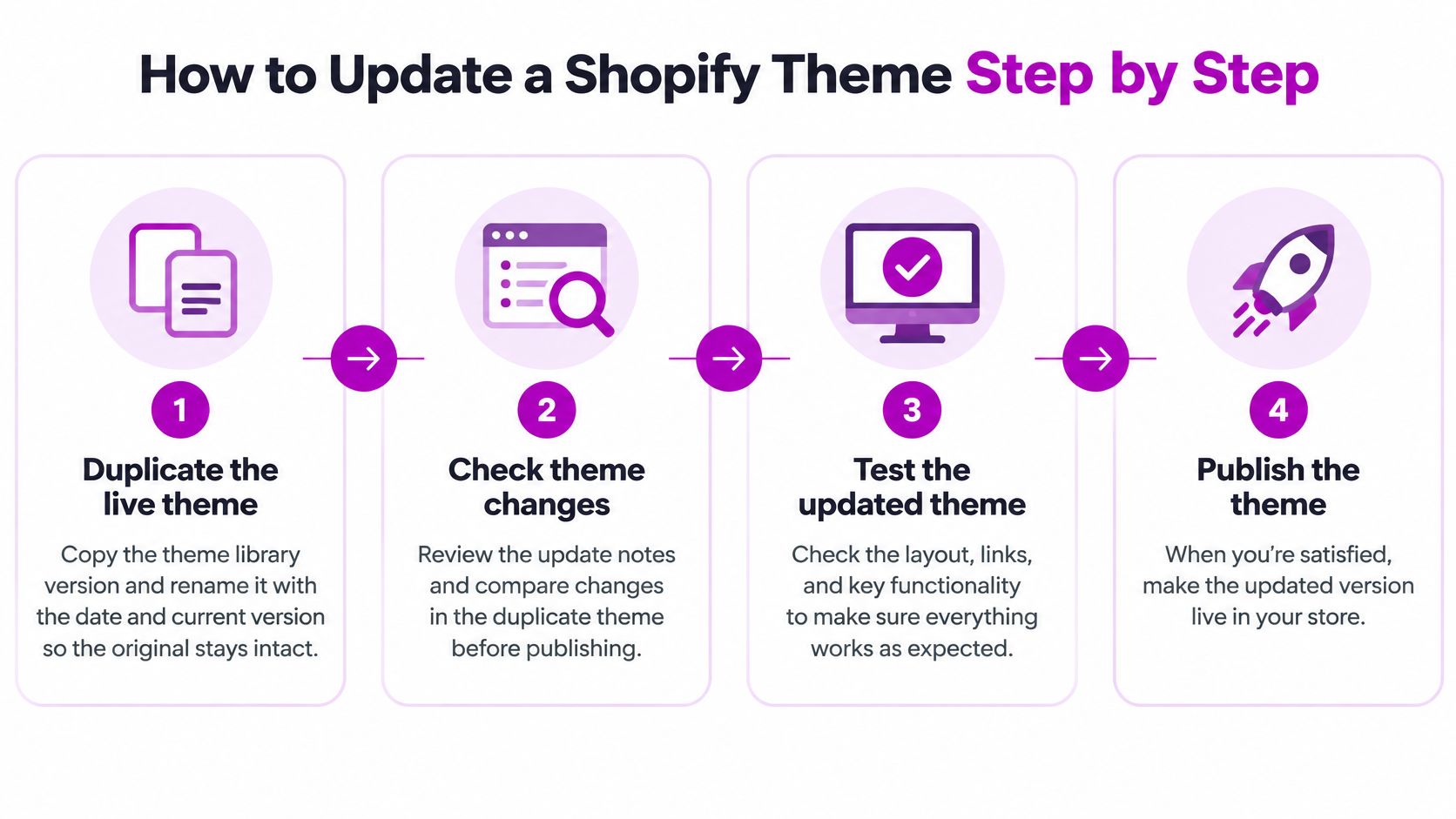
Duplicate and identify the live theme. In the theme library, open the live theme's actions menu and duplicate it, then rename the backup with the date and current version. Keep this copy untouched; a backup that becomes your development theme is no longer a dependable recovery point.
Check theme capacity before creating further copies. Shopify's Admin REST API theme documentation states that a store can have a maximum of 20 themes, including one published theme. If the library is full, remove obsolete drafts only after confirming they aren't needed for recovery or an active project.
Read the release notes before accepting the update. Identify changes to product forms, cart behavior, app integration, typography, and section schemas, then map them to your audit sheet. Don't assume a release described as a bug fix can't affect a custom integration.
Generate the updated, unpublished copy using the available update action, or merge the developer's release into your working draft. Record its theme ID and version so nobody confuses it with the backup; Shopify may create a separate updated draft rather than modify the duplicate you selected.
Restore and validate the store's behavior
Reapply necessary customizations deliberately. Start with required custom code, then verify section settings, metafield connections, app blocks, and embeds. Adapt customizations to the new markup and settings schema instead of overwriting new files with old versions.
Preview the draft on desktop and a real mobile device. Use an existing test product or representative product to exercise variant selection, cart updates, and checkout initiation, then inspect every customized template and relevant market or language. A draft theme isn't a separate store, so avoid changing shared product data just to make a preview look correct.
Publish only after sign-off, during a low-traffic window for your main market. Assign someone to monitor incoming orders, storefront errors, and customer-support messages immediately afterward. Avoid launching alongside a new app installation or campaign redesign, because simultaneous changes make failures harder to isolate.
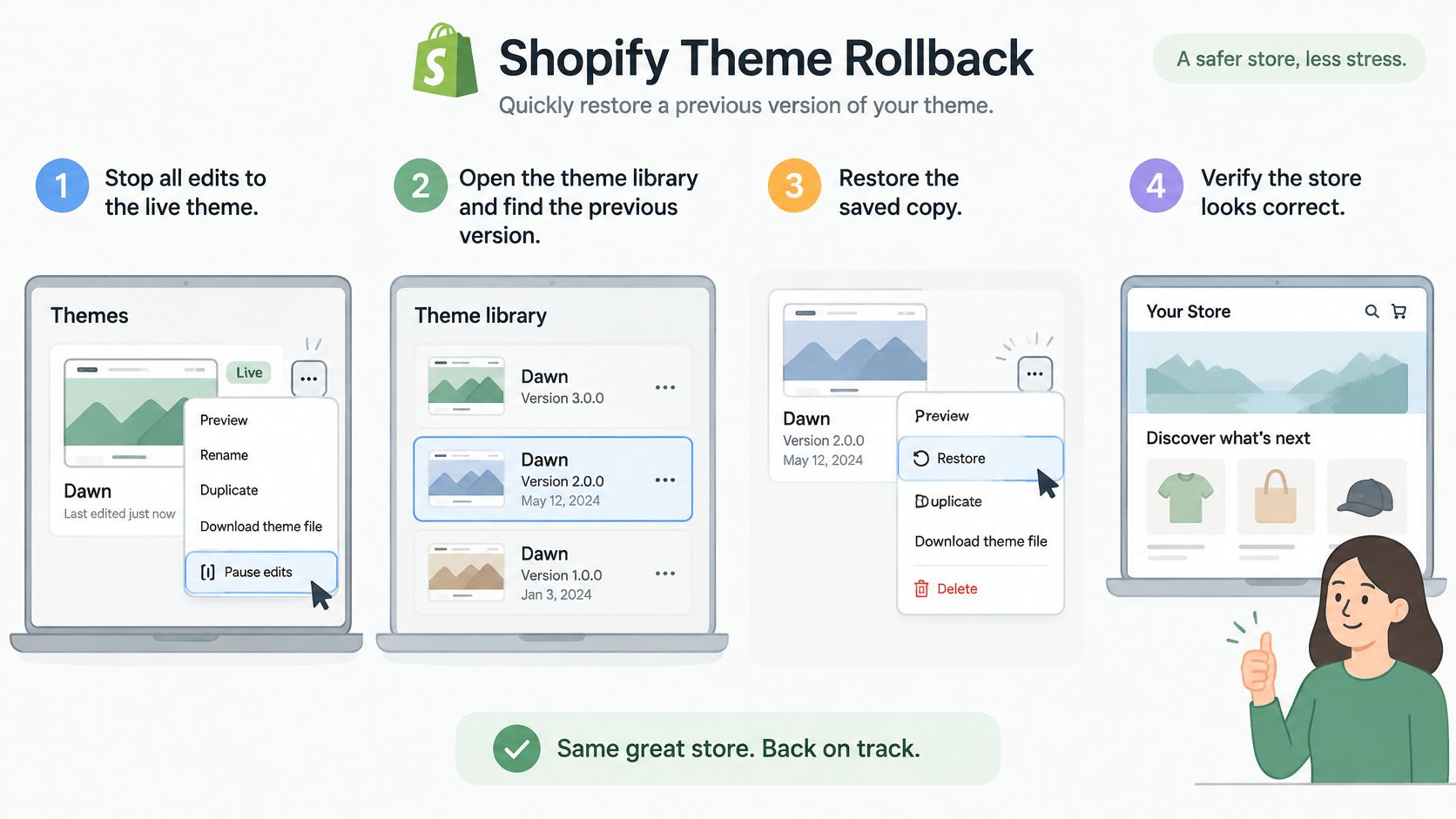
Stop edits to the live theme. Tell developers, marketers, and app support that you're rolling back. Preserve console errors, failing URLs, and screenshots before anyone overwrites useful evidence.
Find the previous version in Online Store > Themes. Confirm its saved name and preview the affected purchase path so you don't accidentally select an older experimental draft.
Publish the known-working version. Record when you switched themes and retain the failed release as an unpublished draft for investigation. Don't delete the evidence just because the storefront works again.
Open a fresh browser session and test a live product's variant picker, cart, checkout initiation, and mobile layout. If an app serves stale output, use its documented cache refresh; don't assume Shopify provides a universal app-cache purge.
Reconcile settings changed during the incident. Compare promotional banners, app embeds, and theme settings with the intended storefront state. Re-enter necessary edits selectively rather than copying the broken release's configuration wholesale.
Review orders, payment status, analytics, and available error logs for the affected window. Distinguish missing tracking events from missing purchases, and inspect failed purchase attempts rather than assuming successful recovery means no customers were affected.
Log the failed release and the next action. Record the version, symptom, affected templates, confirmed cause, and proposed fix. Assign an owner before scheduling another publish.
A manually prepared update remains unpublished until you publish it. That separation lets you inspect the storefront without directing ordinary customer traffic to the draft, but it doesn't isolate everything: app configuration, navigation, products, and other store-level resources may be shared.
Keep the live theme out of the editing workflow. Apply changes to the candidate release, not to the storefront customers are currently using.
Also record which settings your team is allowed to change during testing. A merchandiser editing the published homepage while a developer prepares the draft can create conflicting versions of the same campaign content.
Performance and QA Checks Before Going Live
Use the Theme Store quality bar as a floor, not proof that the update is safe for your business. A candidate that passes an absolute benchmark can still be materially slower than your current storefront.
Pre-publish QA thresholds
The numerical benchmarks below come from Shopify's Theme Store requirements, which specify minimum average Lighthouse performance and accessibility scores of 60 and 90, respectively, and speed-score weighting of 17% home, 40% product, and 43% collection.
| Check | Target | How to measure |
|---|---|---|
| Lighthouse performance, average across pages | Meet the published minimum and avoid meaningful regression | Chrome Incognito, repeated runs per URL, median score |
| Lighthouse accessibility, average across pages | Meet the published minimum without losing existing accessibility behavior | Same controlled protocol as performance, plus manual checks |
| Page weighting for the aggregate speed score | Prioritize collection and product regressions | Compare page-type results using the published weighting |
| LCP, INP and CLS by market and device | Unchanged or better than baseline | Web Performance Dashboard by page type and device after publication |
| Add to cart and checkout initiation | Unchanged from baseline | Functional tests before publishing; comparable analytics afterward |
Run Lighthouse in a clean Chrome Incognito session, with extensions disabled, and repeat each URL test rather than relying on a single score. Use the median result and keep device emulation, network conditions, storefront content, and test configuration consistent.
Test representative home, product, and collection pages on desktop and mobile. Preview tooling can add overhead, so document how you opened the draft and don't mistake a preview-environment difference for a theme regression.
Check interactions and real-user evidence
Walk through variant switching, sold-out states, add to cart, quantity changes, cart removal, checkout initiation, search, forms, and mobile navigation. Open the browser console and Network panel while doing it; a button can appear responsive while its request fails.
Check keyboard navigation, visible focus, drawer dismissal, and form error messages manually. Lighthouse won't establish that every customer can operate your product picker or cart.
Review the live store's Web Performance Dashboard before publishing to understand existing LCP, INP, and CLS problems by page type, device, and geography. A draft won't have representative real-user traffic, so use lab tests for pre-publish comparison and validate the new release's real-user results as they become available.
If lab performance falls, inspect duplicate scripts, image loading, render-blocking assets, and third-party tags. The Shopify page speed optimization guide gives additional troubleshooting context.
Publish only after reviewing the baseline real-user evidence and candidate lab results, with recovery ready. Then monitor actual customer behavior rather than treating the pre-publish score as the final verdict.
Common Breakages After an Update and Their Fixes
Start with browser-console errors and errors shown in the theme editor. Compare the candidate against the untouched backup, reproduce the failure on the affected template, and change a single variable before retesting.
Shopify's theme changelog records changes including stricter Liquid parsing, automatic CSS subsetting for stylesheet tags, app-block limits, and font-library updates. These changes warrant more than a screenshot comparison: they can affect rendering, script behavior, and maintenance.
Post-update symptoms, causes and fixes
| Symptom | Likely cause | Fix |
|---|---|---|
| Section blank or missing on a template | Custom code removed from the updated copy or template JSON changed | Restore the required file from the backup and re-add the section |
| Page slower after update | App script or embed now loaded twice | Confirm duplicate loading, then turn off the redundant app embed |
| Add to cart or variant picker stops working | JavaScript override or selector changed | Compare the script with the backup and adapt the selector or event integration |
| Mobile layout broken | Old CSS override no longer matches new markup | Adapt the override and test at each affected breakpoint |
| Blank page or Liquid error | Stricter Liquid parsing exposes a syntax problem | Inspect and fix the flagged line in the editor or error output |
| Fonts changed | Font-library selection altered by the update | Reselect an available font in theme settings and inspect wrapping |
| App block missing from editor | Block removed, unsupported in that section, or over the applicable limit | Check section support, re-add the block, and remove unused blocks |
| Settings reset after publish | settings_data.json overwritten | Recover compatible settings from the backup after checking schema changes |
Fix the integration, not just the symptom
A Liquid error's flagged line is a starting point, not necessarily the whole cause. Inspect surrounding conditions, loops, and rendered snippets, then run Shopify Theme Check. Avoid hiding the output with CSS while leaving the rendering failure unresolved.
For cart failures, inspect the request payload and response as well as the click handler. A custom script may still find the button but submit an outdated variant value, or attach to a component the theme now replaces dynamically.
App blocks need context too. Confirm the app is installed, its extension is available, and the destination section permits that block type before treating the problem as a capacity issue.
Product markup deserves a separate check after restoring badges, prices, or review widgets. RankEngine's resource on AI visibility through cleaner product markup is useful context when auditing structured data; check that theme and app output don't create contradictory product information.
A visual workaround isn't a finished fix if it leaves purchasing, accessibility, or tracking broken.
Don't rebuild a complex custom section while a broken release remains live. Restore service first, then repair and retest the unpublished candidate.
How to Roll Back a Theme in Minutes
The fastest recovery is usually to publish the known-working previous theme, not debug the broken storefront under customer traffic. Choose recovery when purchasing is blocked, a critical app fails, or you can't isolate the fault promptly.
Keep this recovery sequence accessible to whoever has publishing permission.
Restore service and preserve evidence
Know what rollback doesn't undo
Orders aren't stored in theme files, so publishing an earlier theme doesn't cancel or remove purchases. Theme rollback also doesn't reverse changes to products, navigation, app configuration, or other shared store resources.
That distinction matters if an app installation accompanied the update. Restoring the theme may leave the app's store-level changes active, so test the complete customer journey rather than relying on the restored design.
For a visual walkthrough of the theme-update workflow, use the video below.
Keep the dated backup until the replacement has completed a representative sales cycle, including your normal promotions and merchandising activity. A quiet launch window won't expose every interaction your customers depend on.
Decide Whether to Publish or Hold the Update
A theme update is a code change with checkout risk, so publish only when the candidate passes the checks that matter to your store. Confirm that it meets the performance criteria, the customer journey works, customized templates render correctly, and the recovery version is identifiable. A new design or update notification alone is not a release reason.
Hold publication if testing reproduces a cart or checkout-initiation failure, mobile performance worsens for an important customer segment, or a business-critical app has unresolved compatibility questions. A working standard product page does not offset a broken subscription purchase flow.
Separate necessary work from optional improvements
If the update is sound apart from a custom section, decide whether that section can be left out safely. A decorative campaign module and a delivery-date selector affect customers differently. Get approval before removing either, and record which templates and customer journeys are affected.
Keep optional layout experiments out of the release. Otherwise, QA has to distinguish update defects from new design changes, and the publishing decision becomes harder to assess.
Before release, confirm that someone is responsible for QA sign-off and that the publishing decision has a clear owner. Set the post-launch checks for orders, errors, support messages, and app behavior, including the next busy trading period. Agree in advance which failures call for rollback rather than a live patch.
Get help when customization dominates the release
The more custom code and app dependencies a theme has, the more work it takes to assess compatibility and prepare the update. ECORN is an official Shopify Partner Agency. Its Shopify development covers minor theme adjustments through custom theme development, using Shopify, React, Node, and Liquid.
Contact ECORN to discuss whether its Shopify development team can help audit your customizations and prepare the update for testing. The release decision should rest on evidence: customers can browse and complete purchases, and the updated code meets your store's performance criteria.



Shopify Website Design Packages: What You Actually Get

How to Choose a Shopify Plus Web Design Agency in 2026
Shopify Plus Ecommerce Agency: How to Pick the Right One
Shopify Themes Retina: How to Serve 2x Images

How to Cross Sell on Shopify Without Friction

Best Shopify Theme for Custom Products Compared
Multi Store Inventory Management: A Practical Guide

SEO Consulting for Ecommerce: A Practical Guide
Shopify Theme Updater App: A Safe Update Playbook
Shopify Git Integration: A Developer's Guide to 2026
Headless Ecommerce Development Services Explained

How to Build a Shopify Clothing Website That Converts
How to Launch a Box Subscription Business in 2026

Luxury Skincare Branding Playbook That Converters
10 Best Podcast Ecommerce Shows for Store Growth in 2026
Shopify Developer Hourly Rate: What to Pay in 2026
Critical Shopify Setup Errors That Are Secretly Sabotaging Your Store
Ecommerce Conversion Tracking: The Complete How-To Guide

Shopify Design Agency: How to Pick the Right Partner
Mastering Multi Store Management on Shopify

Scale Shopify Store
10 Shopify App Ideas Worth Building in 2026
Conversion Rate Optimization for Landing Pages: The Playbook
Shopify Plus Automation: A Guide for 2026
10 Social Selling Platforms for Shopify Merchants

Shopify Website Design Examples: 7 Stores Worth Studying
7 Ecommerce Newsletter Examples for Shopify Brands

One Product Shopify Store: Build and Scale

Mobile Pop Up Strategy for Shopify Stores That Converts
Sitemap for Shopify: How to Find, Optimize, and Submit It
7 Single Product Websites Worth Emulating
Product Variants Shopify: The Complete 2026 Guide

Ecommerce Analytics Consulting for Growth

What Is AI Integration for eCommerce

How to Choose the Right eCommerce Website Development Firm

E Business Strategy Implementation
Conversion Tracking Setup for Shopify Stores
BigCommerce vs Shopify Plus Which Enterprise Wins in 2026
Shopify Theme Kit: Setup, Commands, and Migration Guide
Shopify Extension Development: A Practical 2026 Guide
Shopify Speed Score Explained and How to Improve It
Shopify Mobile Optimization: The 2026 Playbook
How to Add Subcategory in Shopify for Better UX
How to Implement Structured Data for Ecommerce in 2026

SEO App Mobile: Shopify Store Optimization Guide
Shopify Plus Support: What It Includes and How to Choose

Google Ads for Shopify: The Complete 2026 Playbook

Shopify New York: How to Find and Hire the Right Agency
Google Search Console for Shopify: The Complete Setup

First Party Data Collection for eCommerce Growth
FAQ Online Store Guide: Build and Measure It Right
Do FB Ads Work for eCommerce in 2026?
One Page Checkout for Shopify: Design and Implementation
Shopify GraphQL vs REST: The 2026 Developer Decision
Shopify Ecommerce Consulting: Strategy, Pricing &

Are Reddit Ads Worth It for eCommerce Brands
Shopify Title and Meta Description: A Practical 2026 Guide

Product Video Best Practices for Shopify Brands
Real-Time Inventory Management: A 2026 Guide

AI Chatbot Integration for Shopify Stores
Affiliate Program Management: A Shopify Guide
10 Best Performance Monitoring Tools for Shopify in 2026
Digital Asset Management for eCommerce Brands in 2026

Every Type of Facebook Ads Explained for eCommerce Growth
Product Information Management Explained for Shopify Brands
Support Ticket System: A Guide for Shopify Stores

10 Best Customer Service Tools for Shopify in 2026

Can I Start a Business with No Money? a 2026 Blueprint

What Sells Good on Etsy: Best Niches for 2026

Shopify Add to Cart Button: A Practical 2026 Guide

Customer Feedback Automation: A Practical eCommerce Guide
Critical Rendering Path: A Guide for Shopify Stores

How to Promote on TikTok for eCommerce in 2026

B2B eCommerce Consulting That Drives Real Revenue
10 Best Practices for Site Navigation in 2026
Return vs Refund for Shopify Stores: A Practical Guide
What Is Customer Lifetime Value and Why It Matters

What Is Voice of Customer Research for eCommerce

SMS Marketing for Ecommerce That Actually Converts

Master How to Improve Email Deliverability in 2026

Top 8 eCommerce Partners NYC for Shopify Brands in 2026

Machine Learning for Ecommerce: Boost Your Shopify Store

Beauty Market Research: Your 2026 Growth Guide

Shopify International Expansion: A 2026 Roadmap

What Does CRO Stand for in Business: Understanding CRO

Shopify Visual Merchandising: A Playbook for Higher Sales
Shopify Landing Page Design: Master Conversion in 2026

10 Best AI SEO Optimization Tools for Shopify in 2026

Agentic AI for Ecommerce: Boost Your Sales in 2026
Mastering Email Marketing Data for eCommerce Growth

Conversion Rate Optimisation Australia: Boost Your Sales
Conversion Rate Optimization AI: Your Shopify Store Guide

10 Product Bundling Strategies for Shopify in 2026
How to Increase Customer Lifetime Value: A Shopify Playbook
AI Customer Service Automation: Shopify Guide 2026
Clean Website Design: A Shopify Conversion Playbook

Omnichannel Retail Strategy: A Shopify Playbook
Product Data Enrichment: A Guide for Shopify Brands
Instagram Shopping Features a Guide for Shopify Stores
What Is Revenue Optimization: A Holistic RevOps Guide


newsletter in your inbox